Installing Pickscan on iPhone and iPad (TestFlight)
Before you begin
- iOS 17 or later: The app requires an iPhone or iPad running iOS or iPadOS 17 or newer.
- Apple ID: You must have an active Apple ID configured on your device to access TestFlight.
- Internet connection: Pickscan requires an active Wi-Fi or mobile data connection to synchronise scans with your store. It does not work offline.
- Companion status: The iOS app is designed as a companion to our Android and web interfaces. It does not yet include all of the features available on Android.
Install Pickscan through Apple TestFlight using this public link (open it on the iPhone or iPad you will use for picking):
https://testflight.apple.com/join/GEhNbcBx
For install or pairing problems, email help@smartcode.co.uk.
Installation steps
To install the Pickscan app, follow these steps:
- Install TestFlight: On your iPhone or iPad, open the App Store, search for TestFlight (by Apple), and install it.
- Open the Pickscan TestFlight link: On that same device, open https://testflight.apple.com/join/GEhNbcBx.
- Accept the invite: In TestFlight, tap Accept (or Start Testing) for Pickscan.
- Install Pickscan: TestFlight will show the Pickscan app. Tap Install (or Update if a previous version was installed).
- Open Pickscan: Once the installation finishes, tap Open to launch the app.
First launch and device pairing
First launch uses the same device pairing as Android. Operators do not sign in with Pickscan web or Android account credentials. On iOS, pairing is QR-only.
On first launch the app asks you to choose the platform your orders live on (for example Linnworks, Shopify, WooCommerce, Veeqo, or another integration that offers Pickscan).
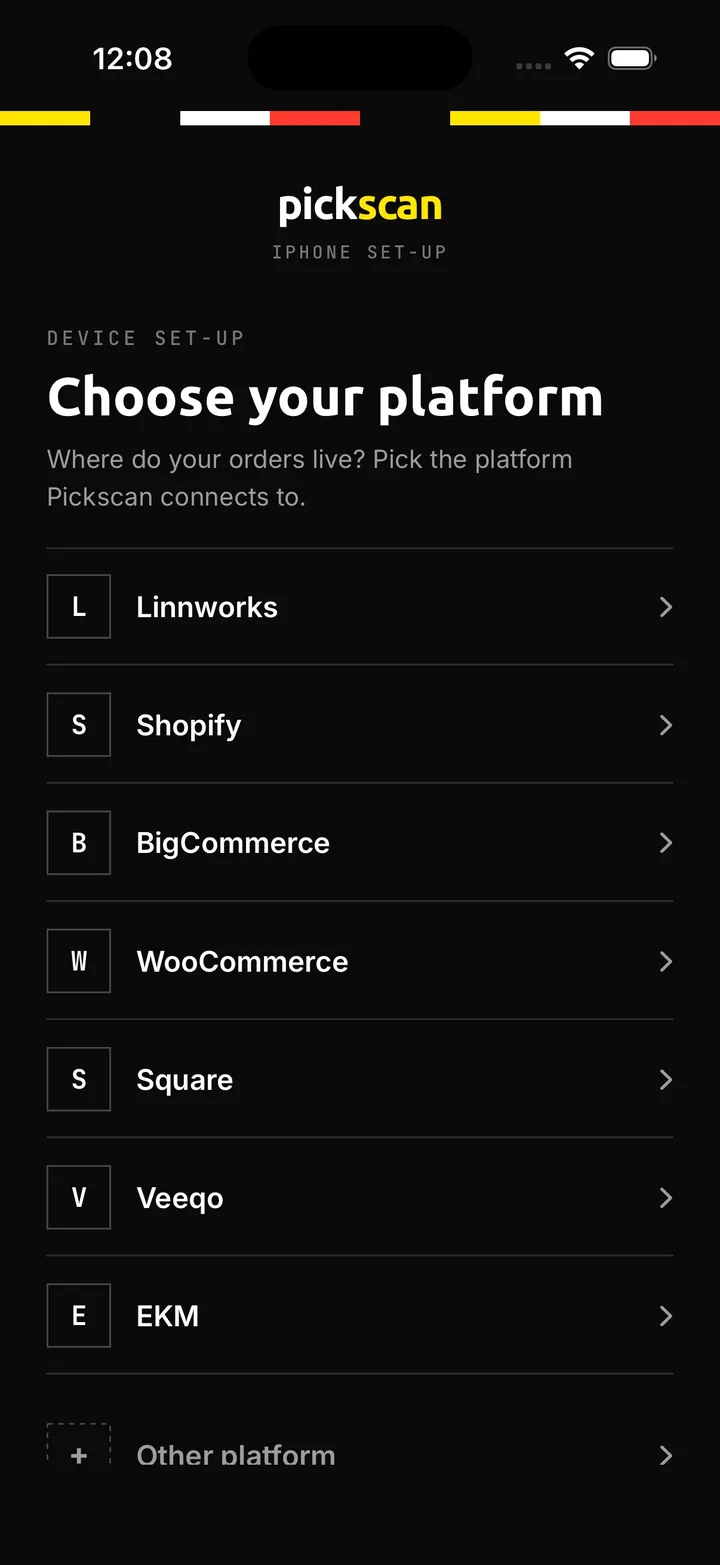
- In your Pickscan admin (Shopify, Linnworks, WooCommerce, Veeqo, or any other integration that offers it), open Devices and select Add device.
- A QR code appears. Codes refresh every 5 minutes. Generate a fresh code if the previous one has expired.
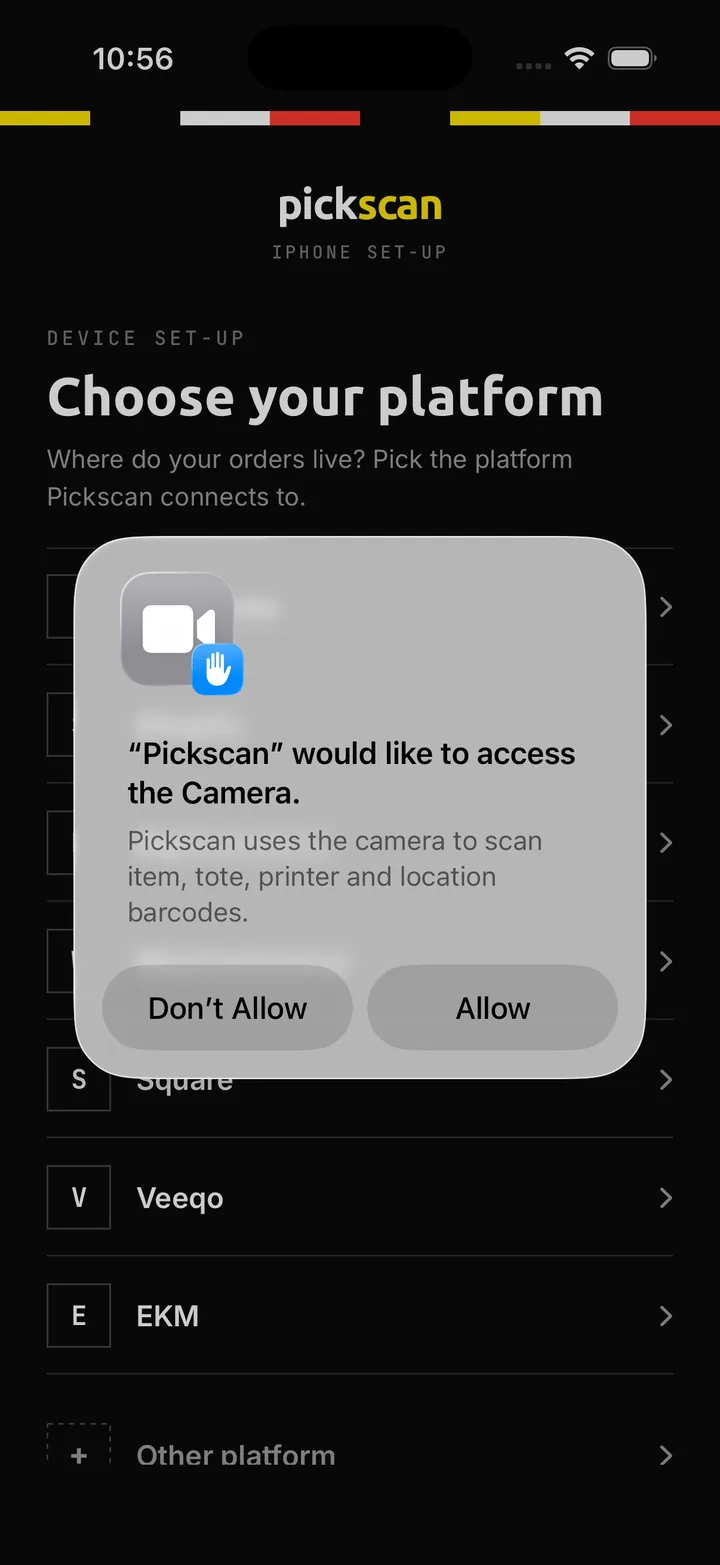
- On your iPhone or iPad, open Pickscan. When prompted, allow camera access so you can scan the QR code. Camera permission is requested as part of this pairing step.
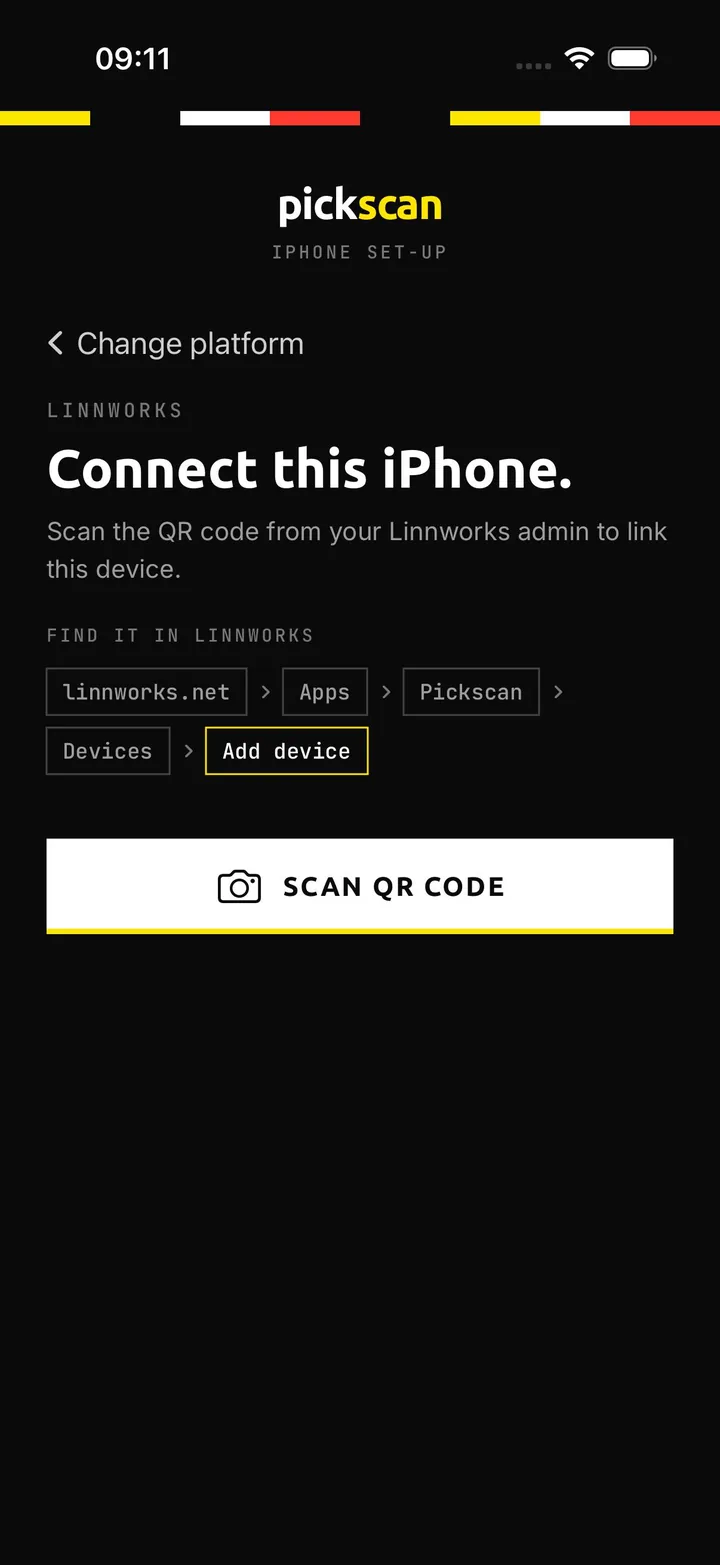
- Scan the QR code. On the connect screen, tap SCAN QR CODE and point the camera at the QR code from your admin.
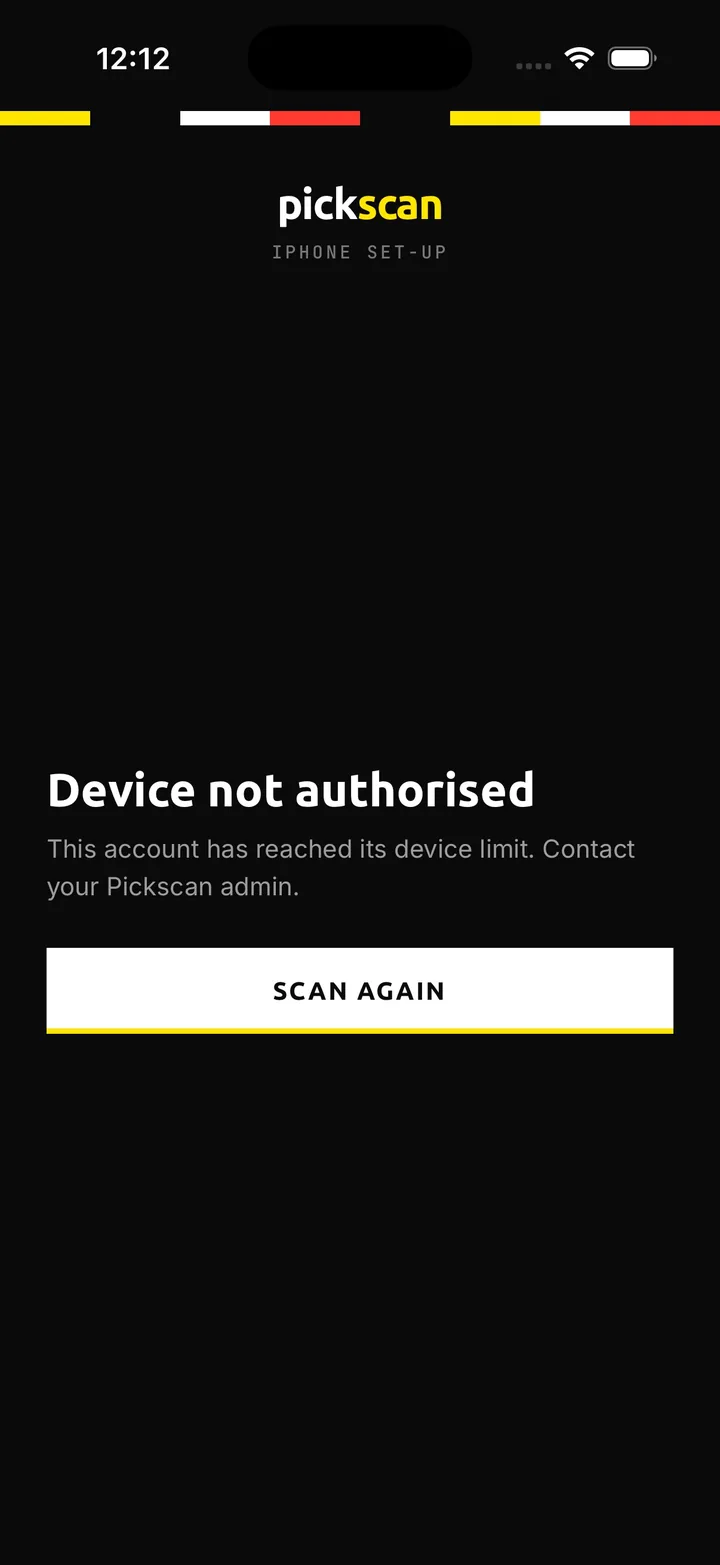
If the account has reached its device limit, you will see Device not authorised. Contact your Pickscan admin, then tap SCAN AGAIN.
- Name the device and finish pairing. After a successful QR pair you will see Connected, the store connection (for example via Linnworks), and a device name field. Enter how this iPhone should appear under Devices in your admin, then tap FINISH SET-UP.
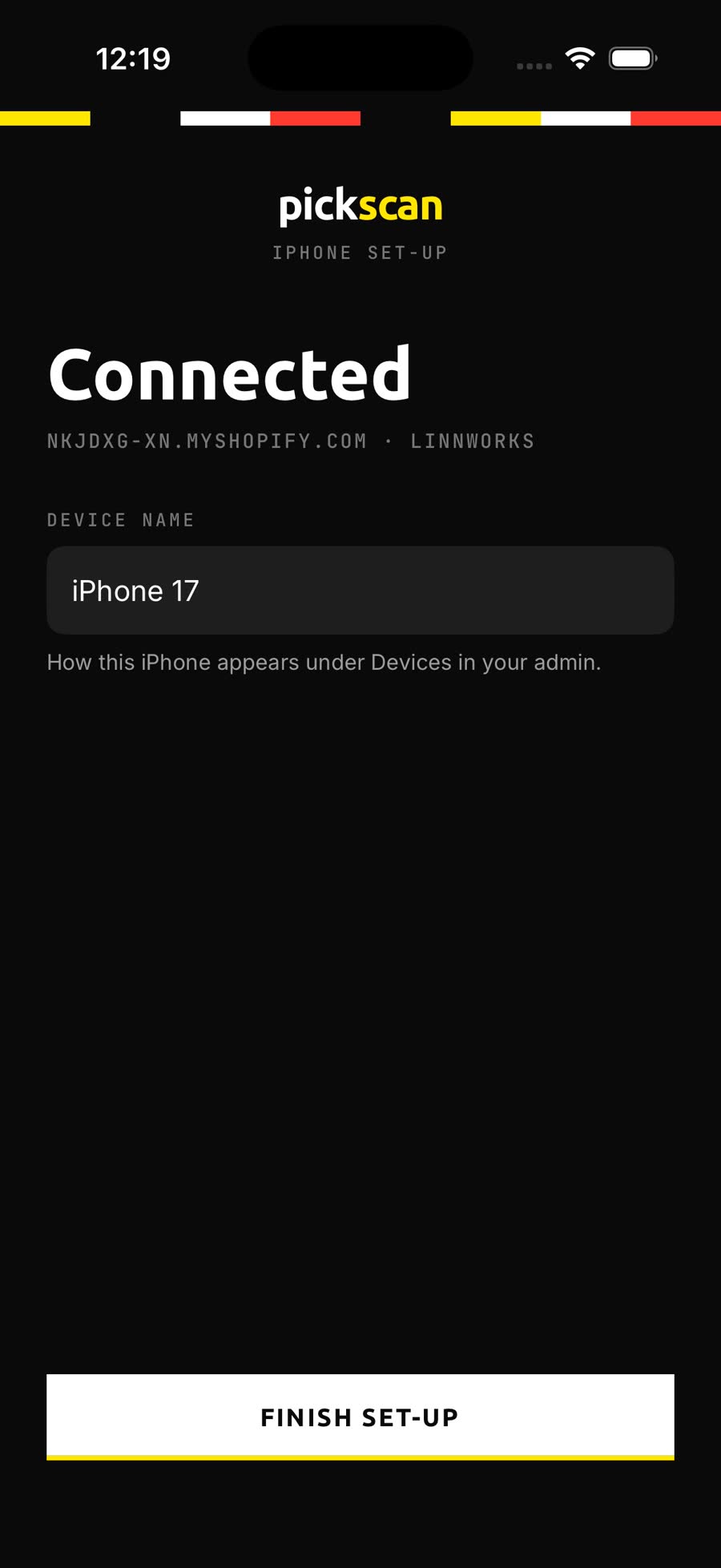
- Set up Face ID and/or a PIN when prompted.
PIN
After pairing, enter your 4-digit PIN to open the app. The PIN is not limited to one store platform.
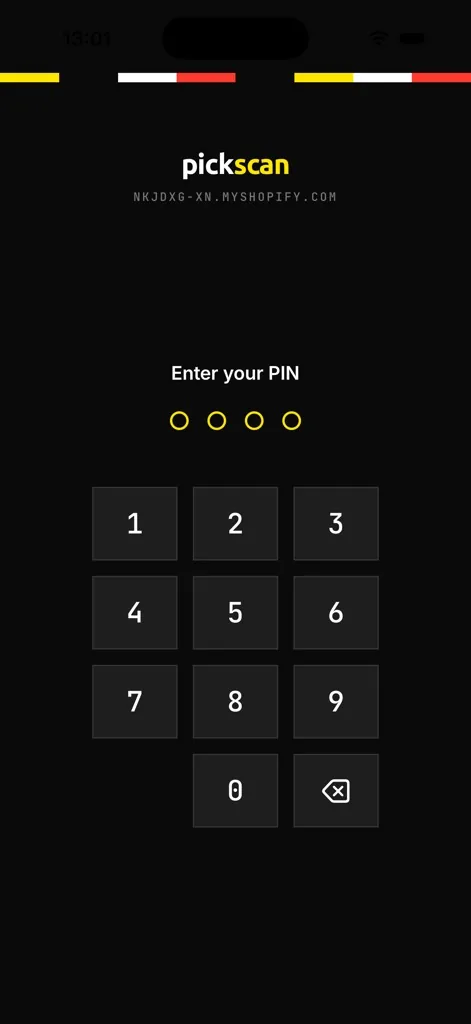
After pairing, the device appears in your Pickscan admin Devices list.
After set-up
After Finish set-up the app opens on Orders with live channel orders (Linnworks example). Tabs are Orders and Stock.

During picking you can enter a barcode from the keyboard instead of the camera. Tap the keyboard icon, then Enter barcode, type or paste the barcode, and tap Add.
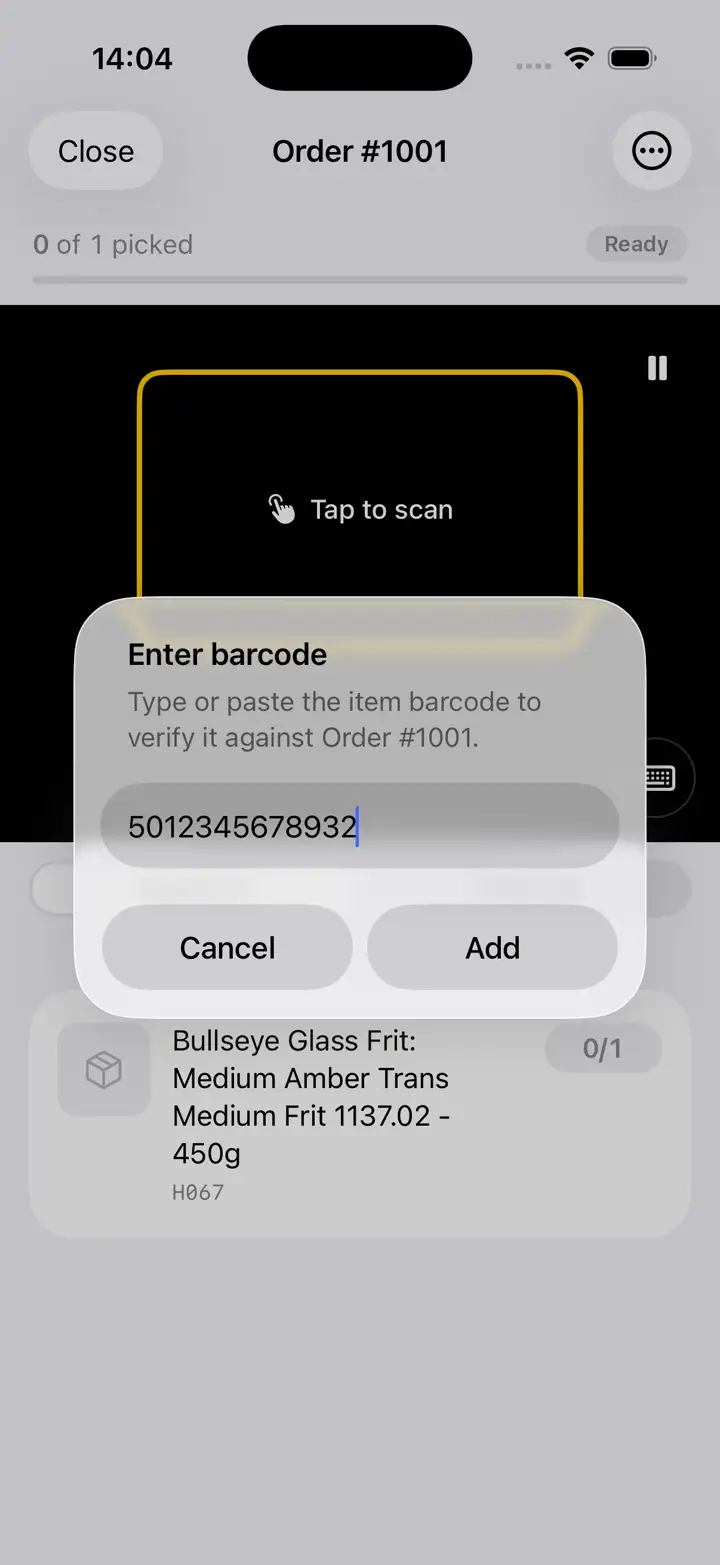
On iPad, the same app and pairing process apply. iPad uses a split view with Orders and Stock.
For more on device codes across platforms, see Connecting your device with a device code.