Adding and testing printers in Pickscan Print
The Printers page lists the printers Pickscan can send jobs to. When you first connect, Pickscan Print adds the printers it finds on the computer. You can add more, rename them, set their type and remove the ones you don't need.
Before you begin
- Install the printer in your computer first, with its normal driver, and make sure it can print from other apps.
- Pickscan Print is connected — the Status page shows
Connected.
Adding a printer
-
Open Printers
Open Pickscan Print and click Printers in the sidebar. The number next to it is how many printers Pickscan can use.
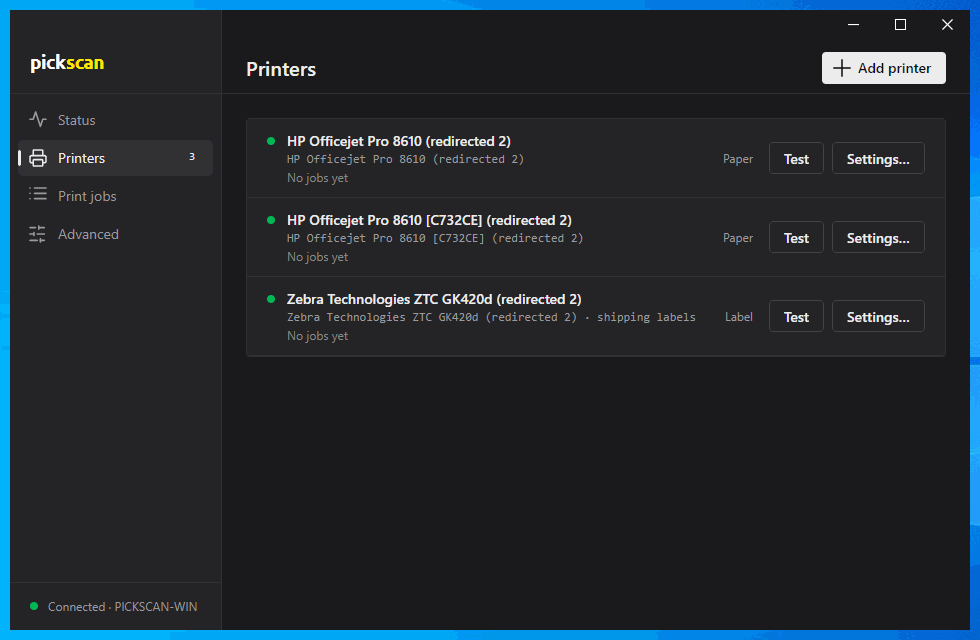
The Printers page, with Test and Settings… on each printer -
Click Add printer
Click Add printer at the top right and pick the printer from the list of printers installed on this computer.
-
Choose Label or Paper
Choose
Labelfor a label printer such as a Zebra, orPaperfor an ordinary printer. This tells Pickscan how to send it jobs.
Choosing the printer for shipping labels
Labels you buy in Pickscan print on the printer marked for shipping labels. Click Settings… on your label printer, tick Use for shipping labels and click Save. Only one printer can be chosen; ticking another one moves the setting to it. Its row then shows shipping labels under the printer name.
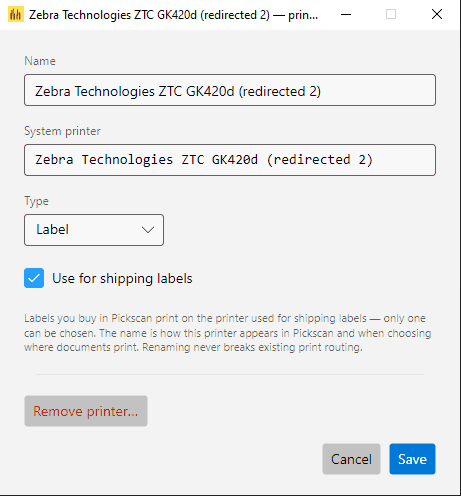
If no printer is ticked, the Pickscan app won't offer to send bought labels to this computer. Labels in ZPL format only go to a Label printer; PDF labels can print on any printer.
Renaming, changing type or removing
Click Settings… on a printer's row. You can give it a friendly name (for example Packing bench labels), switch it between Label and Paper, or remove it with Remove printer…. Renaming never breaks anything already set up in Pickscan — the same printer just shows its new name.
Sending a test
Click Test on the printer's row. A test label or page is sent through Pickscan exactly like a real job, so if it prints, real jobs will too. Its line under the printer name changes to Printing now… and then Just printed.
- A label test prints the Pickscan test label with a barcode.
- A paper test prints a one-page test document.
Tips
- A green dot next to a printer means the computer can see it. Amber means Windows can't currently find it — check it's switched on and connected.
- Label printers print raw labels, so check the label size loaded matches your courier labels (usually 4 × 6 inch).
- Printers shared through Remote Desktop appear with
(redirected …)in their name and only exist while that remote session is open. They can't print ZPL labels and may print labels at the wrong size. Use printers connected to the computer itself for a print station.