Installing Pickscan Print on Windows
Pickscan Print for Windows installs in a few seconds. It installs just for the signed-in Windows user, so you don't need administrator rights, and it starts automatically each time that user logs in.
Before you begin
- Use the packing-bench computer. Install Pickscan Print on the computer your printers are connected to — not the computer you happen to be using to open your admin.
- Windows 10 or 11.
- Your Pickscan admin open, so you can get a device code once it's installed.
Installing
-
Download the installer
In your Pickscan admin, go to Devices, click Add device and choose Print station. Click Download for Windows. This downloads
pickscan-print-windows-x64-setup.exe. -
Run it
Open the downloaded file. If Windows shows
Windows protected your PC, click More info, then Run anyway.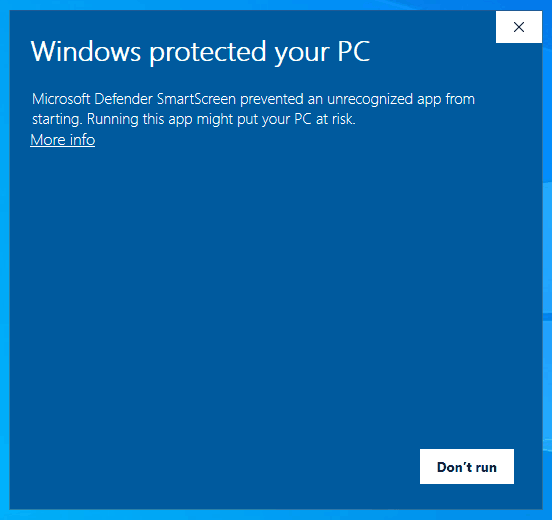
Windows protected your PC — click More info 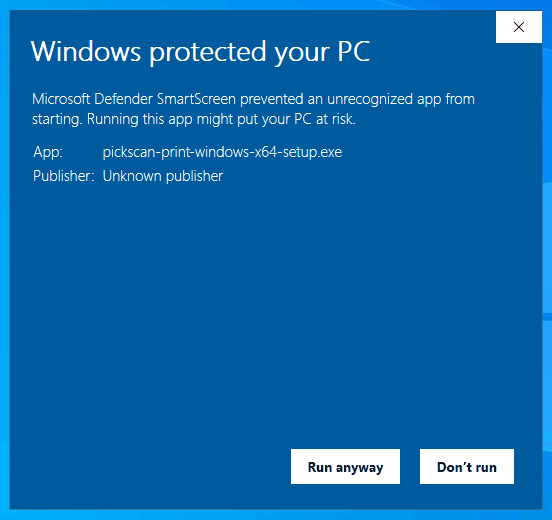
Then click Run anyway NoteThis warning appears for new apps that Windows hasn't seen many times yet. It is safe to continue with the installer you downloaded from your Pickscan admin.
-
Wait for it to open
Pickscan Print installs and opens by itself, on the
Connect this computerscreen. A Pickscan Print shortcut is added to your Start menu and desktop.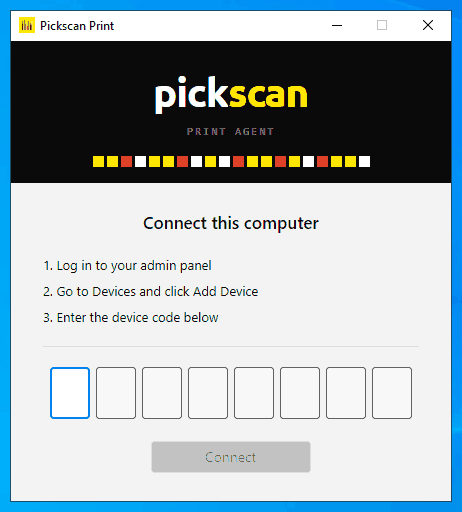
Pickscan Print opens on Connect this computer -
Enter your device code
Follow the steps on screen:
Log in to your admin panel→Go to Devices and click Add Device→Enter the device code below. Type or paste the 8-digit code and click Connect.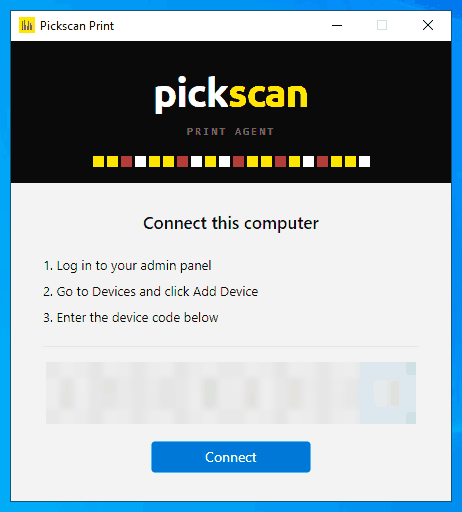
Enter the 8-digit device code and click Connect When it connects, the main window opens on Status, showing
Connected.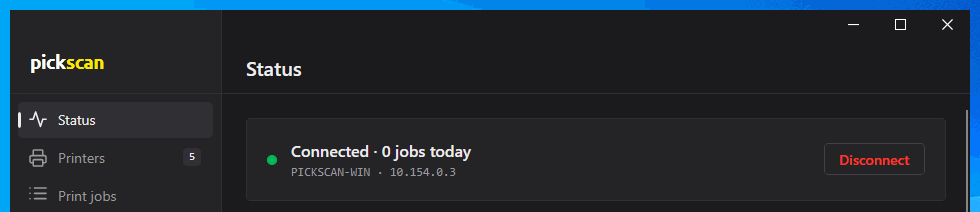
Connected — this computer is now your print station
Tips
- Find the tray icon. Pickscan Print's yellow icon sits next to the clock. Windows sometimes hides new icons behind the ^ arrow — drag it onto the taskbar so you can see its status at a glance.
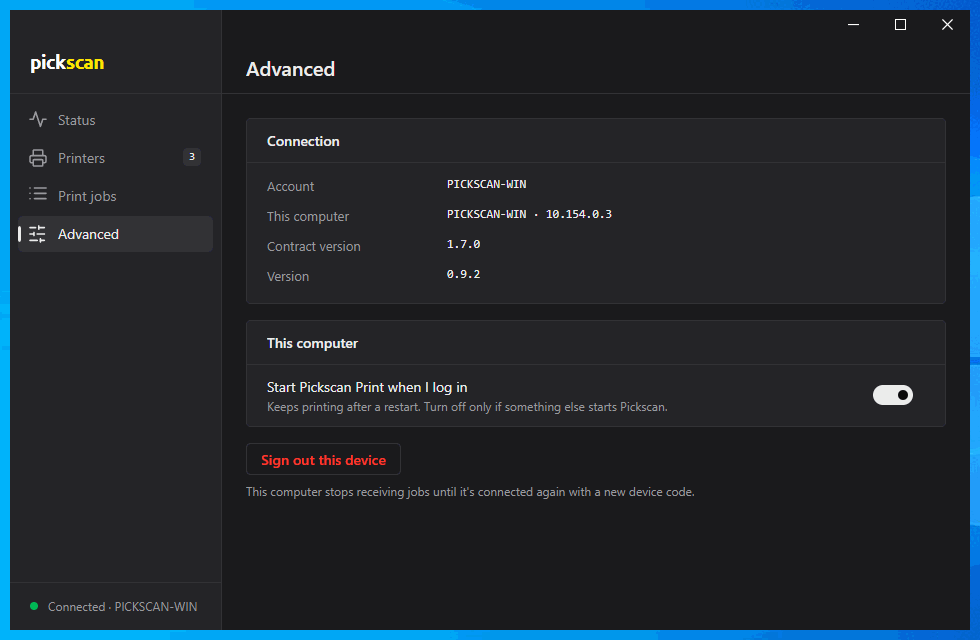
- Starting at login is on by default. You can turn it off under Advanced → This computer →
Start Pickscan Print when I log in, but a print station that doesn't start after a restart won't print until someone opens it. - Code not accepted? Codes work once and expire after a few minutes. Generate a new one in your admin and try again.