Building a stock list with List mode on Android
On the Android Stock tab, List mode turns the handheld into a fast way to build a restock list while you walk the aisles. Scan an item once for every unit you want, and the list counts the repeats for you. When you are done, export the whole list as a CSV, sorted by bin rack, and send it to whoever fills it.
There is no keypad and no quantity prompt: the quantity is simply how many times you scan the item. Scanning the same barcode five times means five units.
Before you begin
- Device pairing: the handheld must already be paired to your store. Pair it via Devices → New Device in your Pickscan admin, then sign in with your PIN.
- A scanner: List mode is built for a hardware trigger (for example a Zebra TC21). Each trigger pull is one unit.
- Network connection: keep Wi-Fi or mobile data on, so item names and stock figures fill in as you scan.
List mode is the third option on the Stock-tab toggle, next to SCAN and PUT AWAY. It is for building and sending a list, not for adjusting stock — nothing you do here changes your stock levels.
Building and sending a list, step by step
-
Open the Stock tab and choose LIST
Open Pickscan and tap the STOCK tab. Under the search field, tap LIST so it is the selected mode (black). The body shows a scan frame and
Scan to start building a list.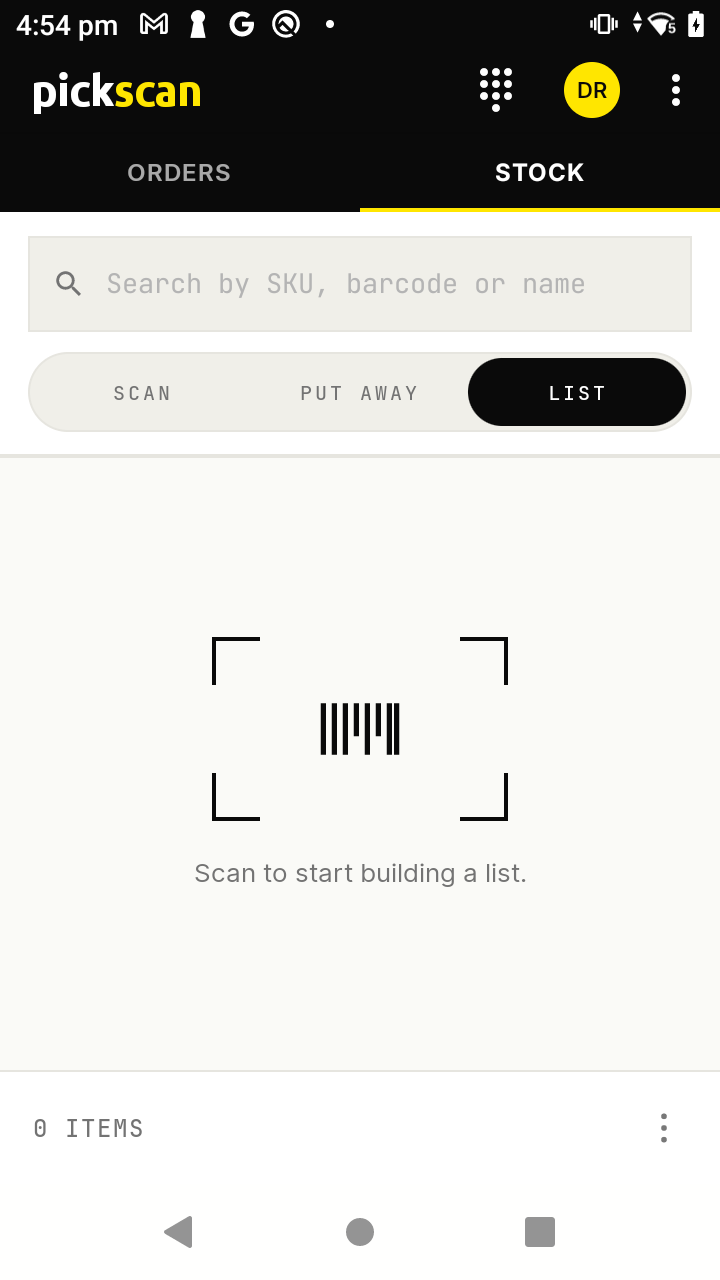
List mode ready and empty, on the Stock tab -
Scan an item, once per unit
Pull the trigger on the item. It appears at the top of the list with a quantity of
1, its name and its SKU. Scan the same item again and the quantity goes up —2,3, and so on — and the line jumps back to the top so the item you just scanned is always the one you see first.Scan a different item and it starts its own line above the rest. A footer at the bottom keeps a running
N ITEMScount.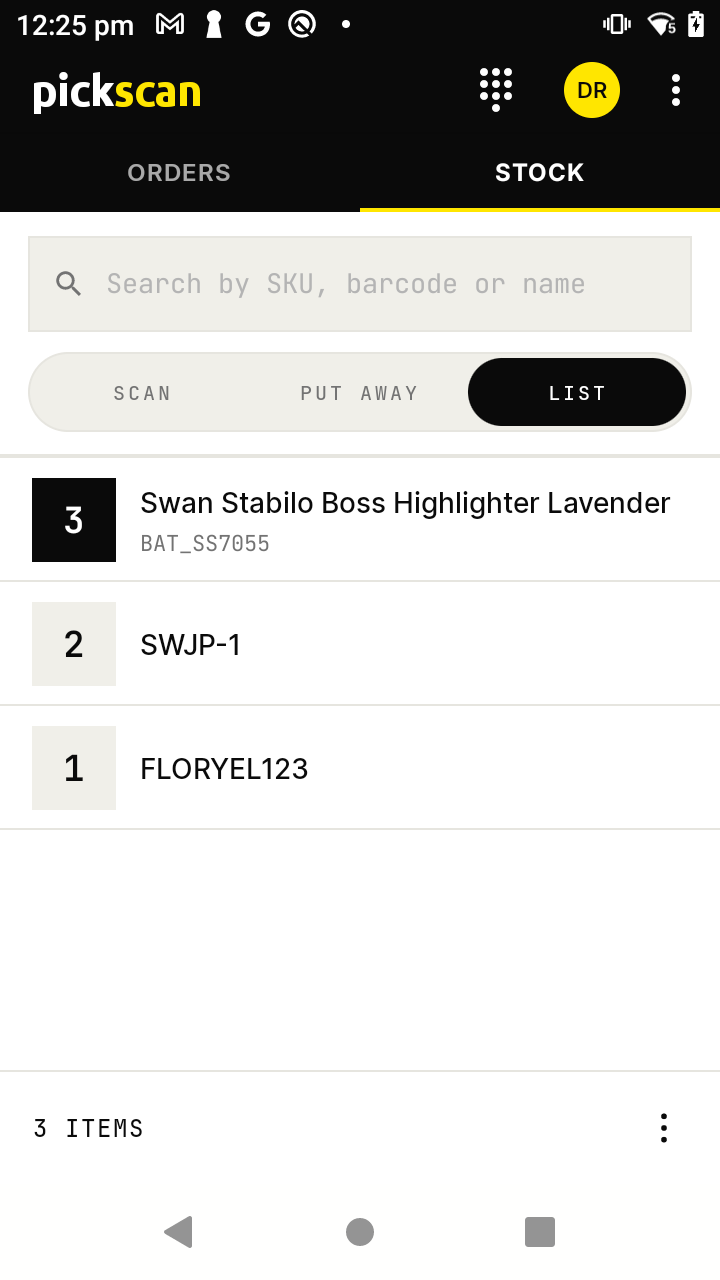
The newest scan sits on top in the black count square - Every scan counts — there is no "already scanned" warning, because a repeat scan is how you add another unit.
- An item whose barcode the system does not recognise still gets a line, shown by its scanned code until it can be named.
-
Correct a line without leaving the list
Mistakes happen mid-run, so corrections stay on the same screen. Drag a line to the left to reveal two actions:
- −1 UNIT takes one unit off that line. When the last unit goes, the line goes with it.
- LINE (the red bin) removes the whole line at once.
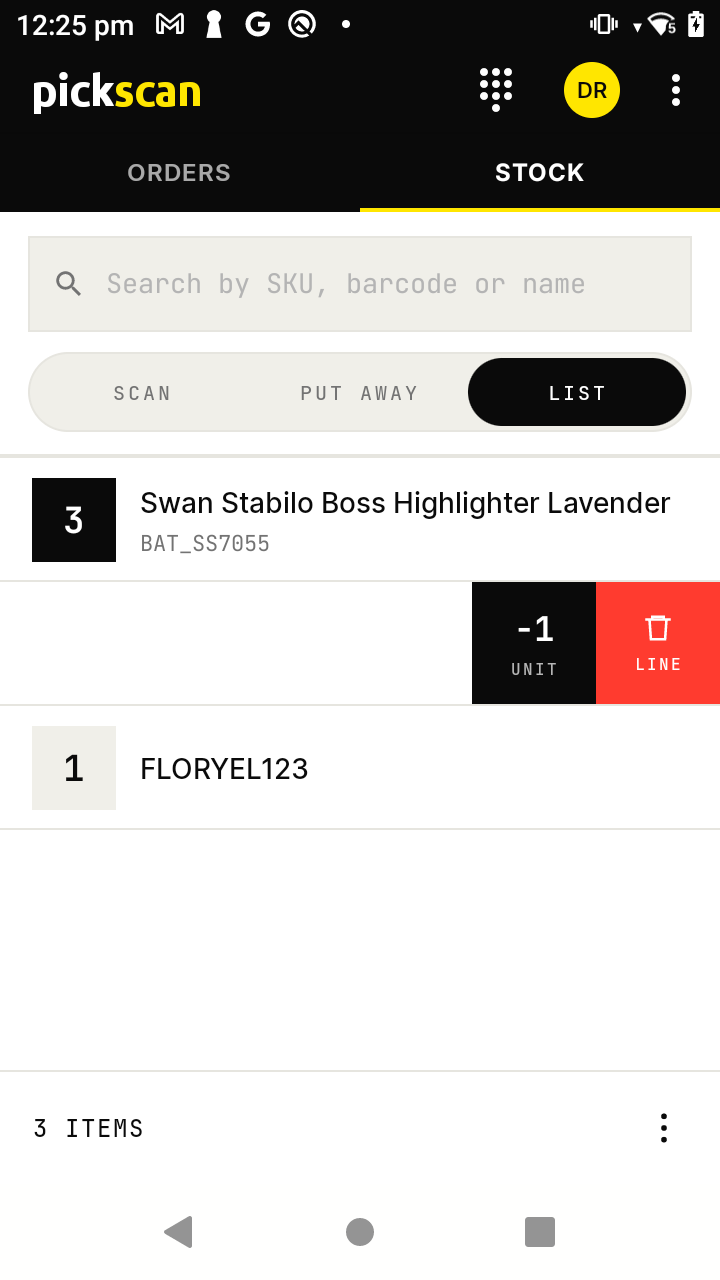
Drag a line left for −1 unit or to remove it Remove a line and a black bar appears at the bottom for a few seconds with an UNDO button — tap it to put the line back exactly where it was. Clearing the whole list can be undone the same way.
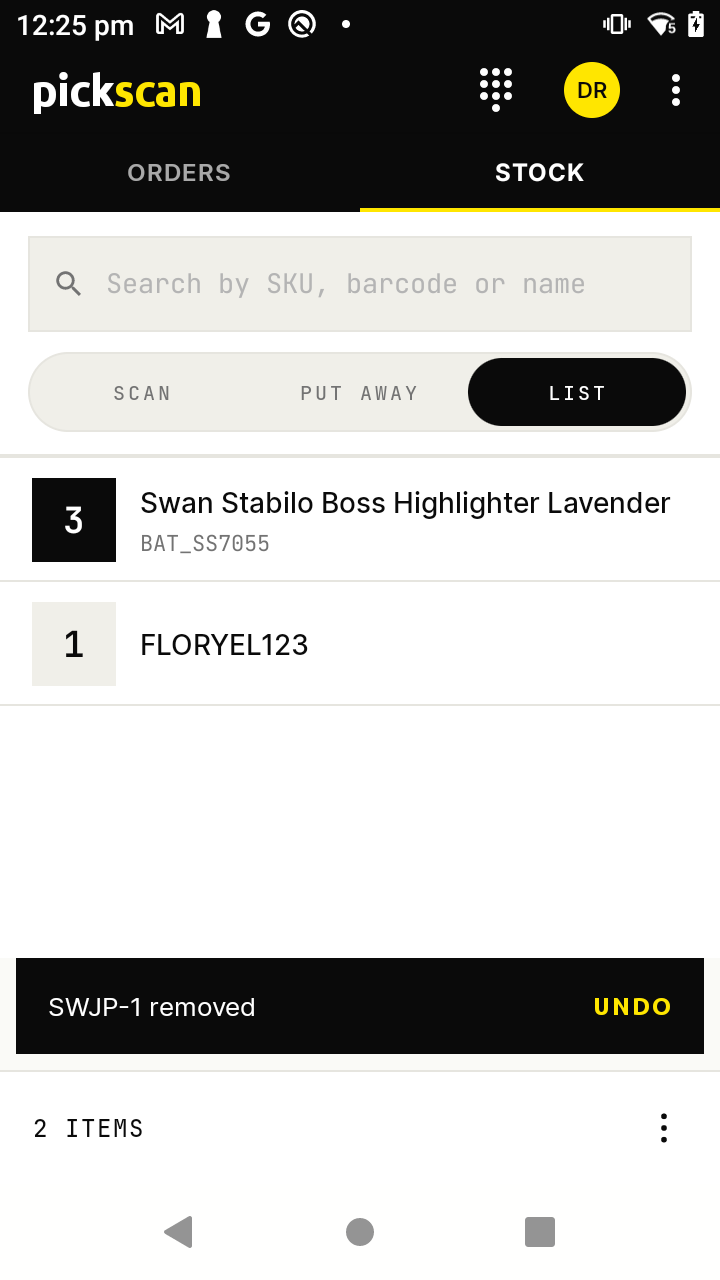
Removing a line raises an Undo bar for a few seconds -
Open the actions menu
When the list is ready, tap the ⋮ (three dots) at the bottom right. A sheet slides up with two actions:
- Export list — turn the list into a CSV file and send it.
- Clear list — empty the list and start again (with a few seconds of UNDO).
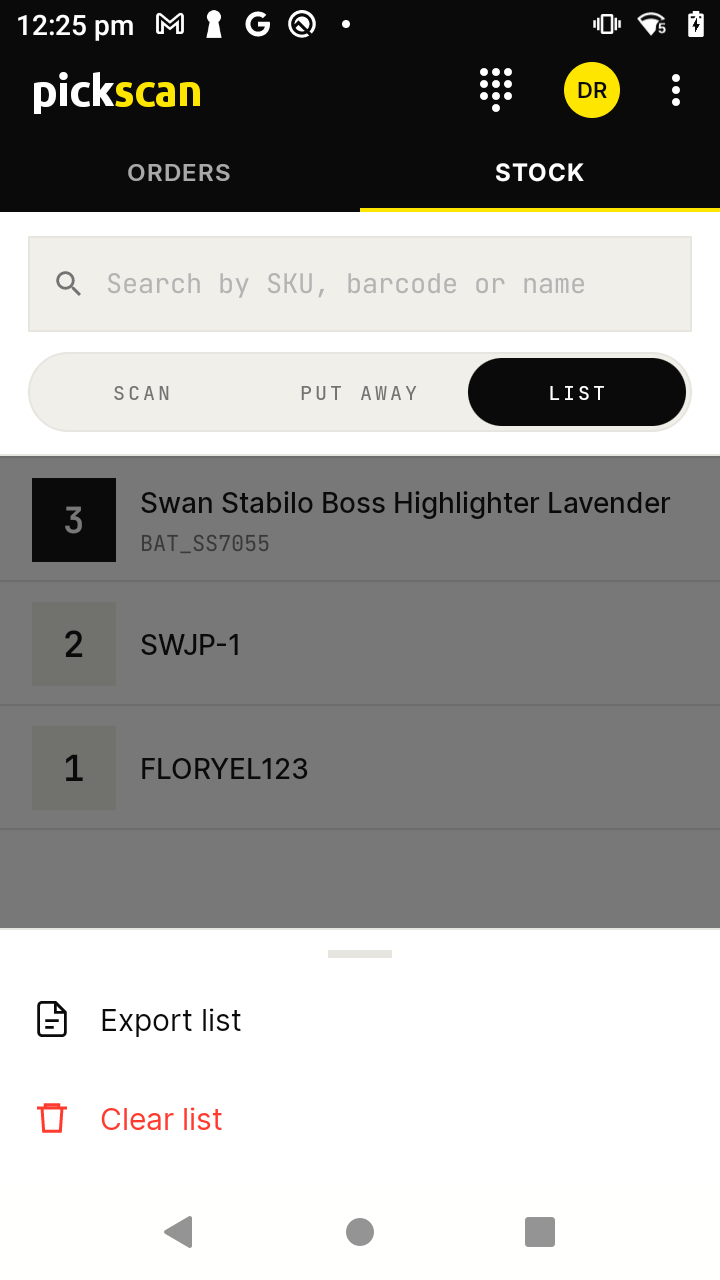
The overflow raises the actions sheet: Export list and Clear list -
Export the list
Tap Export list. Pickscan writes the list to a CSV file, sorted by bin rack so the items are picked in aisle order, and opens Android's share sheet. Choose how to send it — email, Teams, Google Drive, or any app on the handheld. The file is named with the date and time, for example
stock-list-2026-09-16-1226.csv.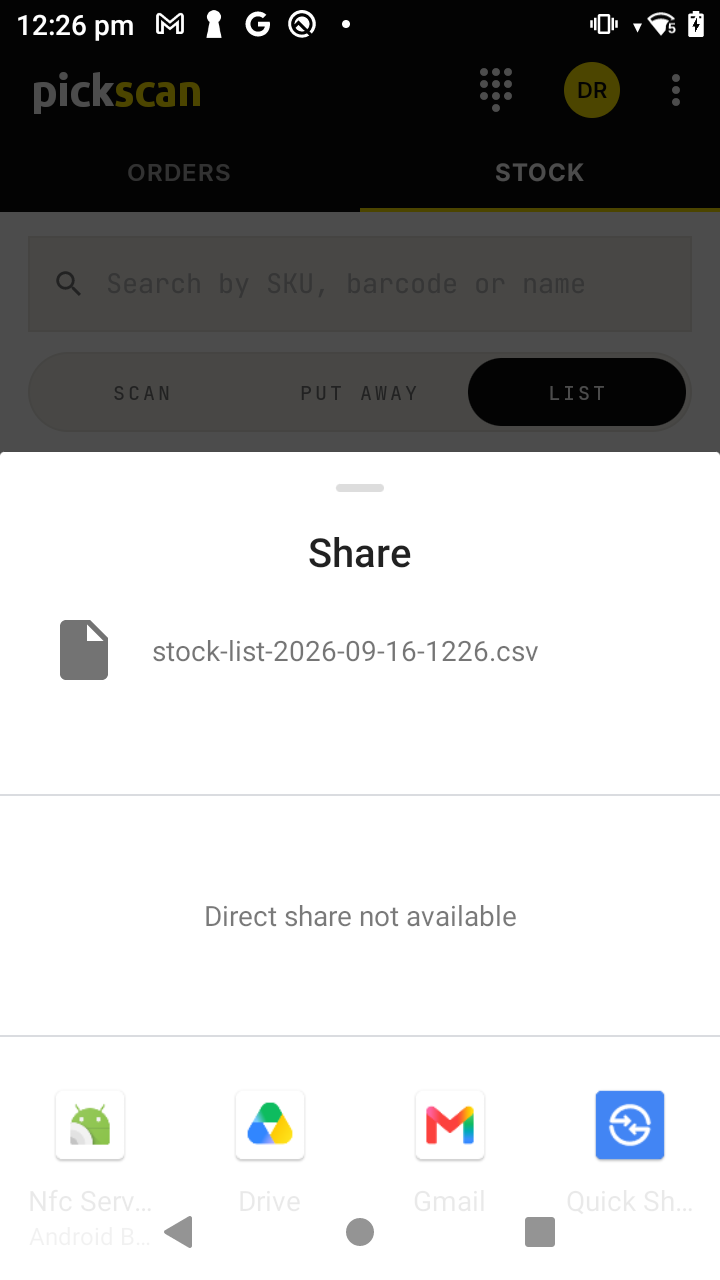
Export opens the Android share sheet with a dated CSV The CSV has one row per item with these columns:
- Bin rack — where the item lives (blank if it has no rack; these sort to the end)
- Qty — the number of units you scanned
- SKU and Item name
- Available and Min level — the current stock figures, where known
-
Start the next list
Once the list is sent, the screen clears straight back to the empty
Scan to start building a list.view, ready for the next one — just start scanning. A brief List exported bar appears for a few seconds with an UNDO button, in case you opened the share sheet by mistake and want the list back.
Tips
- The newest line is always on top, in a black square, so you can glance down between scans and confirm the last unit landed.
- A part-built list is kept if you switch to Scan or Put away and come back, so you will not lose your count by changing mode.
- Nothing is sent until you export. Export is the only step that produces a file; scanning and correcting only build the list on the device.
What List mode does not do
List mode produces a CSV for a person to act on. It does not raise a transfer or a purchase order in your back-office system on its own — filling the list is done however your warehouse already works from a picking sheet.