Adding carton barcodes in Pickscan for Linnworks
How carton barcodes work
Pickscan supports carton (or outer) barcodes so you can scan one barcode to record multiple quantities. To set this up, you add the carton barcode and its quantity as extended properties on the product in Linnworks.
Enable carton scanning
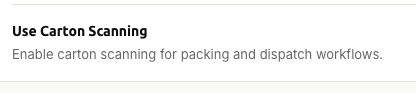
Carton scanning is off by default. To turn it on, open Settings in the Pickscan embedded Linnworks application, go to 03 Mobile app, turn on Use Carton Scanning and click Save Settings.
Add a carton barcode
- Open the product in Linnworks
Go to My Inventory and click the SKU of the product you want to add a carton barcode for. The Product Details window opens.
- Open Extended Properties
Select the Extended Properties tab.
- Add the barcode and carton size
Click Add New and create the following pair of extended properties:
supplier_barcode_x- the carton barcode valuesupplier_carton_size_x- the number of items in the carton
Replace
xwith a number to identify the pair. For example, if a carton with barcode123456contains 12 items: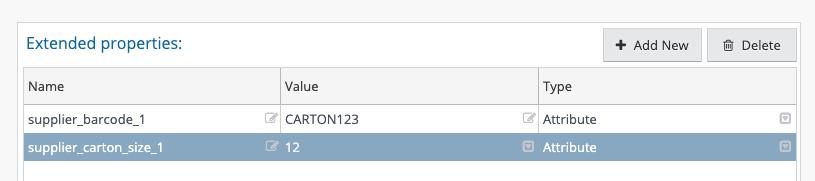
Extended properties within Linnworks supplier_barcode_1:123456supplier_carton_size_1:12
If the same product also comes in boxes of 48 with barcode
7890, add a second pair:supplier_barcode_2:7890supplier_carton_size_2:48
The number in each pair must match: supplier_barcode_2 pairs with supplier_carton_size_2. You can add as many pairs as you need.
Carton barcodes on the mobile app
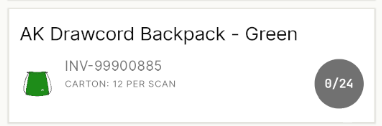
When you load an order containing a product with carton barcodes in the Pickscan mobile app, a Carton tag appears on the item to show that carton scans are supported. Scanning the carton barcode records the full carton quantity in one scan.