Setting up Pickscan Print for Linnworks labels
By default Pickscan sends labels to a Linnworks virtual printer, which needs the Linnworks Print Service running on a PC. Pickscan Print is our own print agent: install it on the Windows or Mac computer the label printer is plugged into, pair it once from the Devices page, then choose it under Print labels with in Settings. Labels printed from the handheld app or the packing station then go to that computer.
Before you begin
- Decide which computer will do the printing. It must stay switched on with Pickscan Print running, and the label printer must be installed on it as a normal printer.
- A company can have one print station. To move it to a different computer, remove the existing one first (see below).
- A print station does not count towards your plan's device limit.
- You still need a
Default Shipping Templatein Settings; Pickscan Print changes where the label goes, not which Linnworks template is used. See Setting up label printing in Pickscan for Linnworks.
Step 1: Install Pickscan Print and pair it
- Open the Devices page on the printing computer
In Linnworks, open Pickscan, go to
Devicesand clickAdd New Device. Do this on the computer that will print, so the download lands in the right place. - Choose Print station
In the
Add a devicedialog clickSet up print station. The dialog,Set up a print station, detects your operating system and offersDownload for WindowsorDownload for macOS. Links for Linux and for the other platforms sit underSetting up a different computer?.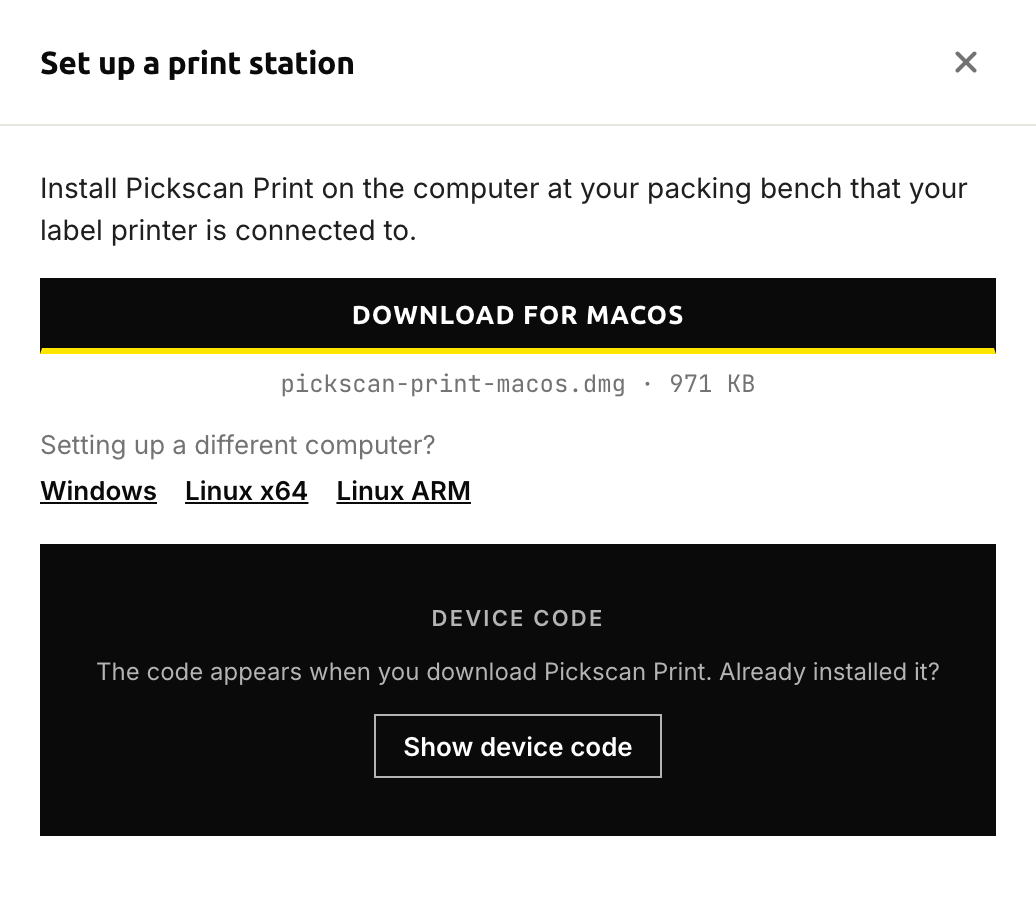
Set up a print station - Download and install
Click the download and run the installer. The 8-digit
Device codeappears in the dialog as soon as you download. If Pickscan Print is already installed, clickShow device codeinstead. - Enter the code in Pickscan Print
Open Pickscan Print on the computer and type the device code when it asks. The dialog shows
Waiting for Pickscan Print to connectuntil it does. - Confirm the connection
When the agent connects, the dialog changes to
Print station connectedwith the computer's name. ClickDone. The print station now appears in the device list with the typePrint stationand its platform.
The device code works once and expires after 15 minutes. If it runs out, click Generate new code in the dialog. If the dialog says your company already has a print station, close it; the existing station is in the device list.
Step 2: Choose Pickscan Print in Settings
- Open Print settings
Click the gear icon in the Pickscan navigation and choose
02 Printin the sidebar. - Set Print labels with
Change
Print labels withfromLinnworks Virtual PrintertoPickscan Print. TheDefault Virtual Printerrow greys out andPickscan Print printerbecomes active.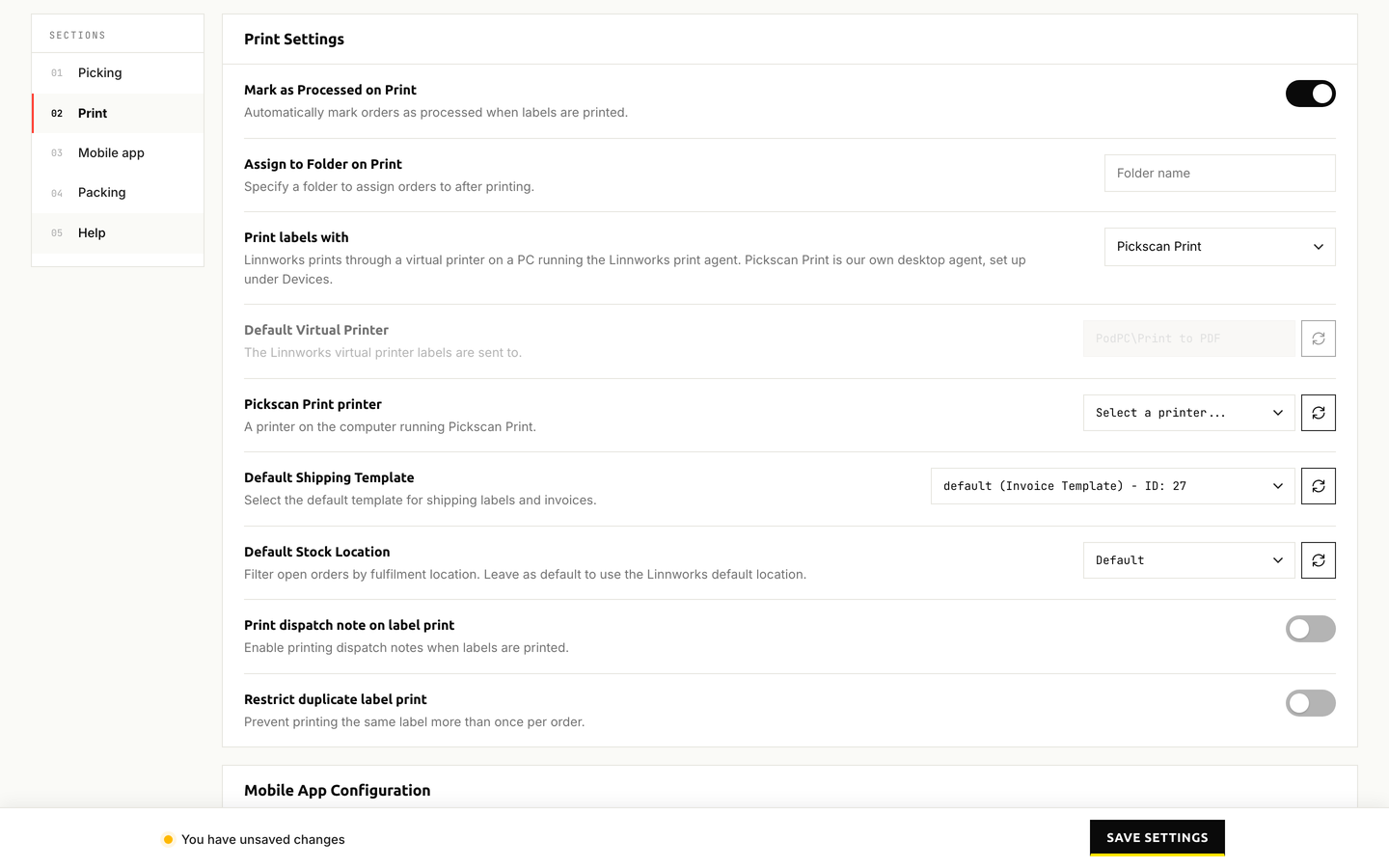
Print labels with set to Pickscan Print - Choose the printer
Open the
Pickscan Print printerdropdown and pick the label printer. The list is the printers installed on the computer running Pickscan Print; click the refresh button next to it if the printer you expect is missing, and check the agent is running. - Check the shipping template and save
Make sure
Default Shipping Templateis set, then clickSave Settings.
Check it from a handheld
On a signed-in handheld, open the three-dot menu, Settings, and under Pickscan Print tap Print a test label. Test label printed proves the whole route works. No Pickscan Print station means no station is paired yet.
Removing or replacing the print station
- Open Add New Device
On the
Devicespage clickAdd New Device. ThePrint stationtile now readsPrint station already set up, with the computer name and whether it isActiveorNot initialised. - Remove it
Click
Remove print stationand confirm. Printing stops until a new station is paired. You can also delete it from its row in the device list using the three-dot menu. - Pair the new computer
Repeat Step 1 on the new computer.
Tips
- If labels stop printing, check the print station row on the Devices page.
Not initialisedmeans the agent has never connected with that code; an oldActivitytime means the computer is off or Pickscan Print is not running. - Switching
Print labels withback toLinnworks Virtual Printerdoes not remove the print station, so you can swap between the two methods. - The handheld shows a label error if no printer is chosen for the selected method. The error texts and fixes are listed in Troubleshooting Pickscan for Linnworks.