Checking picking progress on the Picking page
Open Pickscan from Apps in Linnworks and click Picking. The page is for keeping an eye on the warehouse: it shows the work waiting for your pickers and who has what. You cannot pick or change orders from here.
What you see depends on one setting, Use batch/wave picking under Settings > 01 Picking:
- Off: a list of single orders.
- On: a list of batches, each holding several orders.
Single orders
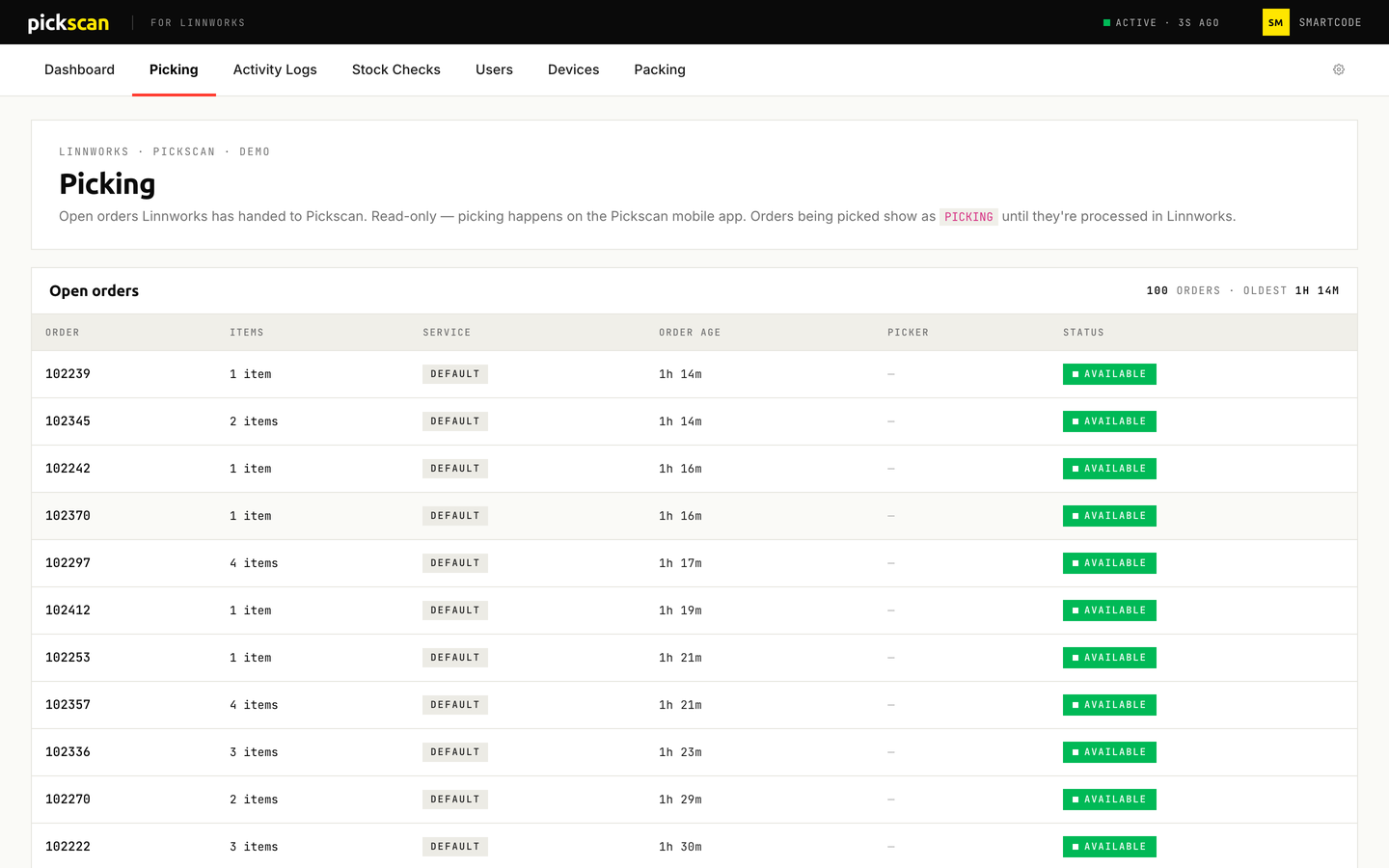
Orders are listed oldest first. The line above the list tells you how many there are, how many are being picked and how long the oldest has been waiting.
For each order you can see the order number, how many items it has, the postage service, how long it has been waiting and who is picking it. The status is one of two:
- AVAILABLE – nobody has opened it yet, so any picker can take it.
- PICKING – a picker has it open on their device. Their name is shown next to it.
An order leaves the list once it is processed in Linnworks. If nothing is waiting, the page says No open orders.
Batches
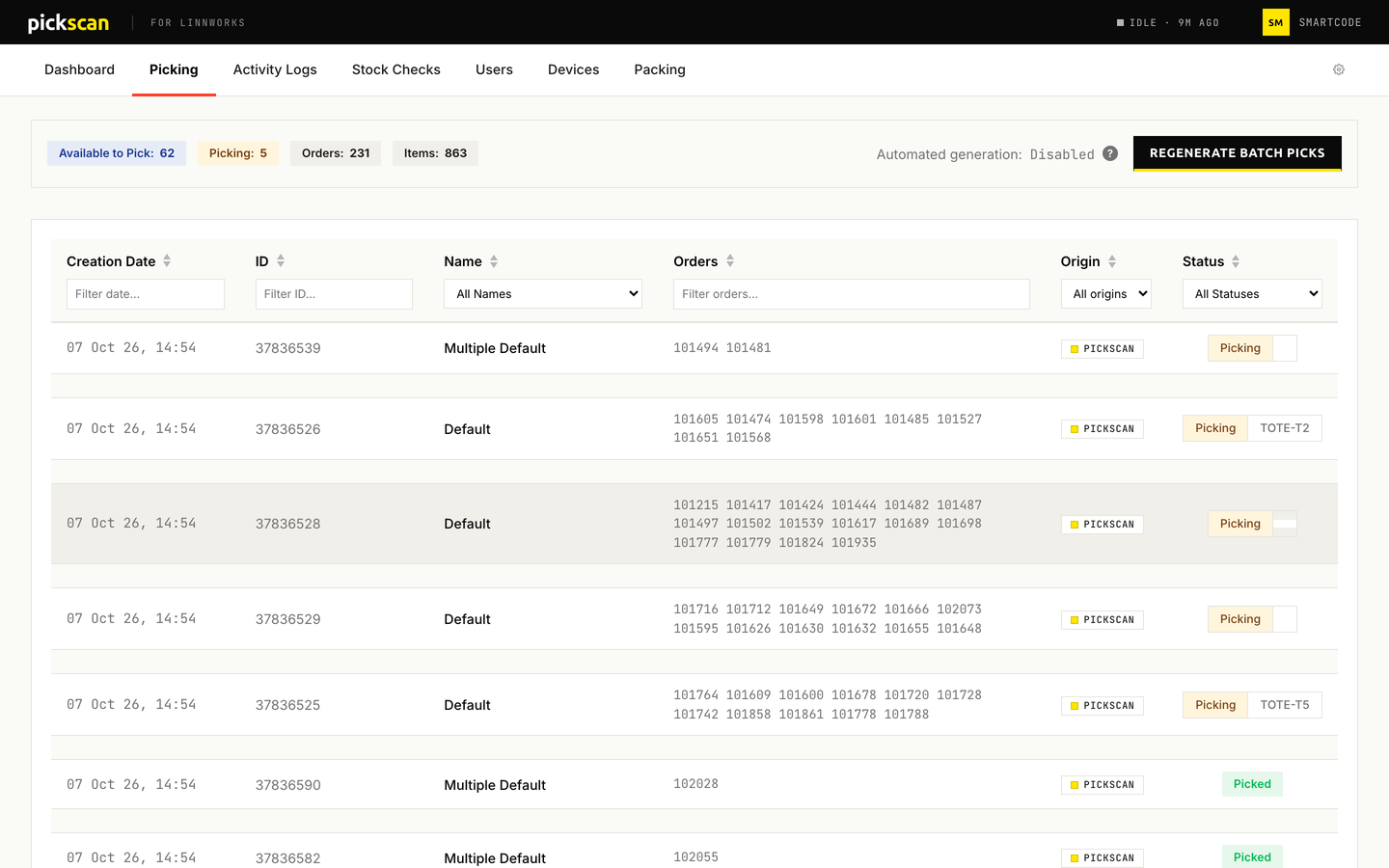
Across the top are four totals: batches Available to Pick, batches being picked (Picking), and the number of Orders and Items in them. Next to them you can see when the next batch run is due, or Disabled if batches are only made by hand.
Each row is one batch. It shows when the batch was made, its ID, its name (the postage service the orders were grouped by), the order numbers in it, where it came from and its status. Where it came from reads PICKSCAN for batches Pickscan made, or PICKWAVE for pick waves imported from Linnworks.
The status tells you where the batch has got to:
- Available to Pick – waiting on the scanners for any picker.
- Picking – a picker has started it. The tote they are using is shown next to it.
- Picked – finished.
Hover over a status to see who started or finished the batch and when. Use the boxes under the column headings to narrow the list, for example to one service or to batches still being picked.
Click a batch to open it. You will see the orders inside, the items on each, the tote, and who started it. Orders that have already been packed are marked Packed, or Packed · label not printed if the label failed. Click an item to copy its barcode.
Making batches now
Batches are normally made on a schedule. To make them straight away:
- Click Regenerate Batch Picks
The button is at the top right. If you import pick waves from Linnworks instead, it reads Import Pickwaves.
- Wait for it to finish
A message shows while it runs, and the list refreshes with the new batches when it is done.
Only open orders that are not already in a batch are used. If a scheduled run is about to start, the button is greyed out so the two do not overlap. If the run fails to start, try again in a minute.
If something looks wrong
- Nothing is listed but you expect orders: see Troubleshooting Pickscan for Linnworks for the settings that decide which orders Pickscan receives.
- The page says Session expired: open Pickscan again from the Linnworks Apps menu.
Related guides
- Picking Linnworks orders in Pickscan
- Batch picking in Pickscan
- Configuring Pickscan settings, for batch size, grouping and the schedule