Submitting a stock count from the Pickscan handheld
Stock counts in Pickscan are a two-step process. The handheld records what was counted and the stock level Linnworks held at that moment (the snapshot). Nothing changes in Linnworks until someone in the console reviews the variance and clicks Set stock level in Linnworks. That keeps a mistyped count from overwriting a correct stock figure.
Before you begin
- Sign in on the handheld with your PIN. The count is recorded against the signed-in user, so sign in as yourself.
- The device needs a connection to submit; the dialog shows
Retryif the count could not be sent. - Confirming counts happens on the
Stock Checkspage in Pickscan inside Linnworks. For a full tour of that page see Reviewing stock checks.
On the handheld: submit the count
- Scan the item on the Stock tab
Open the
Stocktab inScanmode and scan the item. Tap theJUST SCANNEDcard to open its details. See [Looking up stock on the Pickscan handheld](/articles/linnworks-handheld-stock-lookup). - Tap Submit count
On the
Stocktab of the item details, tapSubmit countat the bottom of the screen. - Type the quantity you counted
The
Submit countdialog shows the SKU and a number field pre-filled with the current Linnworks quantity. The field is selected, so typing replaces it. Enter the number of units physically on the shelf.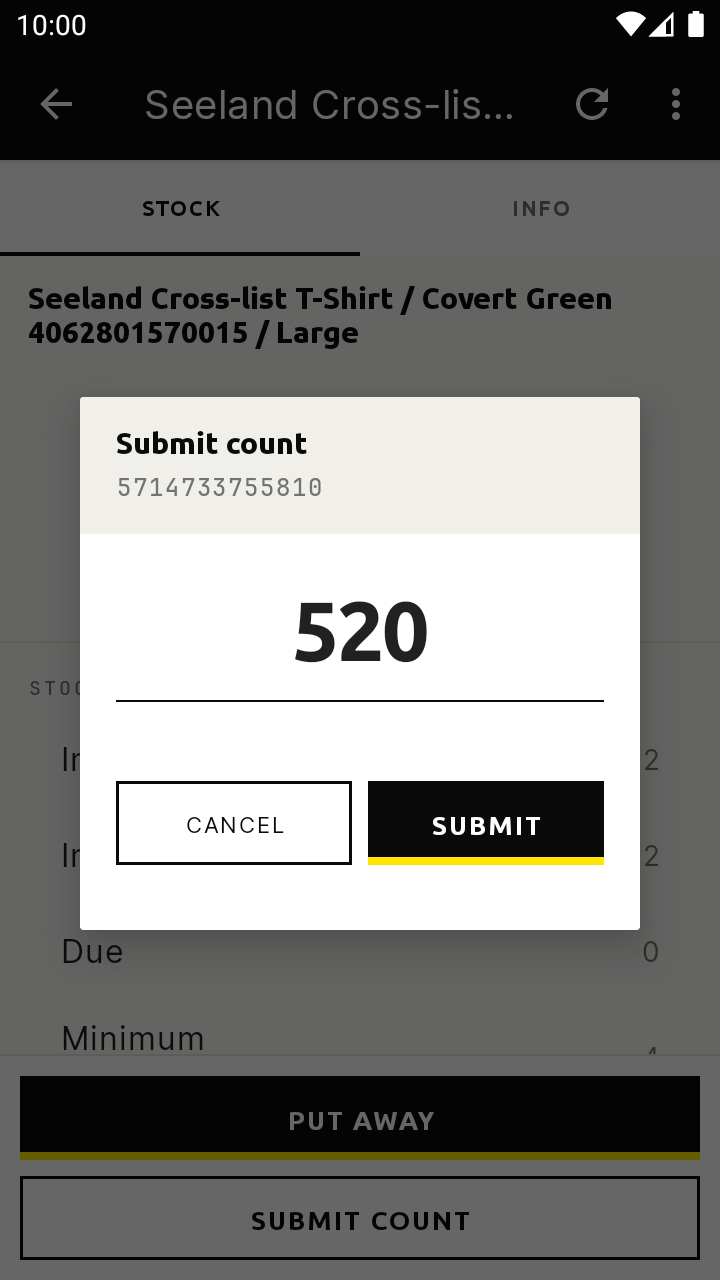
Submit count - Tap Submit
The button shows a spinner while the count is sent. On success the number turns green with
Submittedand the dialog closes itself. If the number turns red withRetry, the count did not reach the server; check the connection and tapSubmitagain.
Submitting a count does not change the stock level on the device or in Linnworks. The quantity on the item details stays as it was until a supervisor confirms the count in the console.
In the console: confirm the count
- Open Stock Checks
In Linnworks open Pickscan and choose
Stock Checks. The page is headedConfirmation queue. TheAwaitingcard counts the submissions waiting on you;Largest pendinglinks straight to the biggest discrepancy.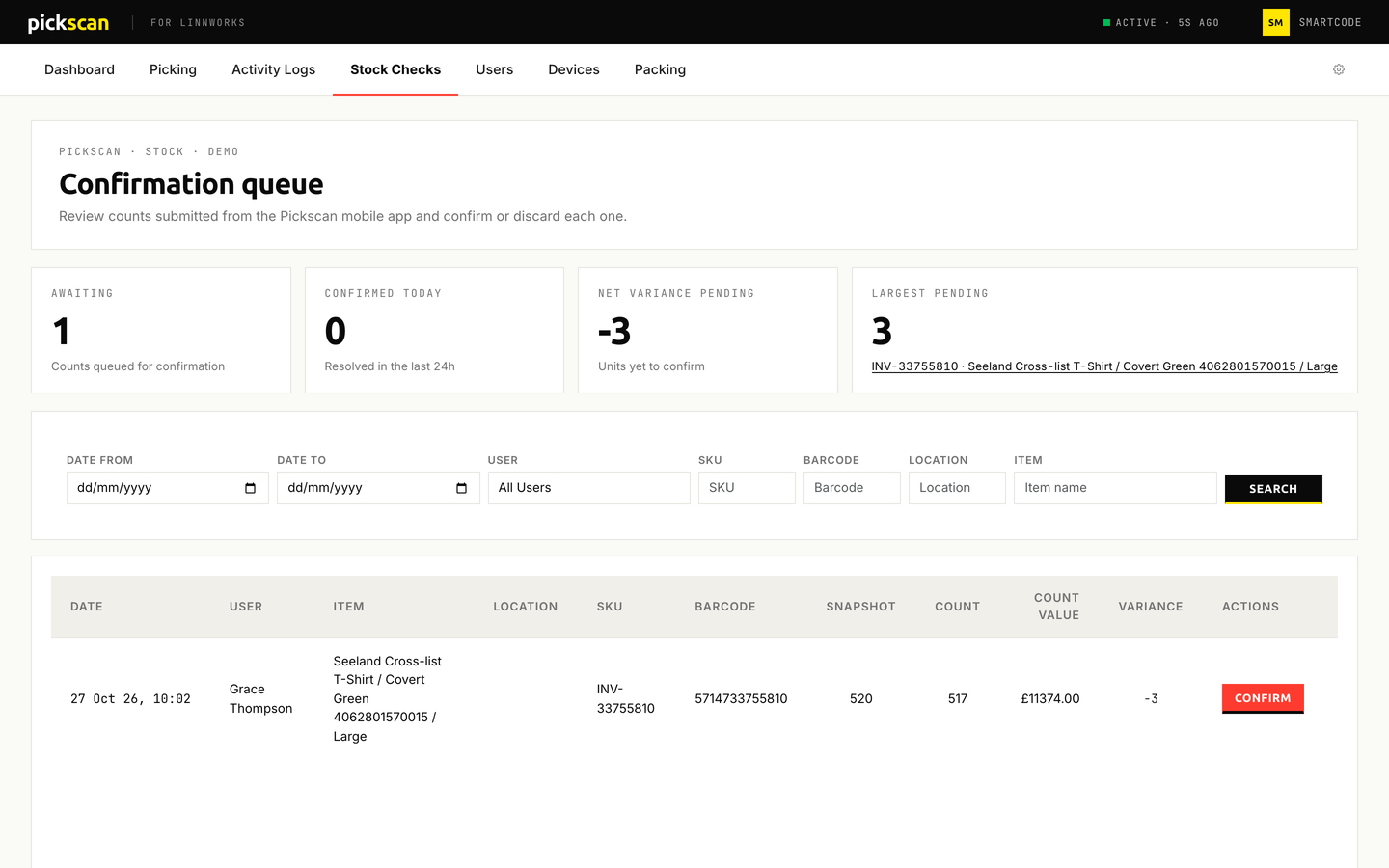
The count waits in the confirmation queue - Find the count
Each row shows the date, the user, the item, location, SKU and barcode, then
Snapshot(the Linnworks level when the count was taken),Count(what the picker entered),Count ValueandVariance, shown with a sign such as+3or-2. Use the filters above the table to narrow by date, user, SKU, barcode, location or item name, then clickSearch. - Decide whether it needs action
A count that matches the snapshot shows
No action needed. A count with a variance shows aConfirmbutton. Already-confirmed rows showConfirmed onwith the date and time. - Click Confirm to open the reconciliation page
The page is headed with the item name, SKU, barcode, count time and
Checked bythe picker. Three cards showSnapshot,DifferenceandConfirm stock level. Below them,Since counttotals theSold,ReturnedandAdjustedmovements since the count was taken, with theNetchange. If nothing has moved it readsNo movements since check.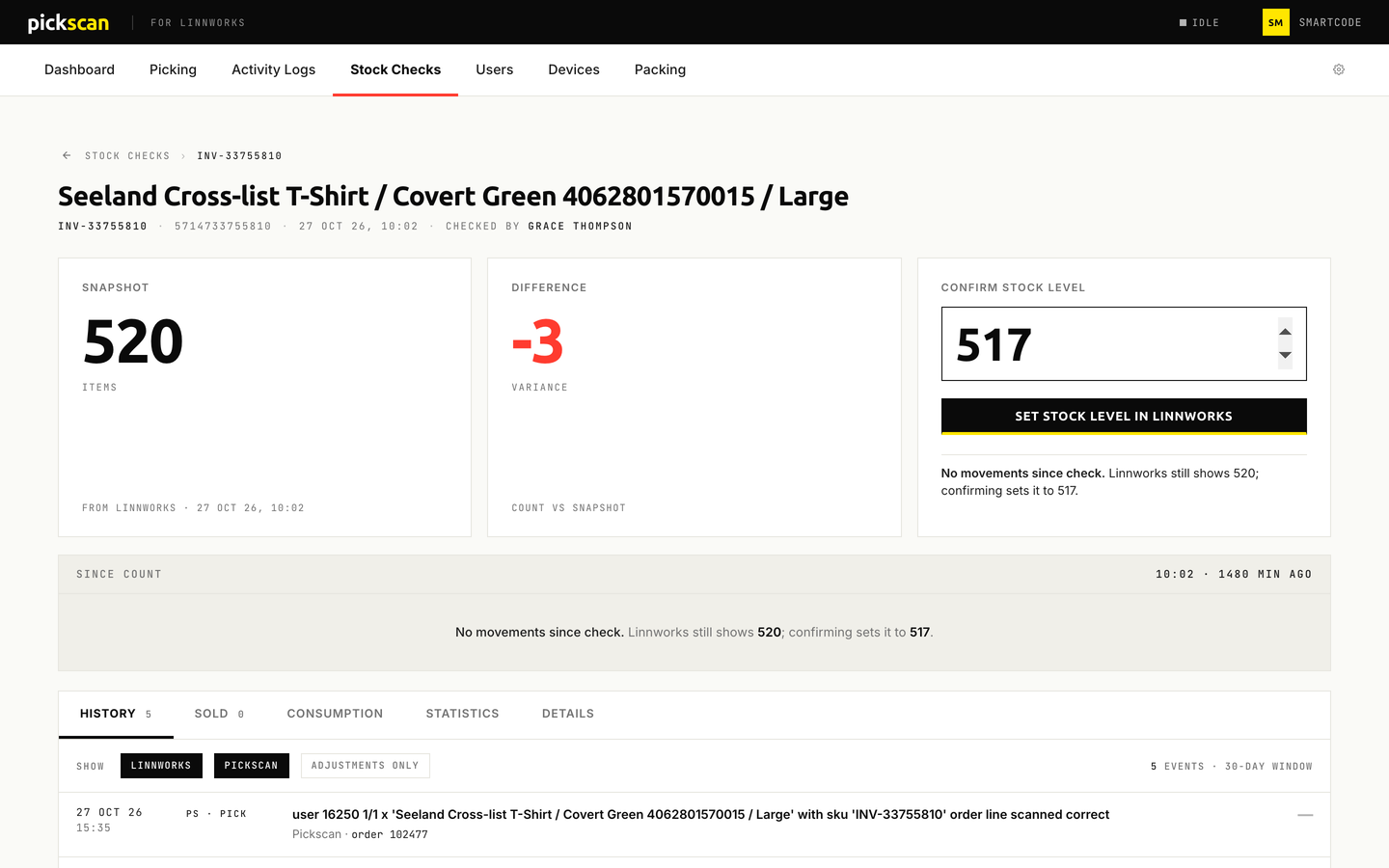
Confirming the count sets the Linnworks stock level - Check the history if the variance is unexpected
The
Historytab is a 30-day timeline of Linnworks events (sales, returns, receipts, adjustments) and Pickscan events (scans, picks, counts) for the item. Use theLinnworks,PickscanandAdjustments onlypills to filter it.Sold,Consumption,StatisticsandDetailsshow the matching Linnworks data where Linnworks returns it. - Set the stock level
The
Confirm stock levelfield is pre-filled with the picker's count. If stock has been sold since the count, adjust the figure so it reflects the shelf now, then clickSet stock level in Linnworks. Pickscan writes the level to Linnworks and returns you to the queue, where the row now readsConfirmed on.
A confirmed count cannot be changed; the button reads Already confirmed. If the wrong figure was set, submit a fresh count from the handheld and confirm that. A count you do not want to apply can be left in the queue; it is never written to Linnworks on its own.
Tips
- Take counts when the line is quiet, or check
Since countbefore confirming: a variance that equals theSoldfigure is sales after the count, not missing stock. - Start with the
Largest pendingcard: it opens the reconciliation page for the biggest discrepancy in one click. - A disabled user's counts stay in the queue with a
Disabledpill next to their name, so a leaver's last stocktake can still be confirmed. - Every count also appears in
Activity Logsas aSTOCKentry against the SKU.