Setting up the packing station in Pickscan for Linnworks
The packing station is a web page packers open in a browser at a fixed bench, instead of using a handheld. Access is controlled two ways: the station must be enabled, and the computer's public IP address must be on the approved list. Each packing computer is then paired like any other device.
Before you begin
- Find the public IP address of the warehouse network. The
Packingpage pre-fills the address you are browsing from and marks itYour current IP, which is usually the right one if you are in the warehouse. - Each pack station counts as one device against your plan's limit. See Managing devices in Pickscan.
- If labels should print at the pack bench, set up printing first: Setting up label printing in Pickscan for Linnworks.
Step 1: Enable packing and approve an IP address
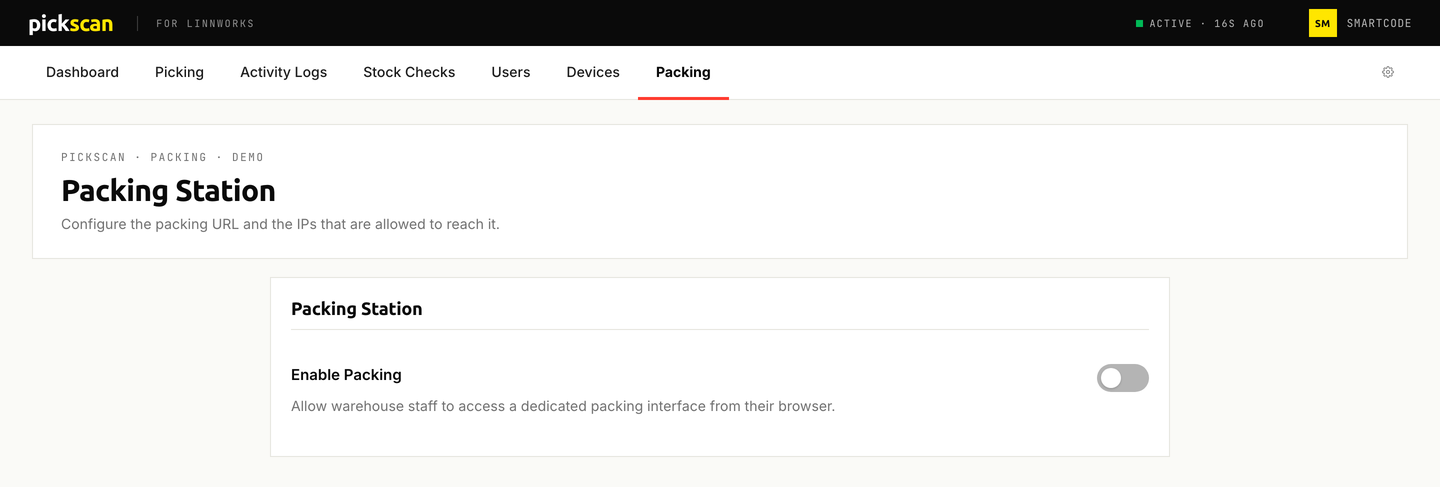
Open Pickscan from Apps in Linnworks, then choose Packing. Until packing is configured the page shows a setup view.
- Turn on Enable Packing
Switch on
Enable Packing. TheIP Whitelistcard appears below it. - Add the warehouse IP
The input is pre-filled with your current public IP. Check it, or type another, and click
Add IP. Repeat for any other sites that pack. - Generate the packing URL
Click
Generate your packing URL. The page switches to its active view.
Step 2: Share the URL
In the active view the card is headed Active state with a CONFIGURED tag.
Packing Station URLis the address packers open. It looks likehttps://pack.pickscan.app/<id>/packing, where the id is unique to your Linnworks company. ClickCopyand share it only with staff who pack on an approved network.Approved IP addresseslists every allowed address with anApprovedbadge. Add more withAdd IP; remove one with the cross on its row. Changes here save immediately.Recent connectionslists the IPs that opened the packing URL in the last 7 days. An address taggedNot whitelistedtried to open the station and was refused; if it is one of yours, add it to the approved list.
Step 3: Pair each packing computer
A packing computer is paired with a 6-digit device code, the same as a handheld.
- Add a pack station device
Go to
Devices, clickAdd New Deviceand chooseSet up pack station. The dialog shows aDEVICE CODEand the packing URL with aCopybutton. - Open the packing URL on the packing computer
Open it in a browser on the approved network and enter the 6-digit code to pair the station.
- Sign in
Sign in with a user PIN and start packing. The device appears on the Devices page with the type
Pack station.
If packing is not enabled yet, or no IP has been approved, the pack station dialog shows Packing isn't set up yet and points you back to the Packing page. Complete Step 1 first.
Packing options in Settings
Settings, 04 Packing holds the same enable switch and IP list, plus two options that change what packers can do. These need Save Settings; only the IP list on the Packing page saves on its own.
Enable Packing Station: allow or revoke browser access for everyone.Enforced Barcode Scanning: items can only be packed by scanning a barcode. Manual barcode entry is unavailable to packers.Item Scrapping: packers can mark a returned item as scrapped (destroyed) instead of returning it to stock.
Tips
- Use the public IP of the warehouse network, not a private LAN address, unless that is what your firewall presents to Pickscan.
- If a packer sees the station refused, check
Recent connections: their address will be there taggedNot whitelisted, ready to approve. - Turning
Enable Packingoff blocks every packing computer at once without deleting the approved list.