Connecting Colissimo to Pickscan
What it does
Pickscan integrates with Colissimo Officiel account, to allow you to generate your Colissimo labels as part of the Pickscan workflow
Supported on Pickscan across iOS and Android.
Before you begin
- Colissimo Officiel installed and set up. The Colissimo Officiel app (by Le Studio de Tom) must be installed on your Shopify store with your Colissimo account connected — a Colissimo Facilité or Privilège contract. Pickscan buys labels through that app, so if it cannot generate a label on its own, neither can Pickscan.
- Colissimo shipping rates at checkout. Your Colissimo delivery options need
Colissimoin their name (for exampleColissimo livraison à domicile). That name is how Pickscan recognises a Colissimo order. - Label format. The label format (PDF, or ZPL for a thermal printer) is set in the Colissimo Officiel app under its label settings and applies to every label that store produces. Pickscan uses whatever you have chosen there.
- Pickscan admin access. You need to be able to open Settings in the Pickscan app in your Shopify admin.
Pickscan only ever holds the Colissimo Officiel Partner API token. Your Colissimo account key stays inside the Colissimo Officiel app and is never sent to Pickscan.
Get your Partner API token
-
Open the Colissimo Officiel app and go to Settings
In your Shopify admin, open Apps → Colissimo - Officiel. In the app's left-hand menu (
Orders,Deposit Slip,Shipment tracking,Self-service labels…), choose Settings.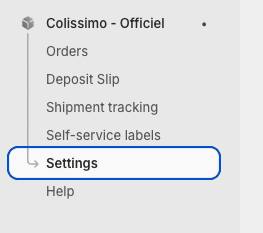
Open Settings in the Colissimo Officiel app -
Choose 3PL
In the Settings list, scroll to 3PL (between
WarehousesandDelivery date estimation). This page holds the Partner API token — the app describes it as the token thatsecures calls to our public API from your OMS / WMS. Pickscan is that OMS / WMS.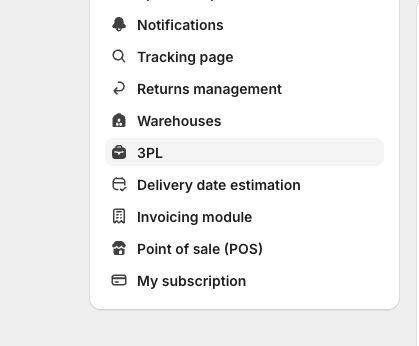
The 3PL settings page -
Generate a token
If no token exists yet, the card reads
No token generated. Click « Generate a token » to enable the partner API.Tap Generate a token.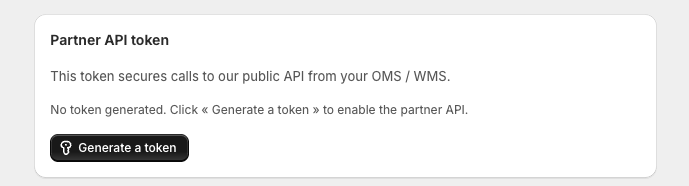
No token yet — tap Generate a token -
Copy it straight away
The card turns green with
New token generatedand shows the token once, with a Copy button and the badge Active. Tap Copy now and keep it ready for the next section.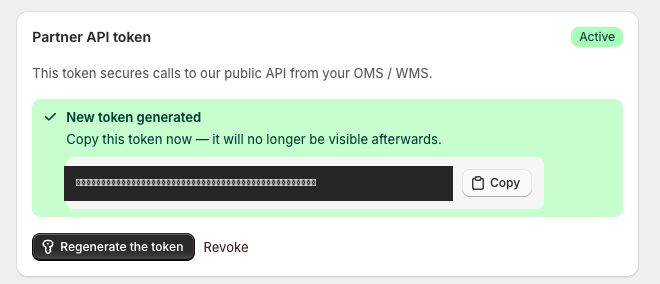
Copy the token now; it is only shown once
The token is only shown once. The app says so itself: Copy this token now — it will no longer be visible afterwards. If you lose it, tap Regenerate the token — but that invalidates the old one, so Pickscan will show Needs attention until you paste the new token in via Edit. Revoke disables the token entirely and stops Pickscan buying Colissimo labels; orders fall back to Shopify Shipping.
Connect Colissimo in Pickscan
-
Open Pickscan → Settings
In your Shopify admin, open Apps → Pickscan, then choose Settings at the bottom of the Pickscan menu (below
DevicesandUsers). Scroll to the Couriers card. It readsLabel accounts Pickscan can buy from when a pick is finished.Before anything is connected it shows
No couriers connected—Labels are bought through Shopify Shipping. Connect a courier account to use a carrier Shopify does not cover.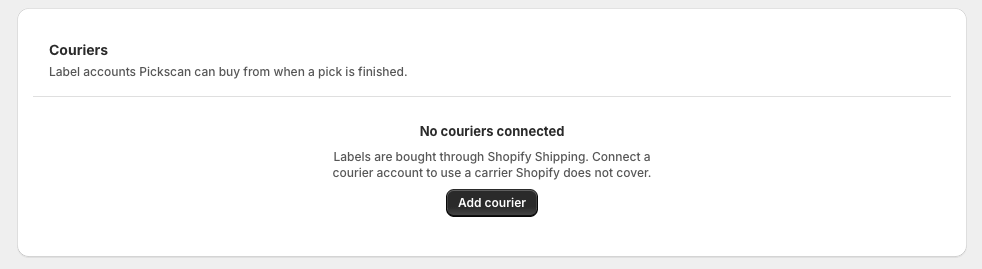
The Couriers card before anything is connected -
Tap Add courier and choose Colissimo
Tap Add courier. In the list, find Colissimo — described as
Via the Colissimo Officiel app. Needs a Colissimo Facilité or Privilège contract.— and tap Connect.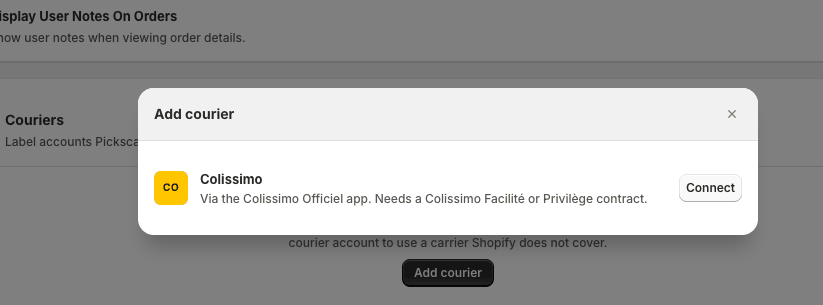
Choose Colissimo from the Add courier list -
Paste the Partner API token
Under Connection, paste the token into Partner API token. The token is shown in clear while you type it, so you can check the paste landed in full. Once saved it is masked and only its last four characters are shown.
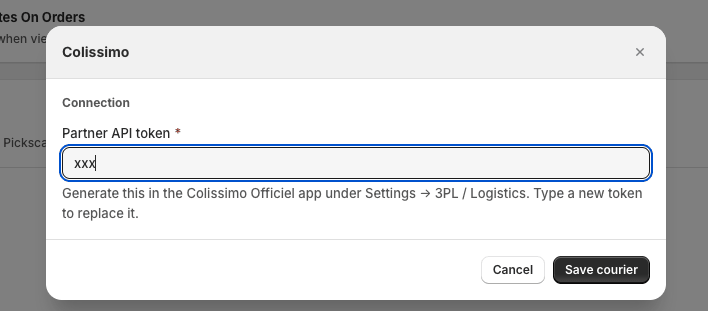
Paste the Partner API token and save -
Save courier
Tap Save courier. Pickscan immediately checks the token with Colissimo and shows the result as a badge on the Colissimo row (see below). The row also tells you what it is used for:
Used for orders shipped "Colissimo livraison…". When the badge reads Connected, you are done — the next Colissimo order your team picks will get a Colissimo label.
Colissimo connected and verified
What the badge means
Pickscan does not take the token on trust. Every time you save it, and whenever you tap Verify, it makes a small test call to Colissimo and shows what came back:
- Connected — Colissimo accepted the token. Colissimo orders will be labelled through Colissimo.
- Not verified — the token was saved, but Pickscan could not reach Colissimo to check it (for example a brief outage or rate limit). Tap Verify to try again. Until it verifies, treat it as unconfirmed.
- Needs attention — either the token is missing, or Colissimo rejected this token. Colissimo orders fall back to Shopify Shipping until you fix it: tap Edit, paste a freshly generated token, and save.
Each connected courier row has three actions:
- Verify — re-run the token check now. Nothing is bought.
- Edit — replace the token. Leave the field blank to keep the stored token.
- Remove — disconnect Colissimo. Pickscan asks you to confirm, because orders that would have used Colissimo go straight back to Shopify Shipping and the saved token is deleted.
How labels are routed once connected
When a picker finishes an order and taps Buy label & fulfil on the Ship order sheet:
- If the order's shipping line contains
Colissimoand Colissimo shows Connected, Pickscan asks Colissimo Officiel to generate the label for that order. The order is fulfilled and tracking is attached. - Otherwise, Pickscan buys a Shopify Shipping label exactly as described in Buying a shipping label after picking.
Pickscan sends Colissimo the order's parcel weight. If the order has no weight set in Shopify, a default of 500 g is used.
If something goes wrong
Colissimo problems are reported on the handheld as Label purchase failed, with the reason. Nothing is charged and the order stays open, so you can Try again or Fulfil without label.
- Colissimo does not have this order yet. The Colissimo Officiel app has not synchronised the order into its own system. Give it a moment and tap Try again. If it never appears, check that order synchronisation is enabled in the Colissimo Officiel app and that the order's delivery method is a Colissimo rate.
- A Colissimo label needs a Colissimo contract. If your Colissimo account is not connected in the Colissimo Officiel app, label generation fails there. Connect your contract in that app first.
- Needs attention — Colissimo rejected this token. The token is wrong, truncated, has been regenerated, or has been revoked. Generate a new one in the Colissimo Officiel app (Settings → 3PL) and paste it in via Edit.
- The order went to Shopify Shipping instead. Either the delivery method's name does not contain
Colissimo, or the Colissimo row is not Connected. Check both. - Shopify Shipping errors about customs or harmonised codes mean the order was routed to Shopify Shipping, not Colissimo — see the point above.
Removing Colissimo, or a token that stops verifying, never blocks your pickers. Orders simply fall back to Shopify Shipping until Colissimo shows Connected again.