Installing and setting up Pickscan for WooCommerce
Pickscan for WooCommerce installs from the WooCommerce Marketplace, not from the WordPress plugin directory. You add it to your store from WooCommerce.com, then open WooCommerce → Pickscan and run the setup wizard. When the wizard finishes you can pick orders in the browser straight away.
Before you begin
- A WordPress administrator account on the store. The setup wizard creates WooCommerce REST API keys, which needs admin rights.
- A WooCommerce.com account. You use it to get the extension and to connect your store for updates. It is free to create.
- Products with a SKU or barcode. Pickscan matches scans to the SKUs and barcodes already on your products. There is nothing to import.
Pickscan is not listed in Plugins → Add New Plugin search. That search only covers the WordPress.org directory, and Pickscan is sold through the WooCommerce Marketplace. Install it as described below.
Pricing
During the launch period Pickscan for WooCommerce is free to install, with no trial, billing or expiry. There are no plan tiers, and each store can connect up to 10 devices. If paid plans are introduced later, stores that installed during the launch will be given notice before any charges.
The 14-day free trial you may have seen applies to Pickscan on Shopify, not WooCommerce.
Add Pickscan to your store
-
Find Pickscan on the WooCommerce Marketplace
Open the Pickscan listing on the WooCommerce Marketplace, or search for
pickscanon woocommerce.com and select Pickscan by Smartcode. Sign in to WooCommerce.com if asked.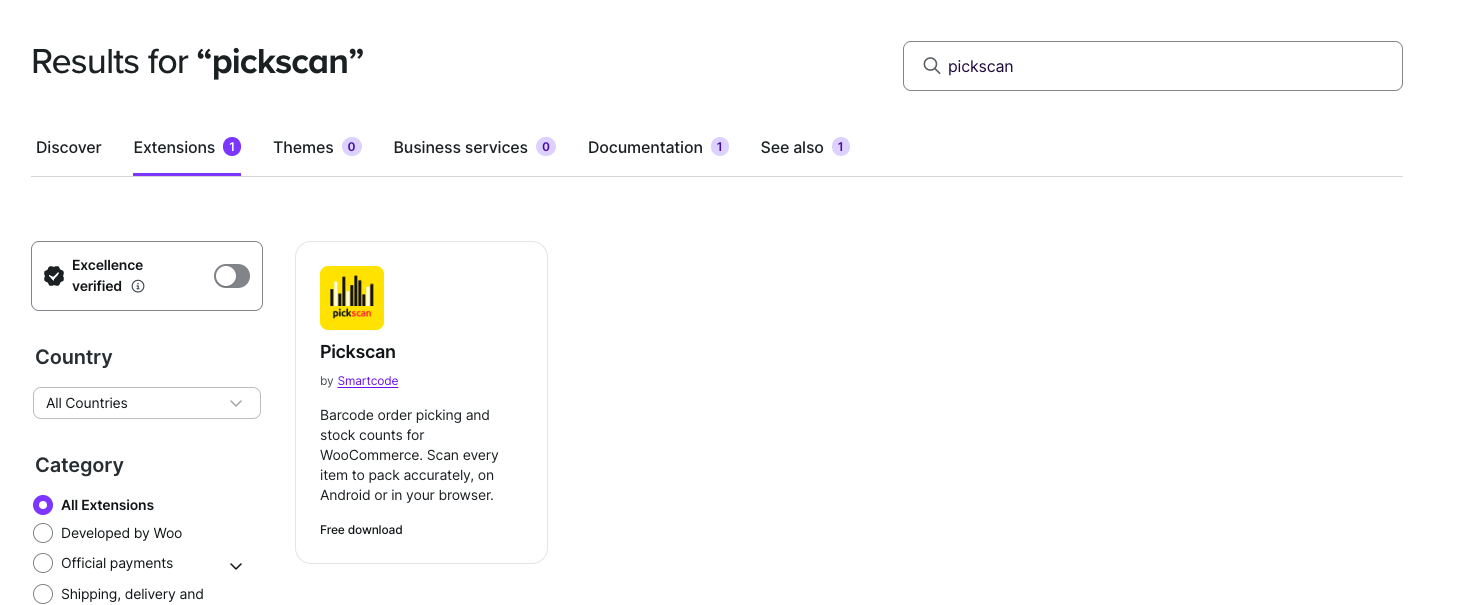
Pickscan in the WooCommerce.com search results -
Select Install for free
On the Pickscan listing, select Install for free. No payment details are needed.
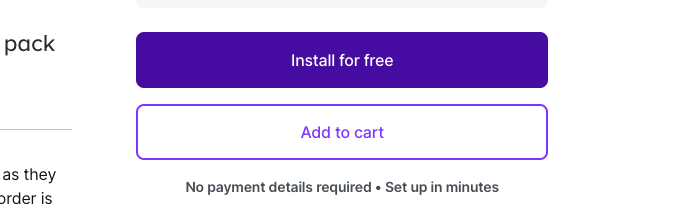
Select Install for free on the Pickscan listing If you choose Add to cart instead and go through the £0 checkout, you land on a
Thanks for your order!page. Select Add to store there, and carry on from the next step.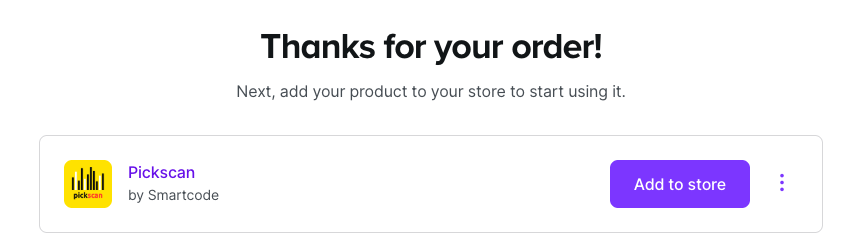
After checkout: Thanks for your order, with Add to store -
Choose the store to install on
On
Install your extension, select your store if it is already listed and skip to step 6. If it is not listed, select Connect new store.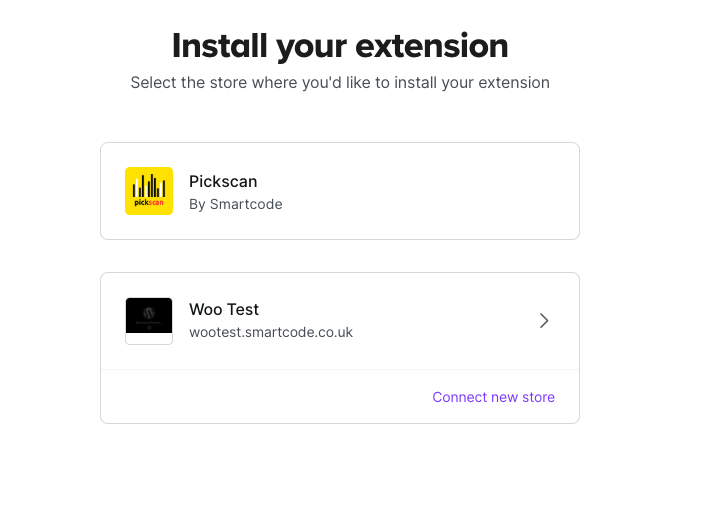
Choose your store, or Connect new store -
Enter your store URL
Type your store URL, for example
mystore.com, and select Continue. You may be asked to sign in to your WordPress admin.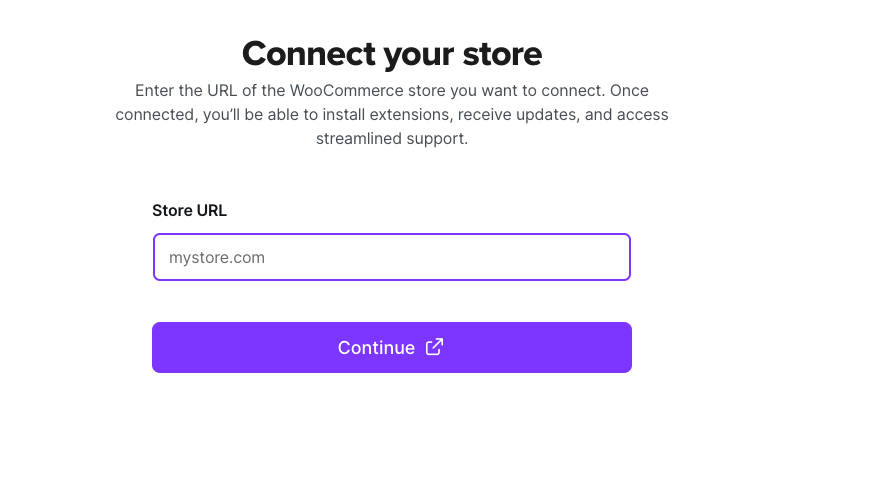
Enter your store URL -
Connect your WooCommerce.com account
Check the store and the WooCommerce.com account shown, then select Connect your account. This installs the WooCommerce.com Update Manager on your store, which is how Pickscan receives updates.
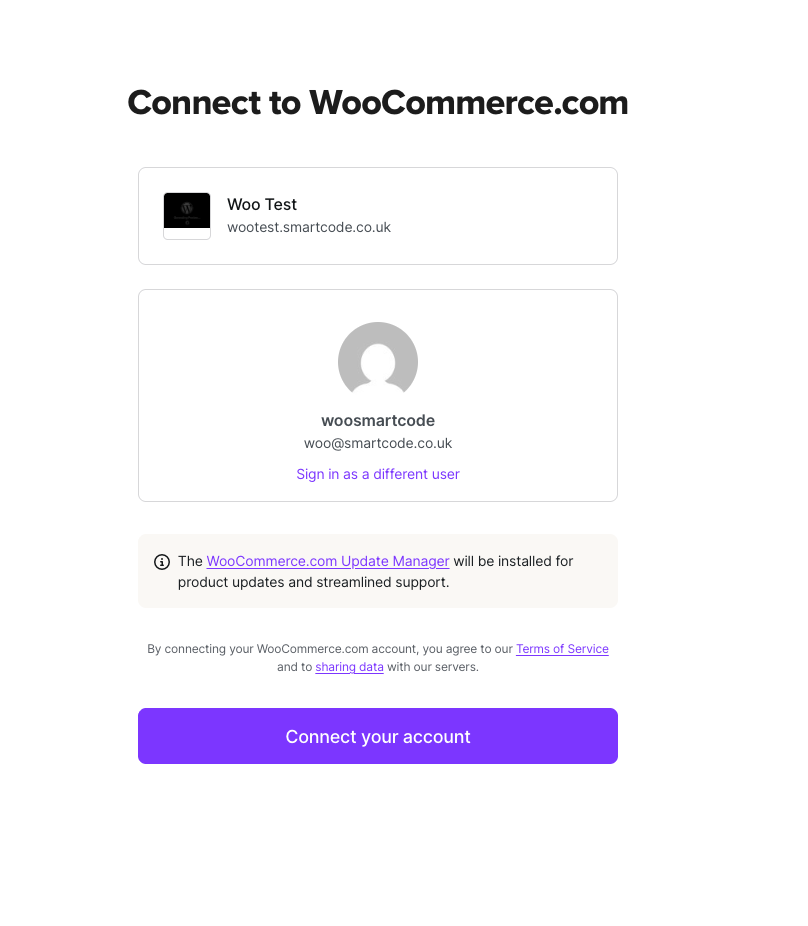
Connect your WooCommerce.com account to the store -
Wait for the installation to finish
An
Installing your extensionscreen installs the WooCommerce.com Update Manager (only if your store does not already have it), then Pickscan. Keep the page open until it finishes.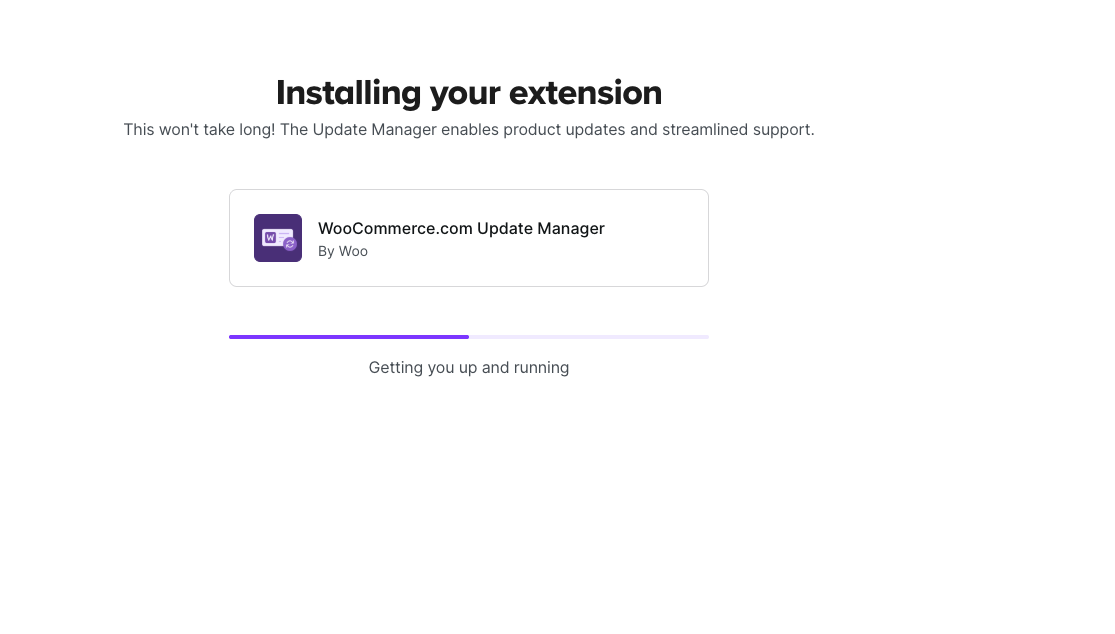
The Update Manager installs first 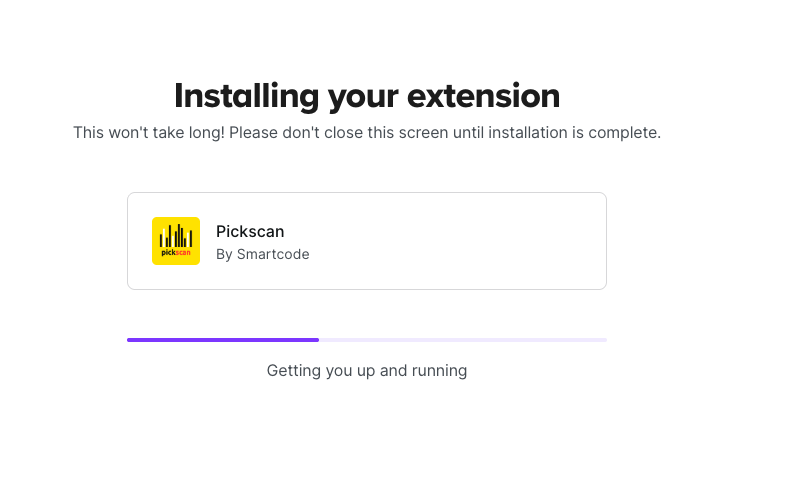
Then Pickscan installs -
Select Start using
When you see
Ready to go!, select Start using. This opens Pickscan in your WordPress admin, under WooCommerce → Pickscan.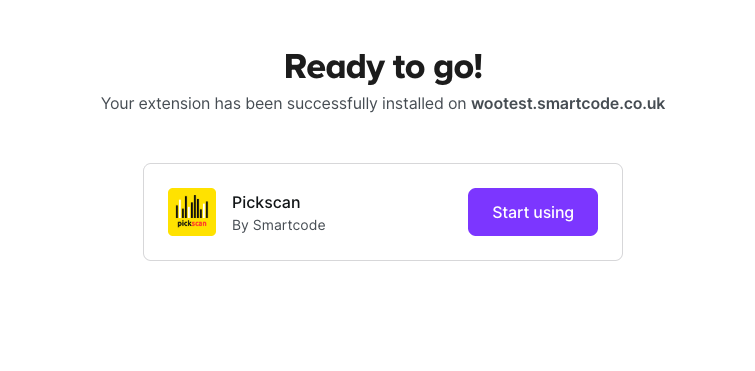
Ready to go — select Start using Pickscan is now listed and active under Plugins. The Enable auto-updates link shows it receives updates through WooCommerce.com.

Pickscan in the Plugins list, with updates available through WooCommerce.com
Run the setup wizard
The first time you open WooCommerce → Pickscan, a three-step wizard connects your store to the Pickscan service. You only do this once.
-
Welcome
Read the summary of what Pickscan does and select Get Started.
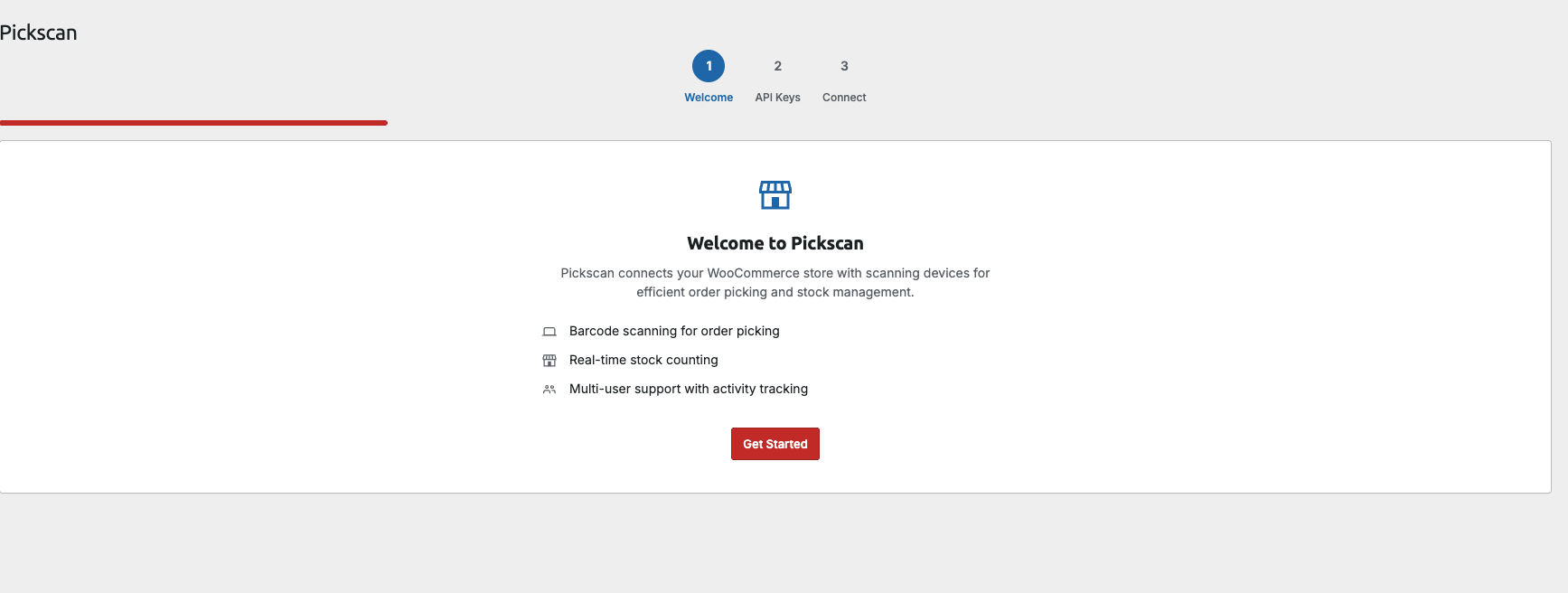
Setup wizard step 1: Welcome -
API Keys
Select Generate API Keys Automatically. Pickscan creates a read/write WooCommerce REST API key pair for itself and moves on to the next step, with the message
API keys generated successfully!If you would rather reuse a key pair you already have, paste it into Consumer key and Consumer secret and select Next. You can create one under WooCommerce → Settings → Advanced → REST API, with read/write access.
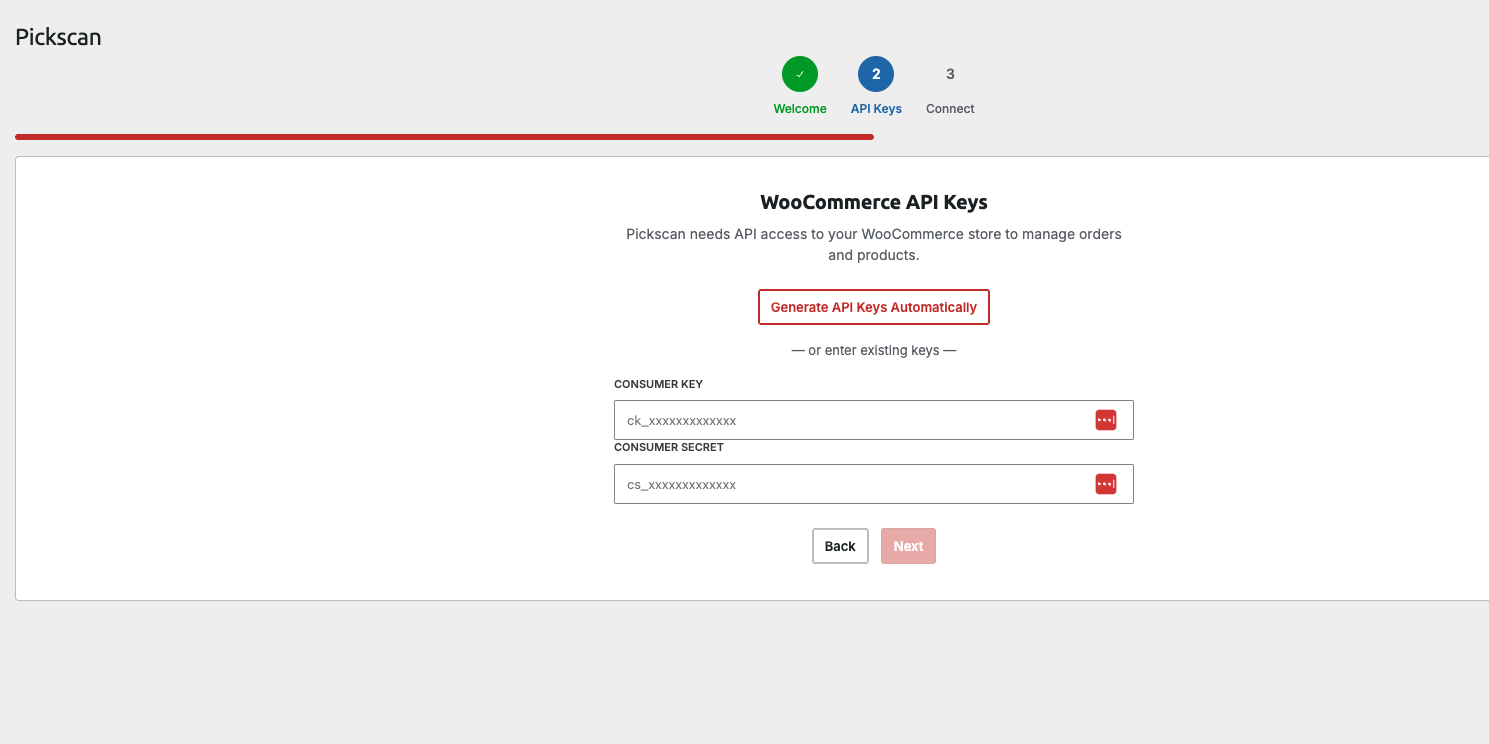
Setup wizard step 2: API Keys -
Connect
Check the store name and URL, then select Connect Store. It takes a few seconds. When it finishes, the Pickscan tabs open: Pick, Stock check, Devices, Users, Activity and Settings.
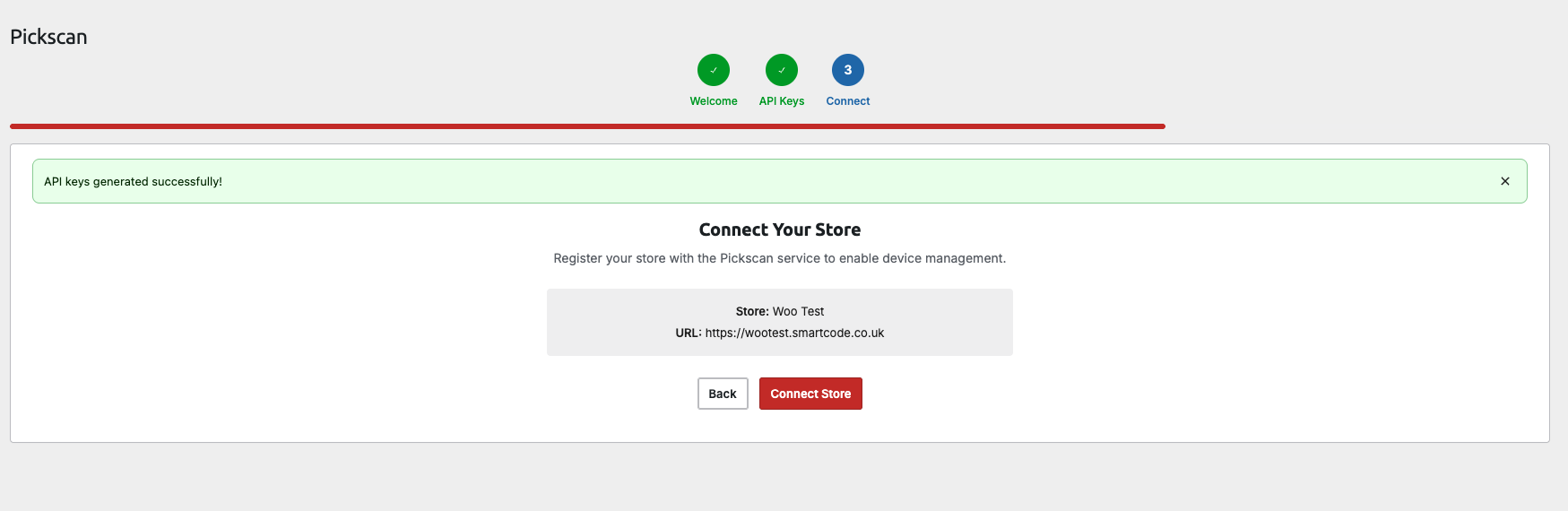
Setup wizard step 3: Connect
That is setup done. A web station called Pickscan Web (WooCommerce) is added to Devices for you, so you can pick orders from the Pick tab in your browser straight away, with a USB barcode scanner or by typing the SKU.
Pair a phone or scanner (optional)
To scan on the warehouse floor, install the Pickscan app and pair it from Devices → Add device. The dialog shows a QR code and a 6-digit code, both valid for 10 minutes.
- Android: install Pickscan from Google Play, open it and enter the 6-digit code.
- iPhone or iPad: the app is in public beta. Open the TestFlight link on the device, install TestFlight if prompted, then install Pickscan. Open it, choose WooCommerce, and scan the QR code.
See Managing users and devices for adding the app users who sign in on those devices.
Order status after picking
By default, Pickscan does not change an order's WooCommerce status when a picker finishes it on a phone. The order stays as it was, usually Processing, so you can complete it in WooCommerce yourself or let your own shipping or fulfilment flow do it.
To have Pickscan complete phone picks for you, open the Settings tab, turn on Mark Order Completed When Picked in the Mobile App Configuration card, and select Save Changes.
- Off (default): when a picker finishes an order on a phone, its WooCommerce status is left as it is.
- On: when a picker finishes an order on a phone, Pickscan sets it to Completed. Orders that are already Completed are left alone.
Picking in the browser from the Pick tab is not affected by this setting. There, selecting Mark order complete at the end of the pick sets the order to Completed.
Troubleshooting
The setup wizard appears again after reinstalling.
If Pickscan was first installed from a .zip file and you then install it from WooCommerce.com, the old copy is removed first, and that clears Pickscan's saved connection. Run the wizard again. Your devices, users and activity are kept on the Pickscan service and come back when the store reconnects.
Pickscan never shows an update.
Updates arrive through the WooCommerce.com Update Manager. Check that your store is connected under WooCommerce → Extensions → My Subscriptions, and that Pickscan was installed from WooCommerce.com rather than from a .zip file. If the Plugins list shows no auto-updates link next to Pickscan, WordPress has no update source for it.
The wizard cannot generate API keys. A security plugin or your host may be blocking the WooCommerce REST API. Create a key pair by hand under WooCommerce → Settings → Advanced → REST API, with read/write access, and paste it into the API Keys step.
Need help?
Email help@smartcode.co.uk with your store URL and the plugin version shown under Settings → Store information.