Using command barcodes
A command barcode is a barcode that tells the Pickscan handheld to do something instead of looking up a product. There are two kinds:
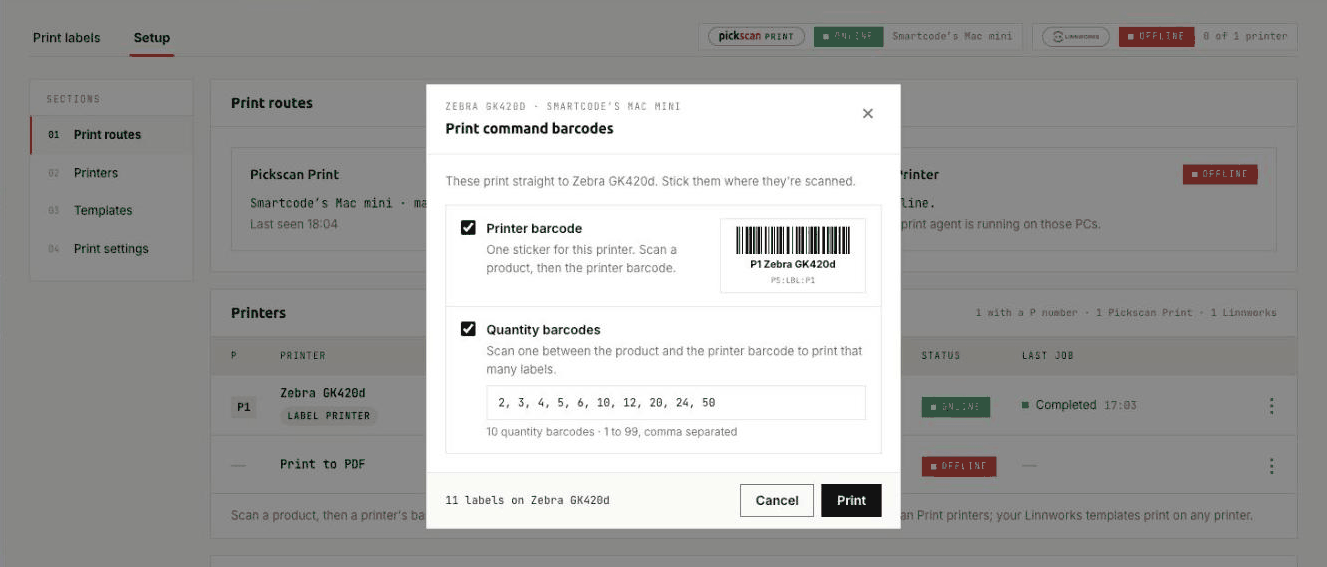
- Printer barcodes (
P1,P2and so on): stick one on each printer. Scan an item, then the printer barcode, and the item's stock label prints there. - Quantity barcodes (
× 2up to× 99): scan one between the item and the printer barcode to print that many labels.
DRAFT: handheld screenshots still to be added.
How P numbers work
A printer barcode only holds a short number, P1, not the printer itself. The Print page keeps track of which printer each P number belongs to. If you replace a printer or move it to another computer, point its P number at the new one and the barcode already stuck on it keeps working.
Print your command barcodes
- Open the printers list
In Pickscan inside Linnworks, open Print, then the Setup tab, then Printers.
- Open the printer's menu
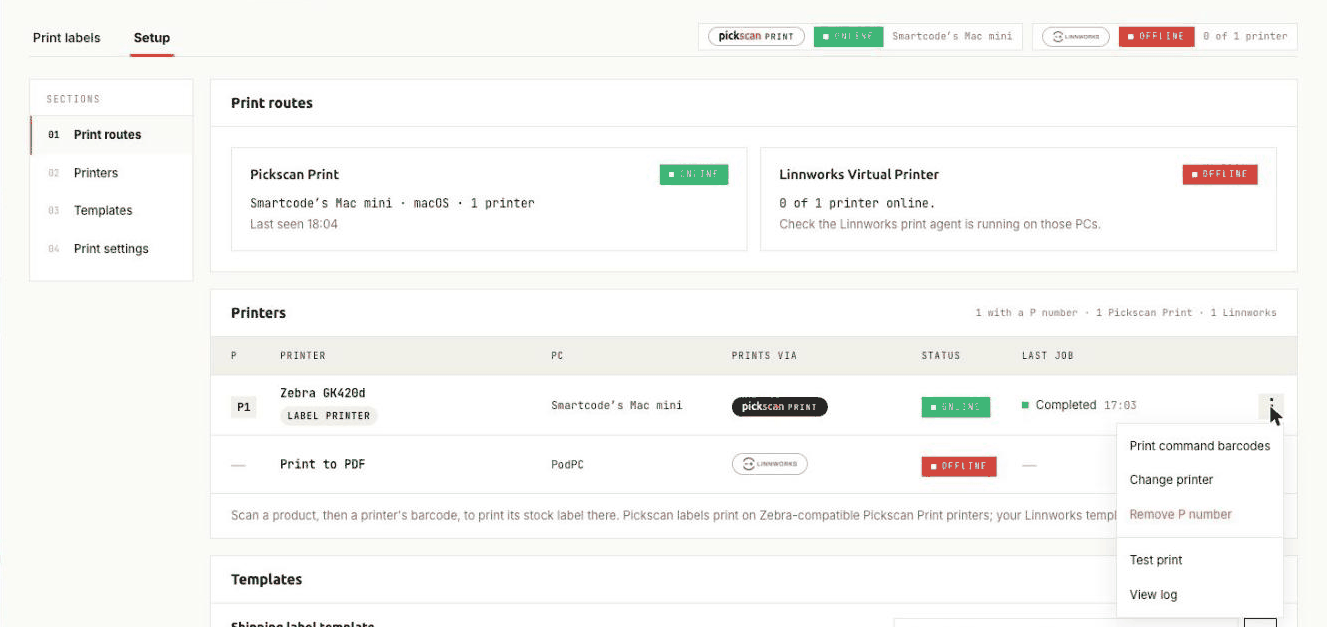
On the row for the printer you want, open the menu (three dots) and choose Print command barcodes.
- Choose what to print
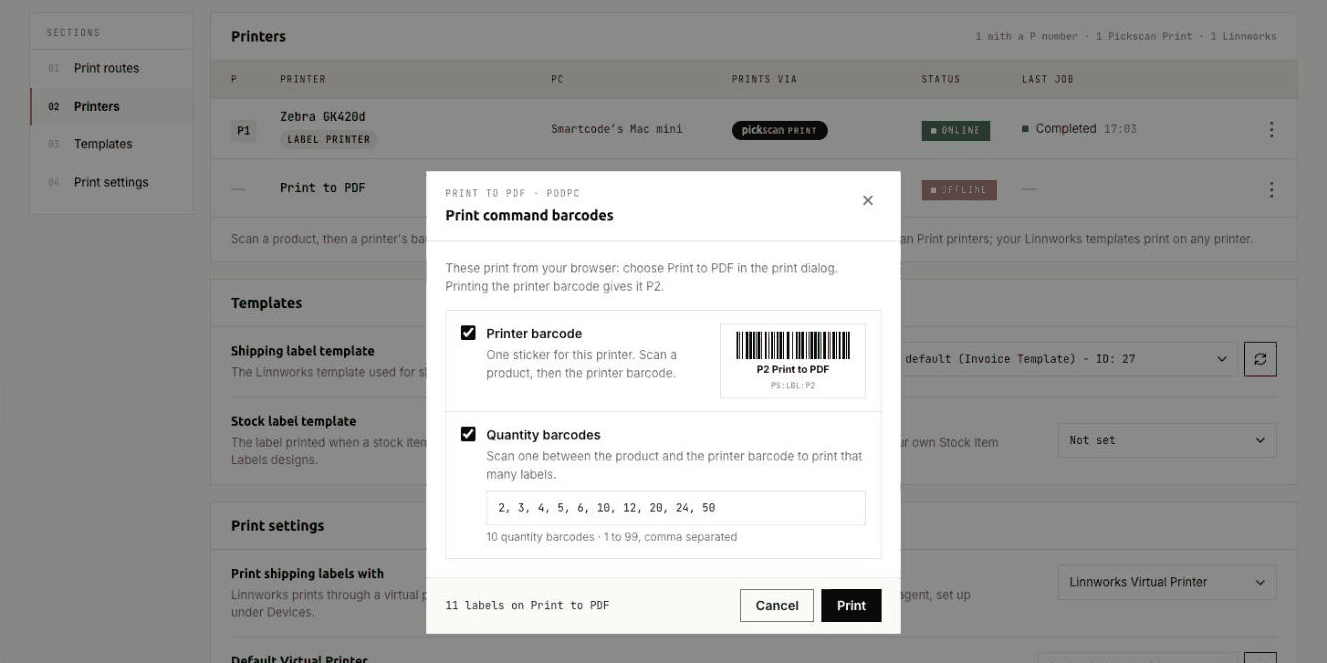
Tick Printer barcode for this printer's sticker. If the printer has no P number yet, printing it gives the printer the next free one. Tick Quantity barcodes and edit the list (for example
2, 3, 4, 5, 6, 10, 12, 20, 24, 50) for the quantities you label in most often. - Print
Click Print. On a Pickscan Print printer the stickers print straight to that printer, at your stock label size. On a Linnworks virtual printer your browser's print dialog opens: choose that printer there.
- Stick them up
Stick the printer barcode on its printer, and keep the quantity barcodes where labels are printed, for example on the goods-in bench.
Using them on the handheld
- Scan the item
On the STOCK tab. Always scan the item first.
- Scan a quantity barcode (optional)
For more than one label, for example
× 24. - Scan the printer barcode
The labels print on that printer. Scan it again for another copy.
See Printing stock labels from the Pickscan handheld for more, including what to do when a label doesn't print.
Managing P numbers
From the printer's menu on the Print page:
- Change printer points the P number at a different printer. The sticker stays the same.
- Remove P number stops that printer barcode working. Print a new one if you set the printer up again.
Tips
- Command barcodes never count as products, so scanning one during a stock count or put away doesn't add anything.
- Scanning a printer barcode before an item shows
Scan an item first. Nothing prints. - If the handheld says
Update Pickscan, the barcode is newer than the app. Update Pickscan on the handheld.