Printing labels from the Print page
Open Print from the top menu in Pickscan inside Linnworks. The page has two tabs: Print labels for printing a stock label from your desk, and Setup for your printers, templates and print settings.
DRAFT: two screenshots (a selected item with its preview, and the Templates section) still to be added.
Before you begin
You need at least one way to print, called a print route. The two status chips at the right of the tab bar show whether each one is ready:
- Pickscan Print: our desktop print agent, running on the computer your label printers are plugged into. It prints both Pickscan labels and your Linnworks templates. See Setting up Pickscan Print for Linnworks labels.
- Linnworks Virtual Printer: a printer you have set up in Linnworks with the Linnworks print service. It prints your Linnworks templates only.
Each chip shows ONLINE, OFFLINE or NOT SET UP. When a route isn't set up, click Set up next to it.
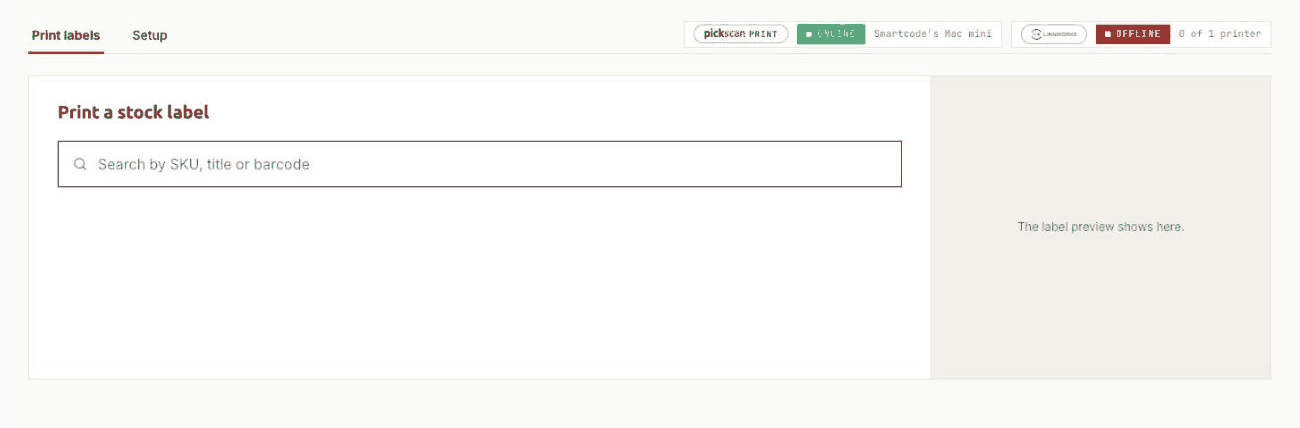
Print a stock label
Use this for a one-off label, for example a replacement for a damaged one.
- Find the item
On the Print labels tab, type a SKU, title or barcode in the search box and choose the item from the list.
- Check the template, quantity and printer
Pickscan fills in your usual stock label template and a printer that can print it. You can change any of them for this print only. The preview on the right shows the label as it will print. A Linnworks template shows
Designed in Linnworksinstead of a preview. - Print
Click Print 1 label (the button counts the labels you asked for). You can print up to 99 at a time. A line next to the button shows when the labels have printed, or why they didn't.
Pickscan labels need a Zebra or Zebra-compatible label printer set as the label printer in Pickscan Print. Linnworks templates print on any of your printers.
Setup
The Setup tab has four sections, listed down the left.
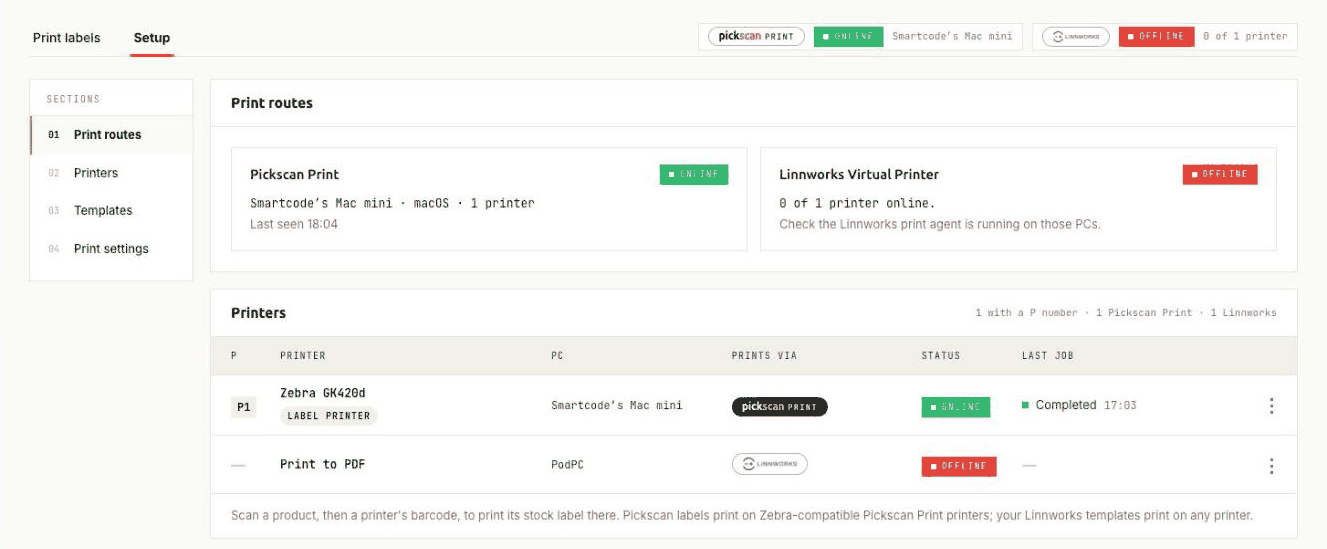
Print routes
A card for each route, showing whether it's online, which computer it runs on, how many printers it has, and when it was last seen.
Printers
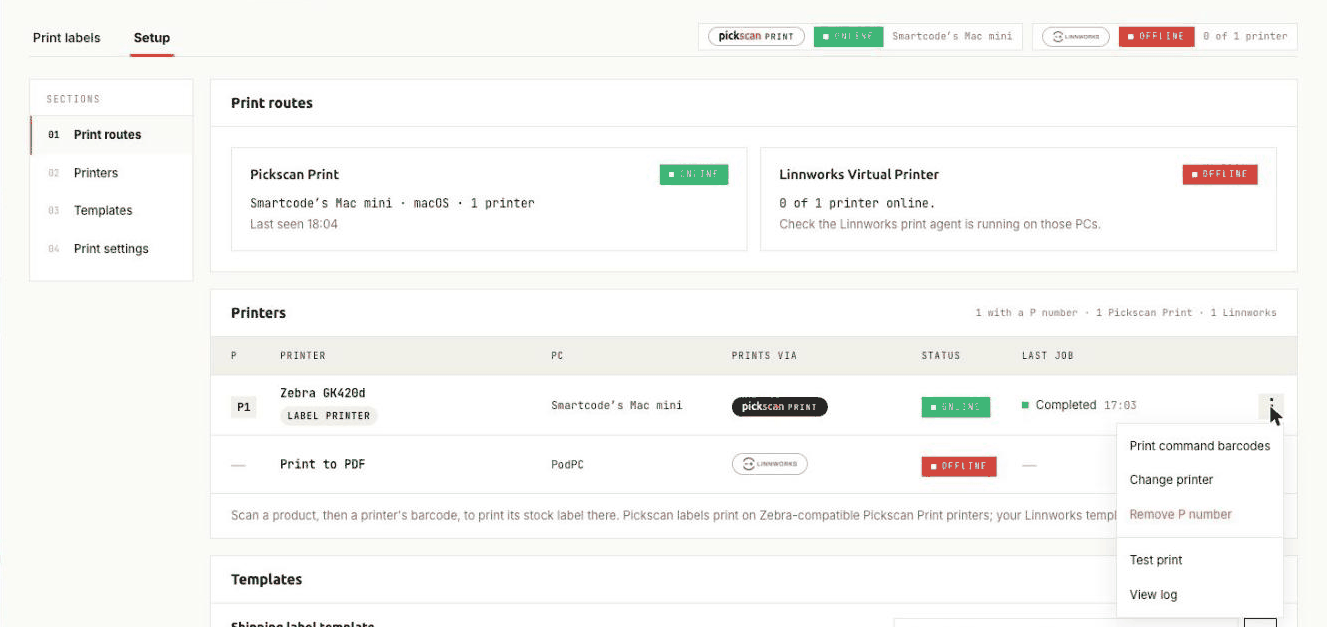
Every printer from both routes in one table: its P number, name, computer, route, status and last job. Open the menu (three dots) at the end of a row to:
- Print command barcodes: print the printer barcode for this printer and a set of quantity barcodes. Printing the printer barcode gives the printer its P number if it hasn't got one. See Using command barcodes.
- Change printer: point this P number at a different printer, for example after replacing one. The barcode already stuck up keeps working.
- Remove P number: stop this printer barcode working.
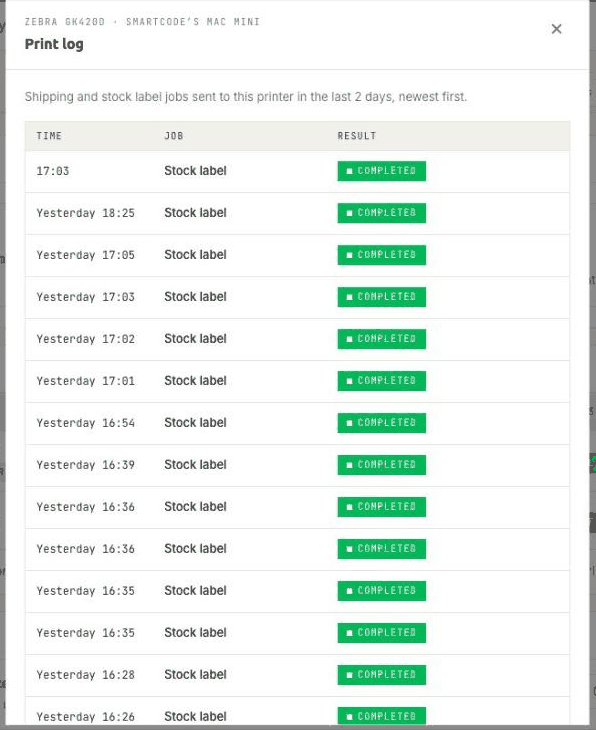
- Test print and View log (Pickscan Print printers only): print a test label, or see the jobs sent to this printer in the last two days and whether each one printed.
Templates
- Shipping label template: the Linnworks template used for shipping labels.
- Dispatch note template: shown when Print dispatch note on label print is on.
- Stock label template: the label printed when a stock item is scanned for printing on the handheld, and the one the Print labels tab starts with. Choose one of the Pickscan labels (38 × 25 mm up to 102 × 76 mm, no design needed) or one of Your Linnworks templates (any Stock Item Labels template designed in Linnworks). A preview shows the Pickscan label at its size.
Print settings
How shipping labels print, and what happens when they do:
- Print shipping labels with: a Linnworks virtual printer or Pickscan Print, with the Default Virtual Printer or Pickscan Print printer to send them to.
- Mark as Processed on Print and Assign to Folder on Print.
- Print dispatch note on label print.
- Restrict duplicate label print: stop a shipping label printing twice for the same order.
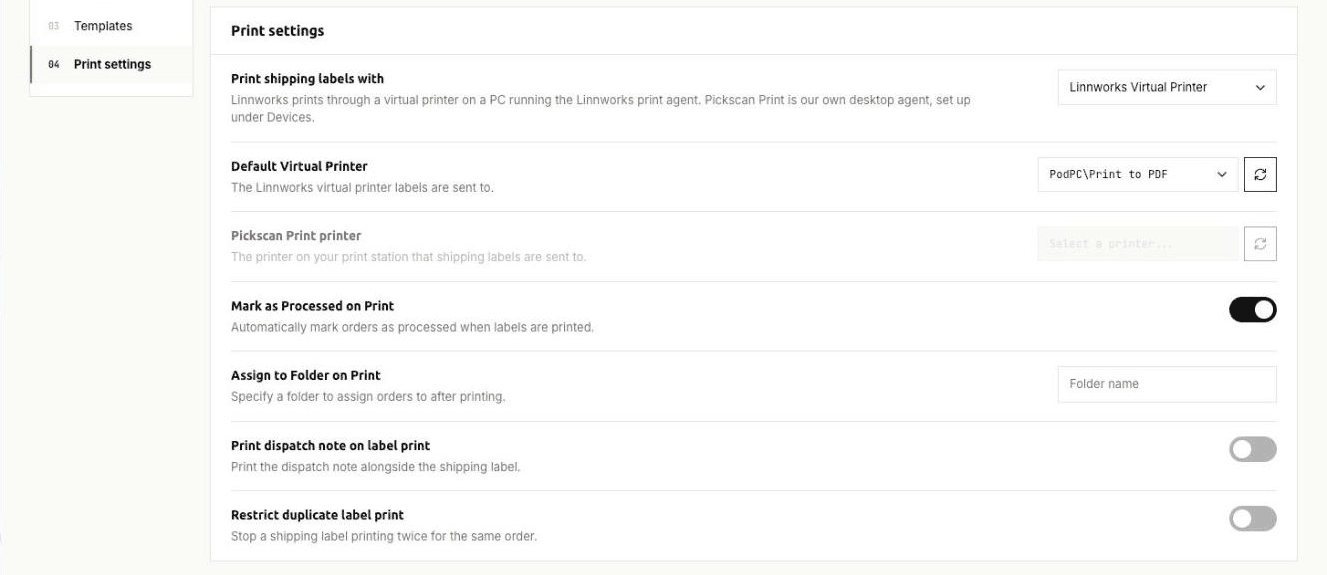
Click Save Settings at the bottom of the page after changing anything in Templates or Print settings.
Tips
- If you reload the page while on Setup, it stays on Setup.
- Nothing on the Print labels tab changes your settings. Choosing a different template there is for that print only.
- To print stock labels from the handheld instead, see Printing stock labels from the Pickscan handheld.