What to do when your WooCommerce API keys aren't set correctly
Pickscan reads your orders through the WooCommerce REST API, using a pair of API keys saved during setup. If those keys aren't valid, WooCommerce refuses every request and Pickscan can't see your orders. Pickscan checks this each time it opens, and asks you to reconnect if the keys don't work.
How you'll know
When you open WooCommerce > Pickscan, it goes straight to the API Keys step of setup with a yellow message:
Pickscan can't read your orders because the saved WooCommerce API keys aren't valid. Click Generate API Keys Automatically to reconnect.
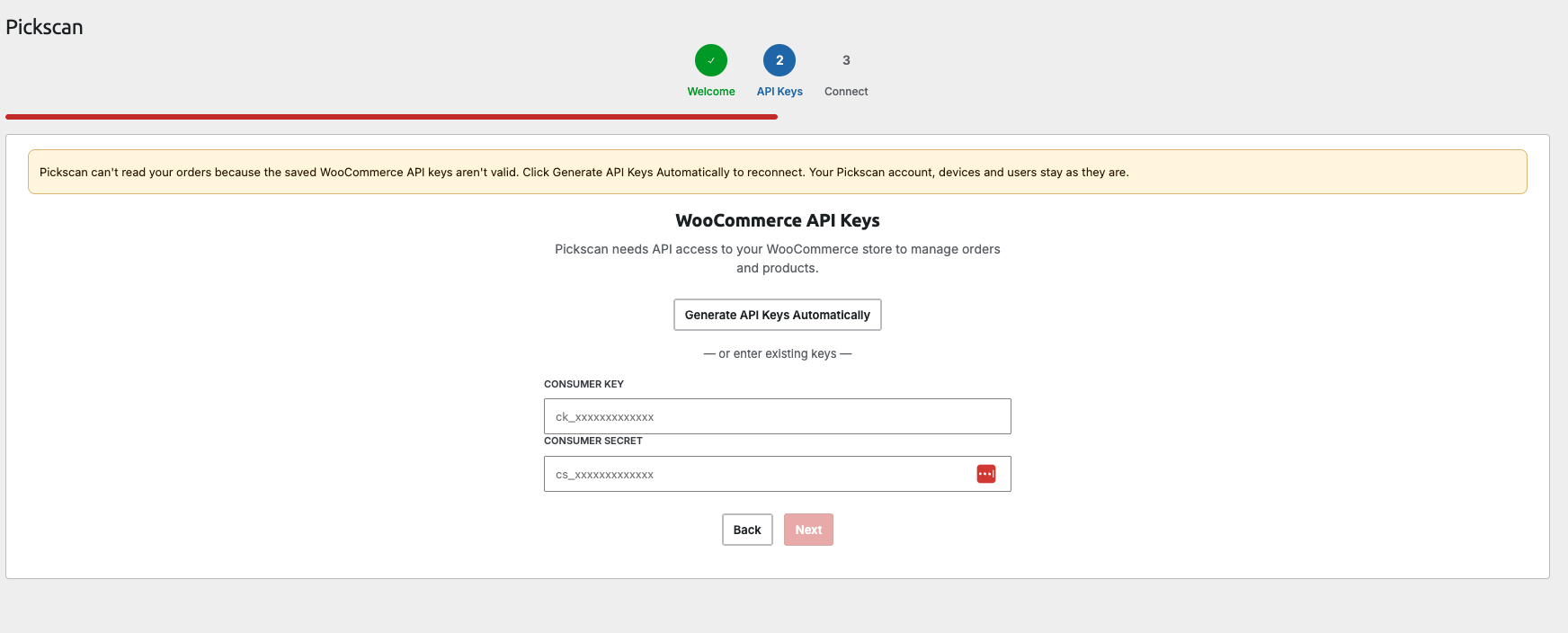
If the keys stop working while Pickscan is already open, the Pick tab shows Pickscan can't read your orders because WooCommerce is refusing the saved API keys with a Reconnect store button, and Settings > Connection Status shows WooCommerce store: Can't read orders.
Why it happens
WooCommerce API keys always start with ck_ (Consumer Key) and cs_ (Consumer Secret). The most common cause is a browser or password manager filling the two key boxes on the setup screen with your WordPress login email and password. WooCommerce rejects those details every time Pickscan asks for orders.
Keys also stop working if they are revoked or deleted under WooCommerce > Settings > Advanced > REST API.
If your WordPress password was entered into the key boxes, change it as a precaution: go to Users > Profile > Set New Password. The old details are replaced as soon as you reconnect.
Reconnect your store
-
Click Generate API Keys Automatically
On the API Keys step, click Generate API Keys Automatically. Pickscan creates a new pair of keys in WooCommerce for you. You don't need to type anything.
Leave the Consumer Key and Consumer Secret boxes empty. If your browser or password manager offers to fill them, dismiss it.
If you started from a Reconnect store button, it brings you to this step.
-
Click Connect Store
Pickscan moves on to Connect Your Store and shows
API keys generated successfully!. Check the store name and URL, then click Connect Store.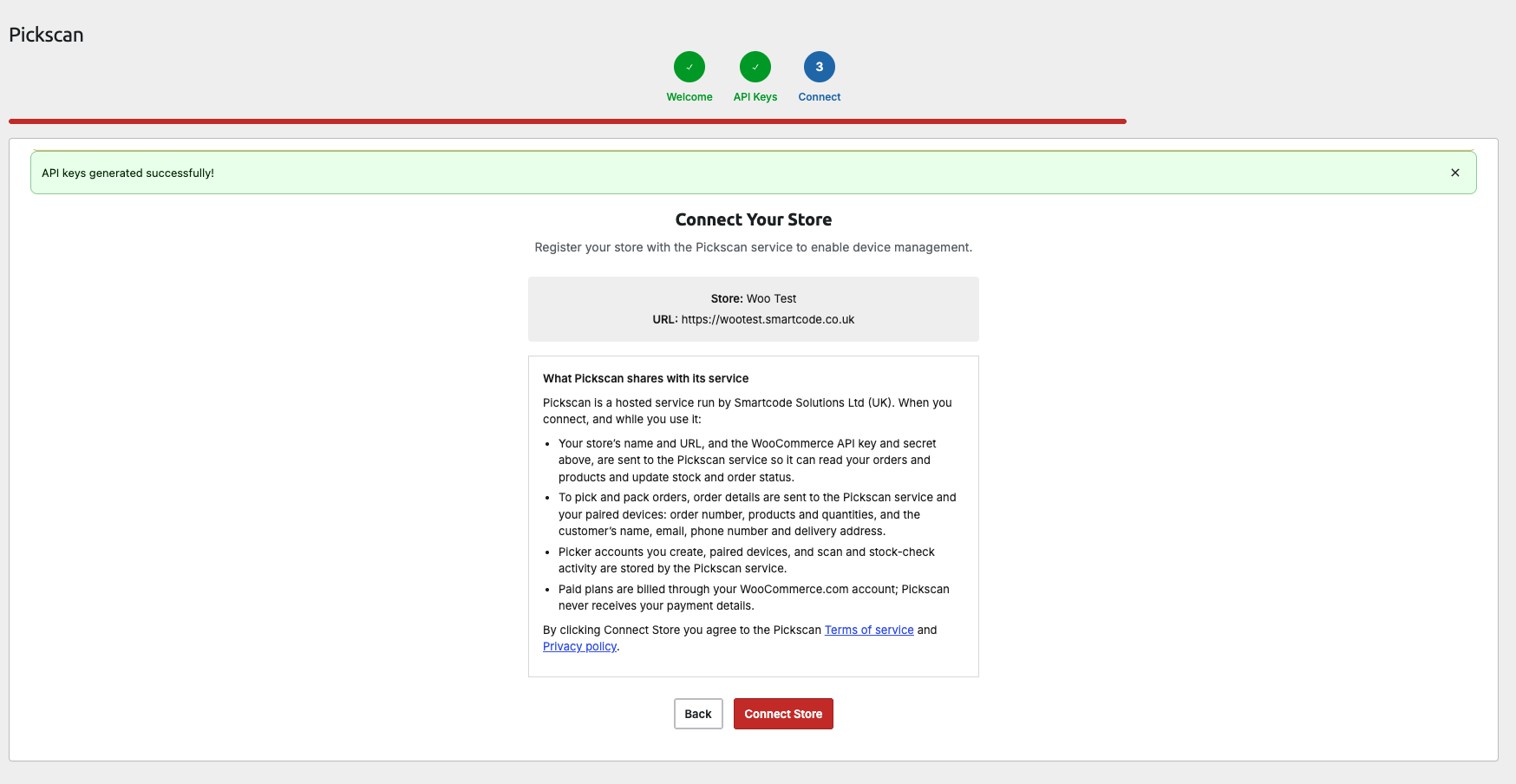
After generating keys, click Connect Store -
Check your orders appear
Pickscan checks it can read your orders, then opens on the Pick tab. Your Processing and On hold orders show there and on any paired phones. Settings > Connection Status shows
WooCommerce store: Connected.
Reconnecting keeps everything else as it was: your Pickscan account, plan or free trial, paired devices, users and activity history.
If Pickscan can't reach your store
If Pickscan shows Pickscan couldn't reach your store to read orders, your site didn't answer. This is often temporary, for example during maintenance or a hosting hiccup. Click Try again. If it keeps happening, click Reconnect store to generate new keys, and check with your host that the WooCommerce REST API isn't blocked by a security plugin or firewall.
On an older version of Pickscan
Versions before 1.0.59 don't check the keys. With invalid keys, the Pick tab says No unfulfilled orders even though WooCommerce > Orders has orders waiting, and Settings still shows Connected. Update Pickscan to get the reconnect screen, or reconnect by reinstalling:
-
Delete the plugin
Go to Plugins, deactivate Pickscan, then click Delete. This only removes the saved settings from your WordPress site. Your Pickscan account, devices and users are not deleted.
-
Reinstall Pickscan
Download Pickscan again from your WooCommerce.com account (My Account > Downloads), then upload and activate it under Plugins > Add New > Upload Plugin.
-
Run setup with generated keys
Open WooCommerce > Pickscan, click Get Started, then Generate API Keys Automatically, then Connect Store.
Still stuck?
Email help@smartcode.co.uk with your store address. We can see from our side whether WooCommerce is accepting Pickscan's keys.