Connecting the Pickscan Android app to Shopify
Before you begin
- Ensure the Pickscan Android app is installed from Pickscan on Google Play.
- Ensure you have admin access to the Shopify store.
- Ensure the Pickscan for Shopify app is installed in the Shopify admin.
- Ensure the Android device has an internet connection.
The activation code connects the Android device to your store. It is different from the user PIN you enter when signing in to the app.
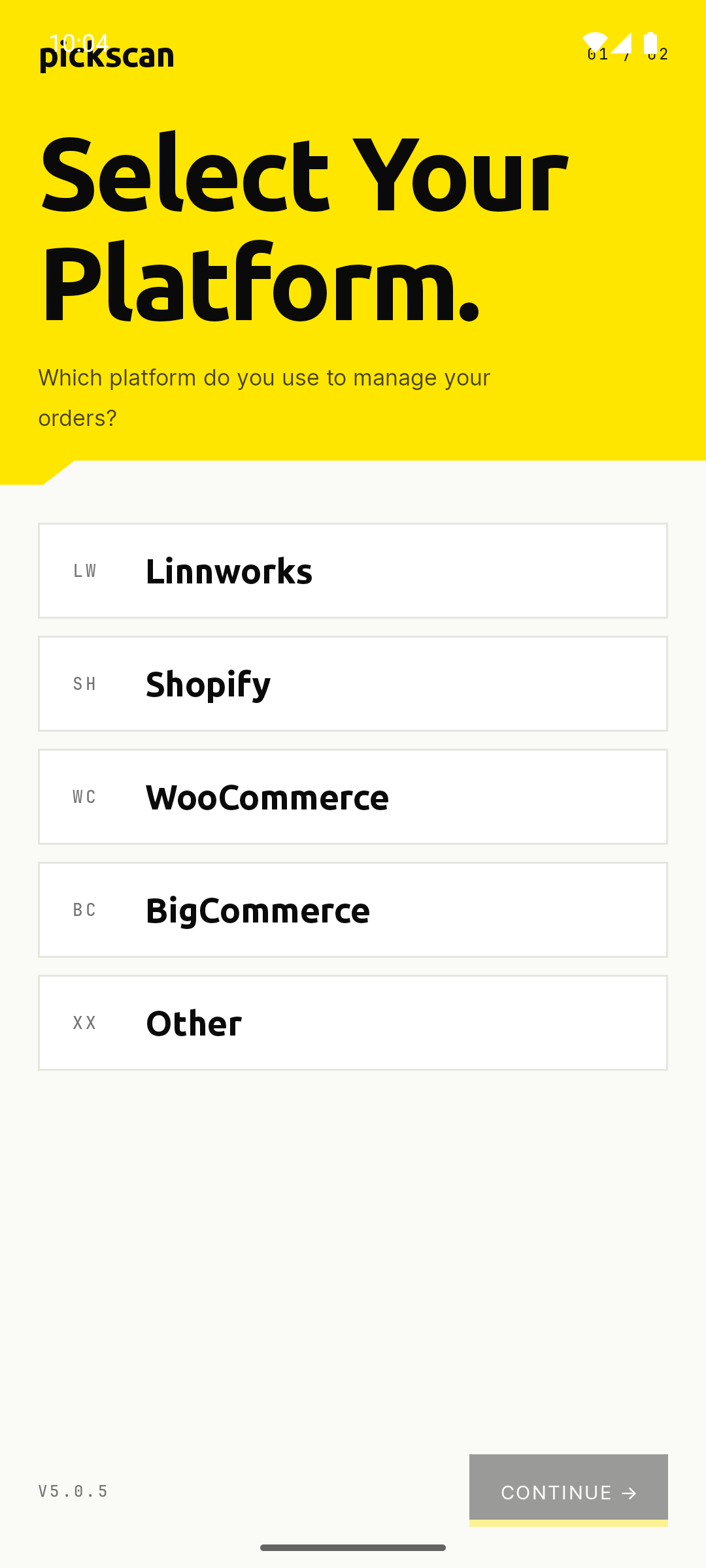
Select Shopify
- Open Pickscan
Open the Pickscan app on the Android device.
- Choose the platform
On the platform screen, tap Shopify.
- Continue
Tap Continue to move to device activation.
Get an activation code
- Open Pickscan in Shopify
In the Shopify admin, open Apps, then Pickscan.
- Open Devices
Open Devices in Pickscan.
- Add a device
Click Add Device to generate an activation code for the Android app.
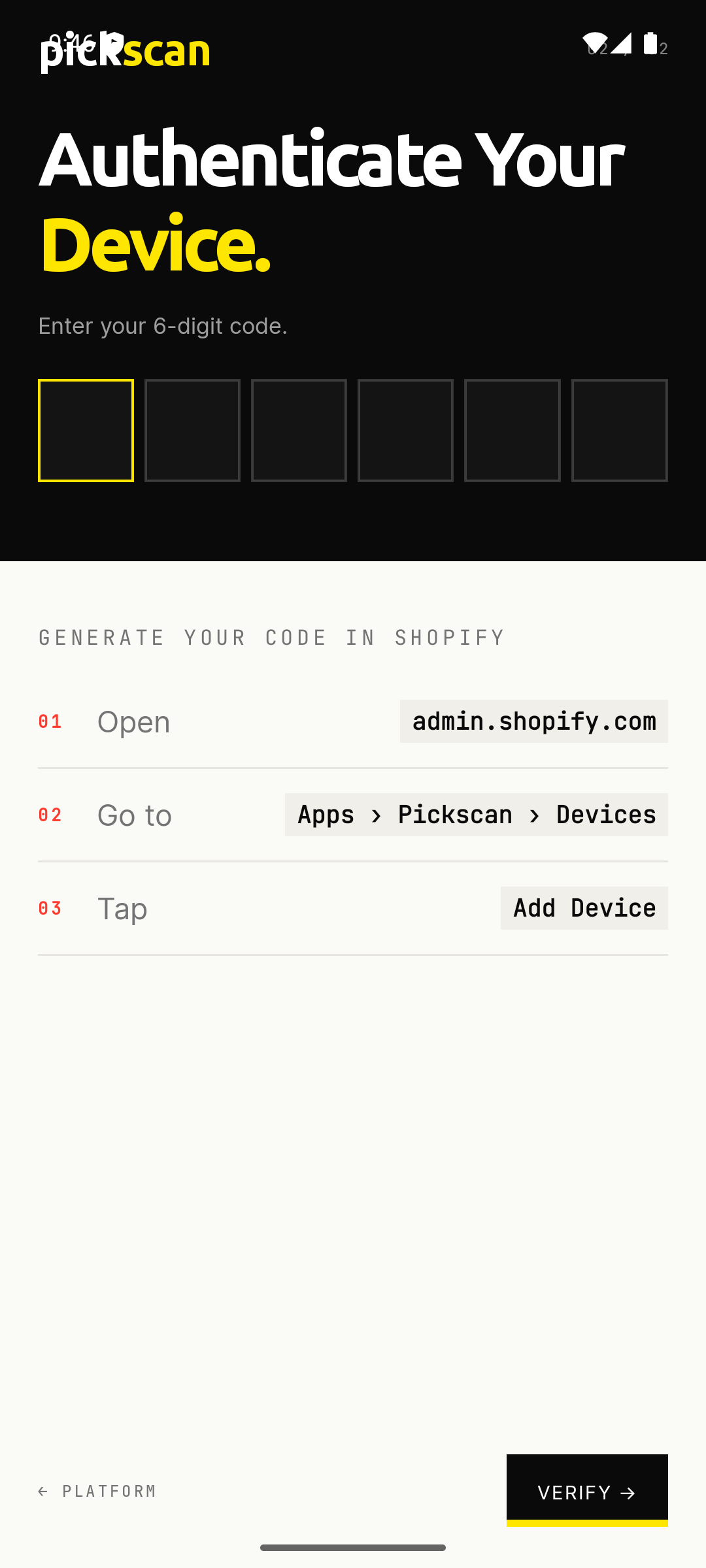
Enter the code on the device
- Type the activation code
Enter the 6-digit activation code into the boxes on the Android device.
- Verify the device
Tap Verify when the code has been entered.
- Finish sign-in
When the device is connected, sign in with your Pickscan user PIN.
What happens next
The Android app shows the connected Shopify store on the PIN sign-in screen. Each picker signs in with their own user PIN so Pickscan can track who picked each order or batch.