Managing devices in Pickscan
Devices page overview
The Devices page lists every Android handheld and browser pack station connected to this Linnworks company.
Open Pickscan from Apps in Linnworks, then choose Devices. The page heading is Connected devices.
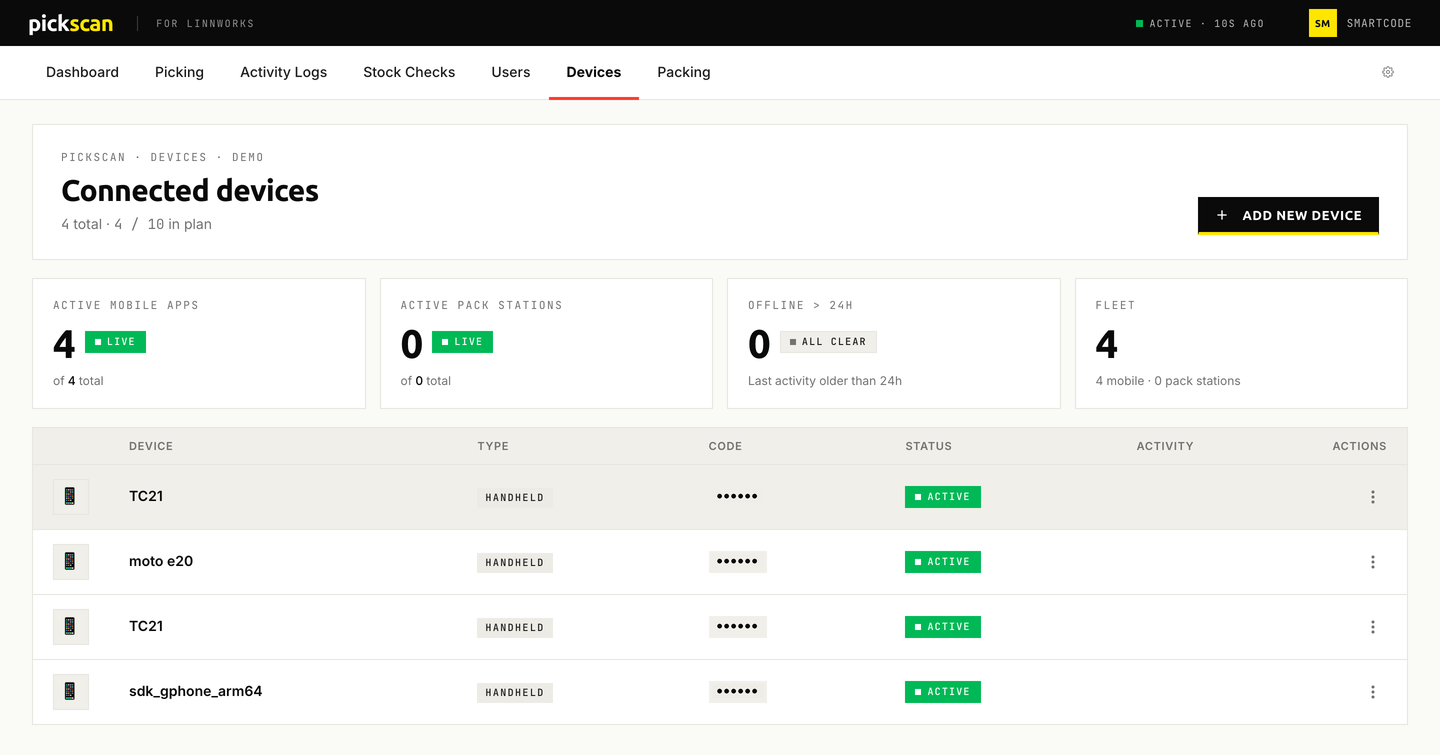
Summary cards
Four cards sit above the table:
- ACTIVE MOBILE APPS — handhelds currently in use, with a LIVE badge when they are online.
- ACTIVE PACK STATIONS — browser packing stations currently in use.
- OFFLINE > 24H — devices with no activity for more than 24 hours. An ALL CLEAR badge appears when none are overdue.
- FLEET — total devices, with a split of mobile apps and pack stations.
The subtitle under Connected devices shows how many devices you have and how many your plan allows.
Device table
| Column | What it shows |
|---|---|
| DEVICE | Device name |
| TYPE | HANDHELD or pack station |
| CODE | 6-digit activation code used to pair the app |
| STATUS | ACTIVE once the app has connected. A new device stays Not initialised until the first connection. |
| ACTIVITY | Last activity |
| ACTIONS | Three-dot menu for rename and delete |
Add a device
- Open the Devices page
In Pickscan, go to Devices.
- Click Add New Device
Click + ADD NEW DEVICE and choose Set up Android device. A dialog shows a 6-digit device code.
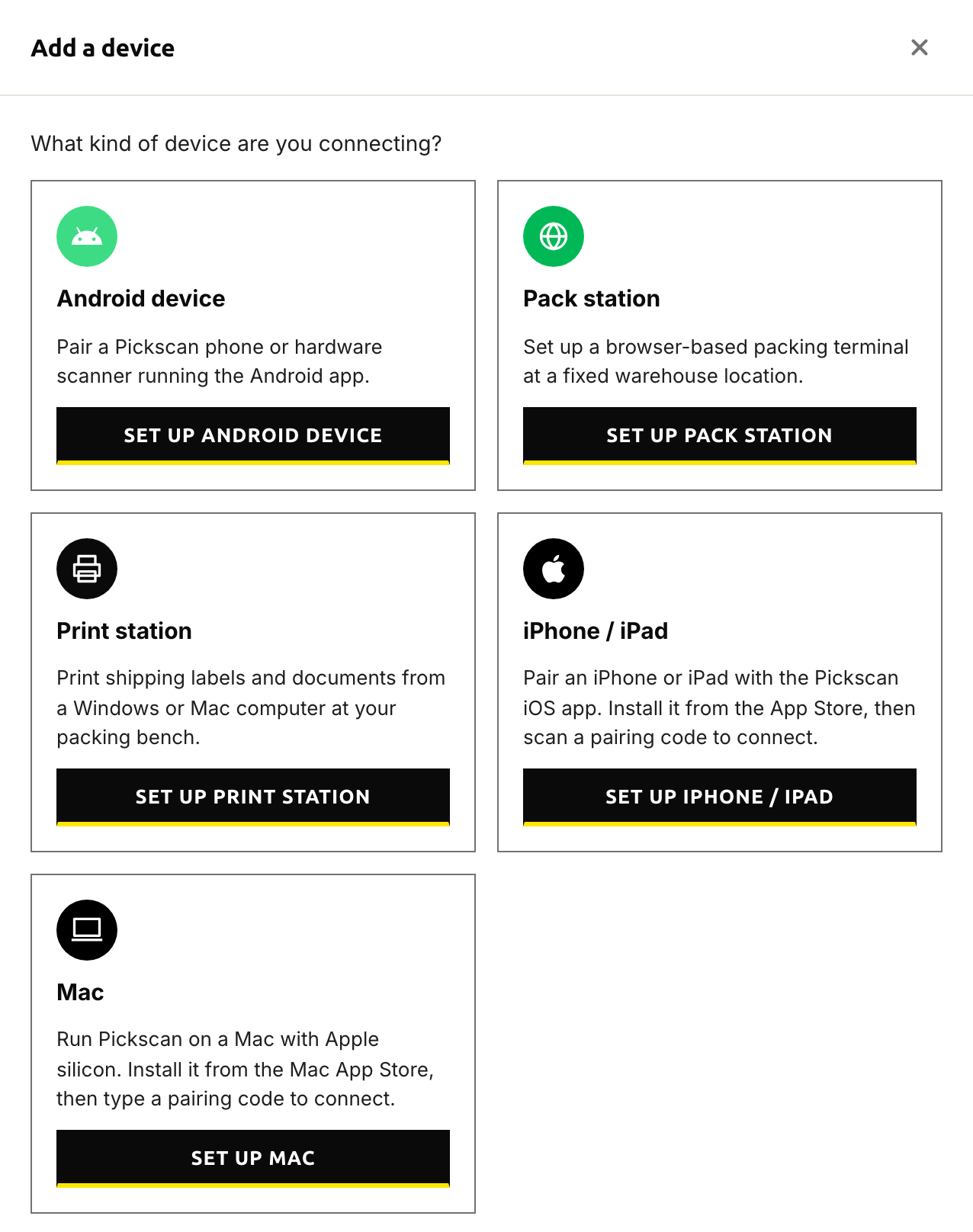
Choose the kind of device to add - Enter the code on the Android device
Open the Pickscan mobile app and enter that code. The device connects to your account.
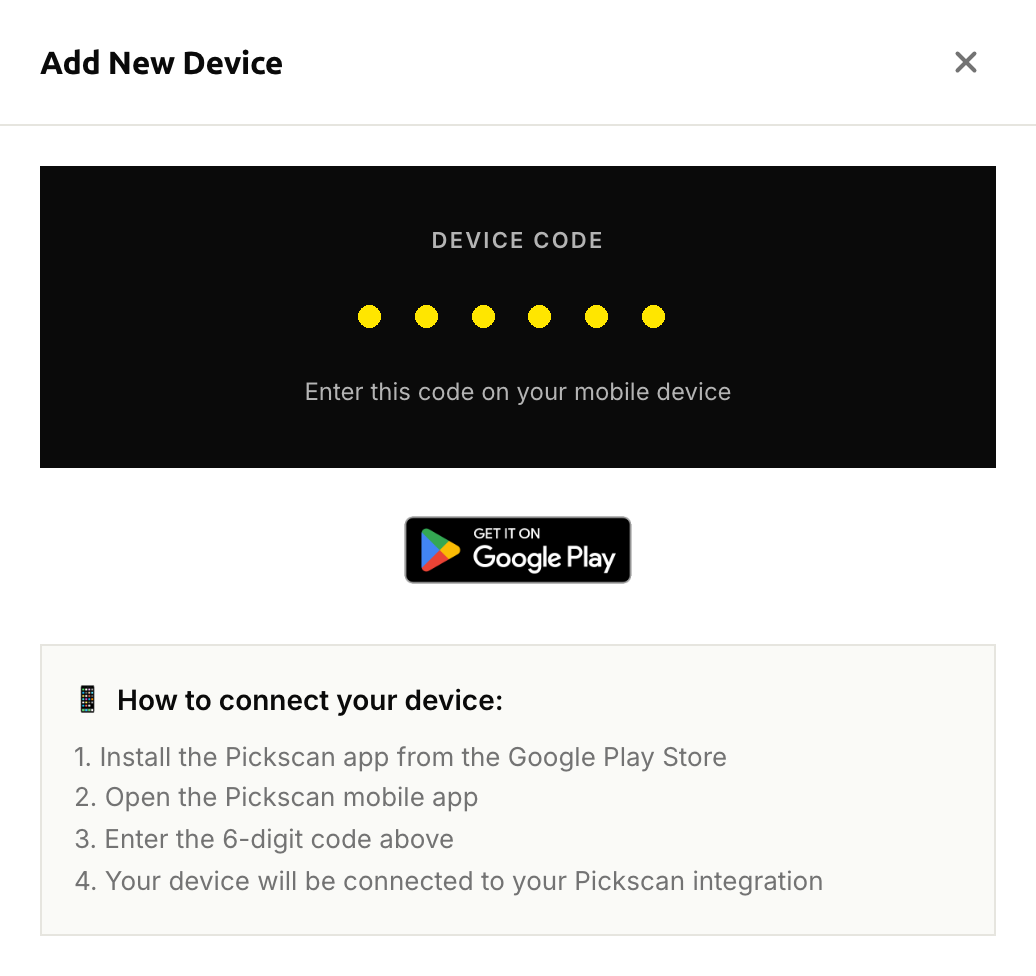
The device code to enter in the Android app
The device appears as Not initialised until the app connects, then STATUS changes to ACTIVE.
If the mobile app is not installed yet, the modal includes a link to Pickscan on Google Play.
Rename a device
- Find the device
Locate the device in the table on the Devices page.
- Open the menu
Click the three-dot menu on the device row and select Rename.
- Enter a new name
Type a name (up to 100 characters) and click Rename.
Delete a device
- Find the device
Locate the device in the table on the Devices page.
- Open the menu
Click the three-dot menu on the device row and select Delete.
- Confirm deletion
Click Delete Device to confirm. This action cannot be undone.
Device limits
Each Pickscan plan has a maximum number of devices. The current limits are:
| Plan | Device limit |
|---|---|
| Free Trial | No limit |
| Bronze | 1 |
| Silver | 5 |
| Gold | 10 |
| Platinum | 25 |
| Diamond | 50 |
If you reach your device limit, Pickscan shows a message with your current plan and device count. To add more devices, upgrade your plan through the Linnworks App Store.
For packing-station access (URL and approved IPs), see Setting up the packing station in Pickscan for Linnworks.