Reviewing stock checks
How stock checks work
When a warehouse user counts stock on the Pickscan mobile app, the result appears on Stock Checks as a confirmation queue. You review each count against the Linnworks stock level at the time (the snapshot), then confirm it to set the stock level in Linnworks.
Open Pickscan from Apps in Linnworks, then choose Stock Checks.
The heading is Confirmation queue. The subtitle is Review counts submitted from the Pickscan mobile app and confirm each one to set the stock level in Linnworks.
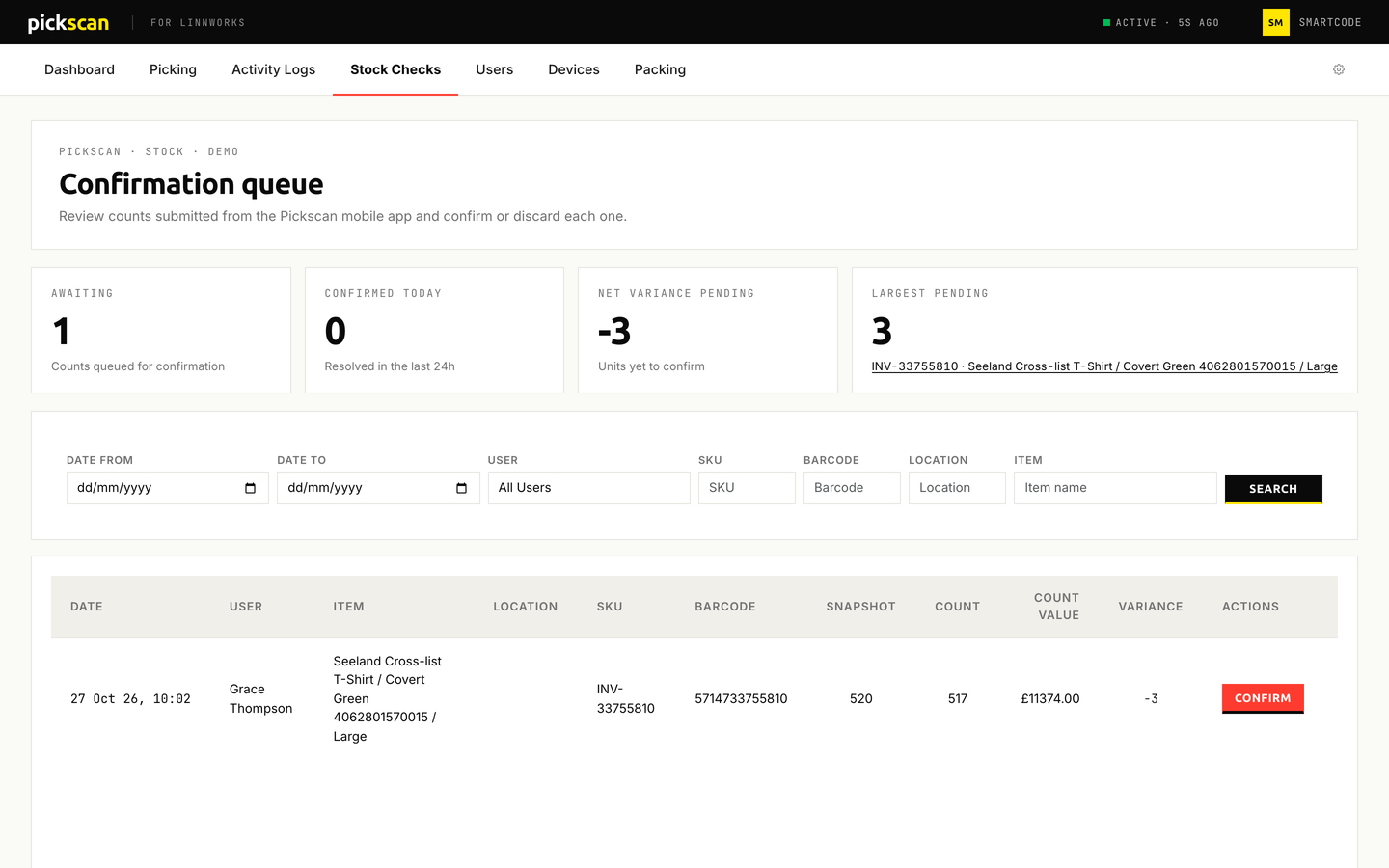
Summary cards
| Card | Meaning |
|---|---|
| AWAITING | Counts queued for confirmation. |
| CONFIRMED TODAY | Resolved in the last 24h. |
| NET VARIANCE PENDING | Units yet to confirm. |
| LARGEST PENDING | Biggest discrepancy in queue. |
Filters
Use the fields above the table, then click SEARCH:
- FROM / TO — date range
- USER
- SKU
- BARCODE
- LOCATION
- ITEM
Queue columns
| Column | Description |
|---|---|
| DATE | When the count was submitted |
| USER | Who performed the count |
| ITEM | Product name |
| LOCATION | Warehouse location |
| SKU | Stock keeping unit |
| BARCODE | Product barcode |
| SNAPSHOT | Stock level in Linnworks at the time of the count |
| COUNT | Quantity the user physically counted |
| COUNT VALUE | Monetary value of the count |
| VARIANCE | Difference between the count and the snapshot |
| ACTIONS | Confirm button, or confirmation status |
Confirming a stock check
When a count has a variance (the count does not match the snapshot), a Confirm button appears in the Actions column. Counts with zero variance show No action needed.
- Click Confirm
The reconciliation page opens, showing the snapshot, the variance, and a breakdown of stock movements since the count.
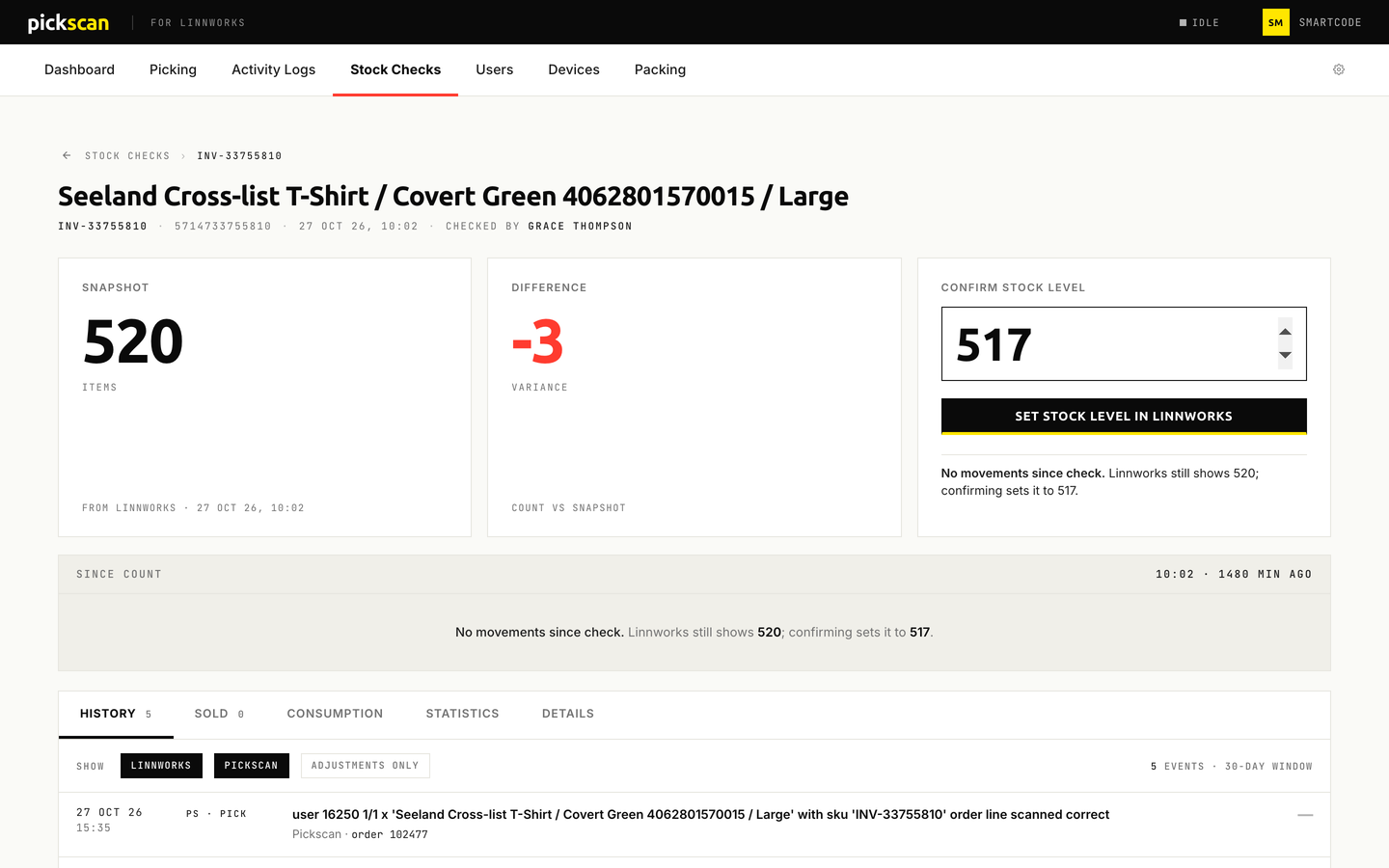
The reconciliation page for one count - Review movements since the count
The Since count section shows net stock changes since the count was taken — sales, returns, and manual adjustments. This helps explain whether the variance is expected.
- Check the History tab
The History tab shows a merged timeline of Linnworks and Pickscan events for the item over the last 30 days. Use the source filter pills to show or hide Linnworks events, Pickscan events, or adjustments only.
- Confirm the stock level
The Confirm stock level card shows the counted quantity. Adjust the number if needed, then click Set stock level in Linnworks. Pickscan updates the stock level in Linnworks and returns you to the confirmation queue.
If a count looks wrong, ask the user to count the item again on the mobile app, then confirm the new count and enter the correct quantity in the Confirm stock level card.
Once a stock check has been confirmed, it cannot be changed. The Actions column shows Confirmed on with the date and time.
Reconciliation tabs
The reconciliation page has five tabs:
- History — a merged timeline of Linnworks and Pickscan events for the item. Shows sales, returns, purchase orders, manual adjustments, scans, picks, and counts.
- Sold — commercial sales only, with order reference, channel, and quantity.
- Consumption — consumption data from Linnworks (when available).
- Statistics — sold statistics from Linnworks (when available).
- Details — item details from Linnworks (when available).