Pick-list and picking settings
Before you begin
- Ensure you have admin access to Pickscan in your Shopify admin.
For a guide on generating and printing pick lists, see Generating a printable pick list.
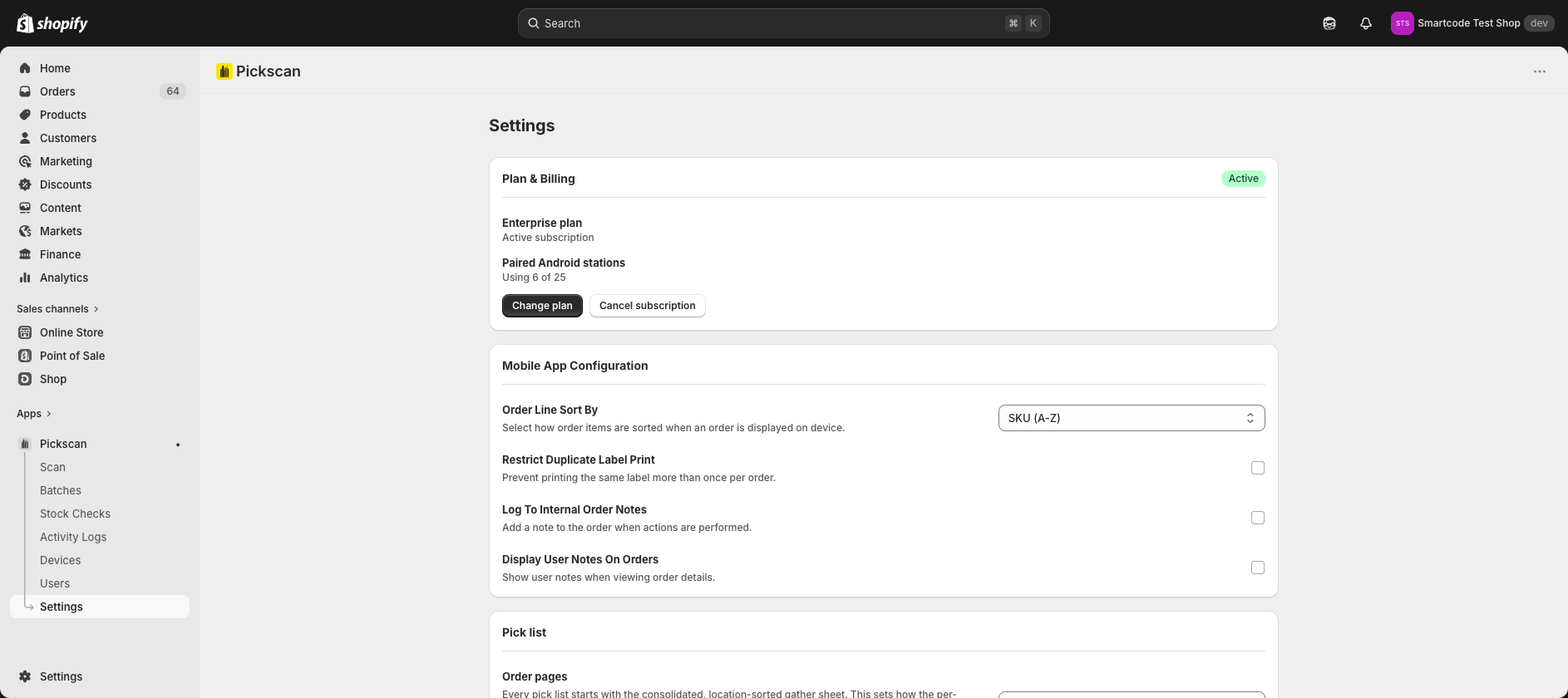
Pick-list settings
Open Settings in Pickscan and find the Pick list section.
- Choose Order pages
Every pick list starts with a consolidated, location-sorted gather sheet. Order pages controls what follows it. Pack slips — one order per page adds a full page per order with the delivery address. Compact — barcode + contents (scan to pack) puts several orders per page with a prominent order barcode you scan in the Pickscan app to open and pack the order.
- Set Minimum items per pick list
Stops a pick list being generated until the selected orders contain at least this many items. Use it to avoid sending a picker out for a small number of items. Set it to 0 for no minimum.
- Choose Bin location level
Pickscan reads bin locations from the
my_fields.bin_locationmetafield at product or variant level. This setting only matters when both are set on the same product. Choose Variant if variant-level bins should take priority, or Product if product-level bins should.
Mobile app settings
In the Mobile App Configuration section, Order Line Sort By controls how order items are sorted when displayed on device. Options: SKU (A-Z) or SKU (Z-A).
Settings reference
| Setting | What it controls |
|---|---|
| Order pages | Per-order pages that follow the gather sheet on a printed pick list |
| Minimum items per pick list | When Print pick list becomes available for selected orders |
| Bin location level | Which my_fields.bin_location value wins when product and variant bins are both set |
| Order Line Sort By | Item order on the mobile device, by SKU |
Troubleshooting
Print pick list is disabled. Check Minimum items per pick list. Select enough orders to meet the minimum, or set it to 0.
Items are not in the expected location order. Check Bin location level, then confirm the product or variant has my_fields.bin_location set in Shopify.
Your changes did not apply. Click Save Settings and wait for the confirmation message. If Pickscan shows a save error, retry or contact Pickscan support.