Managing users in Pickscan
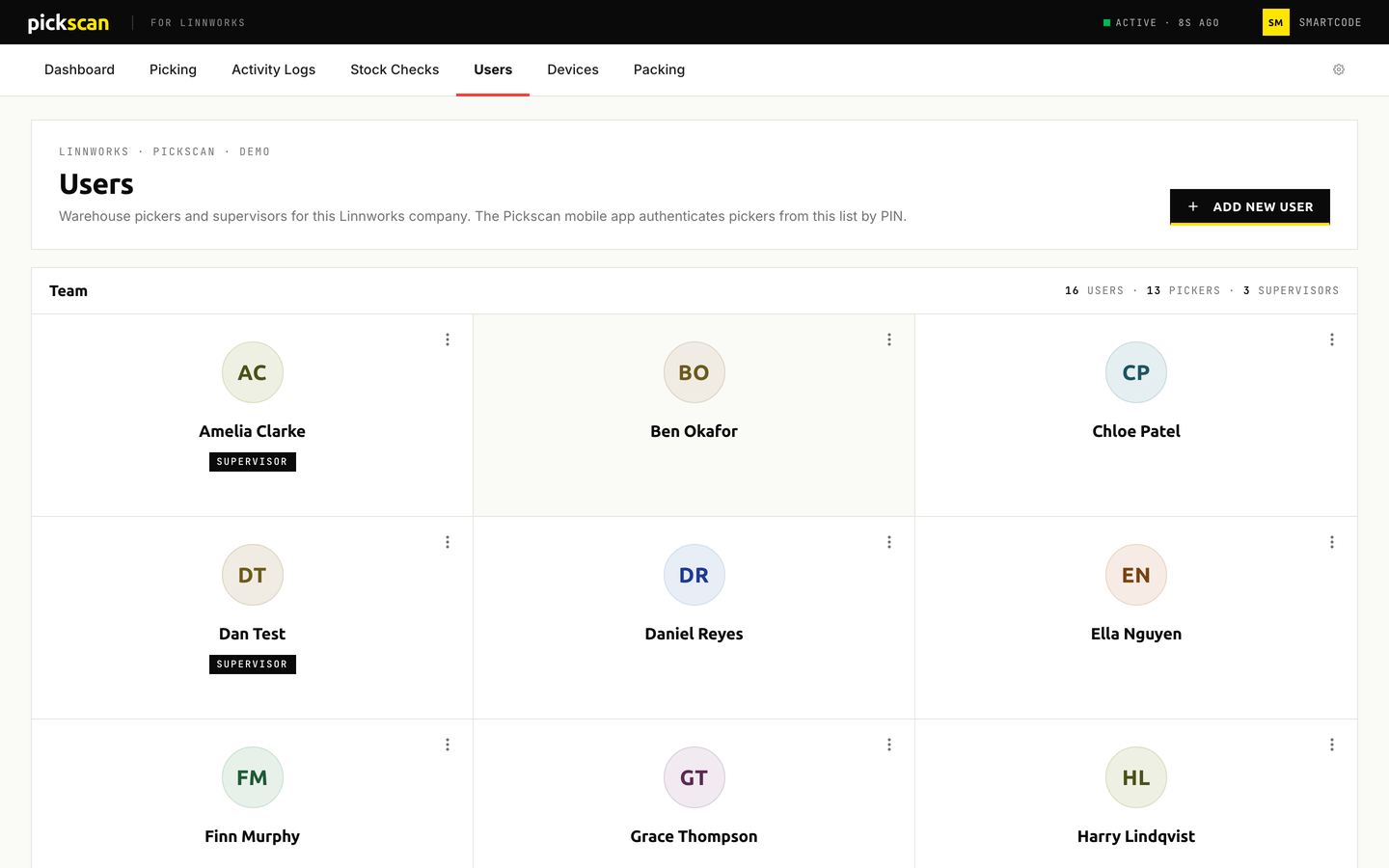
The Users page lists the warehouse pickers and supervisors for this Linnworks company. The Pickscan mobile app and the packing station sign users in from this list by PIN, and every scan and action is recorded against the signed-in user.
Open Pickscan from Apps in Linnworks, then choose Users.
Before you begin
- Decide who needs supervisor access. Supervisors have elevated permissions in the app and can access additional features and settings; pickers can pick and count stock.
- PINs are four digits and are the only credential a user has, so keep them to one person each. You can look a PIN up at any time from the user's card.
The Team list
The Team header counts users, pickers and supervisors. Each card shows the user's initials, their name, a SUPERVISOR tag where it applies, and a three-dot menu with Edit user, View PIN and Disable. Disabled users are dimmed, labelled DISABLED, sorted to the bottom and have no menu.
Add a user
- Click Add New User
The
Add New Userdialog opens.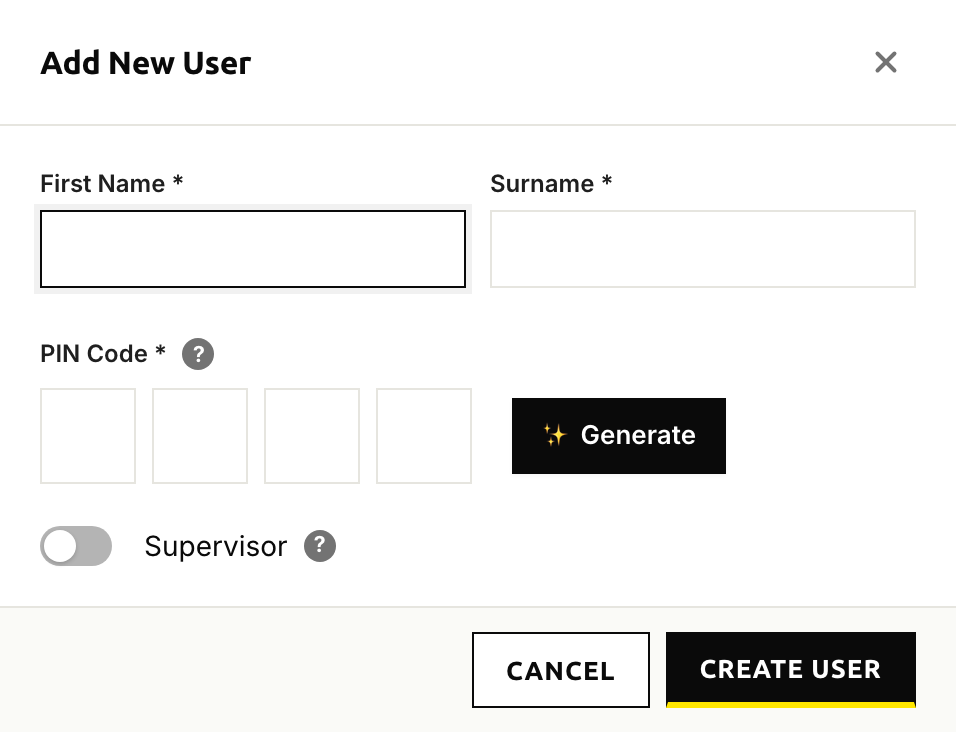
The Add New User dialog - Enter the name
Fill in
First NameandSurname: 2 to 50 characters each, letters and spaces only. - Set a PIN
Type a 4-digit
PIN Code, or clickGenerateto create one. Tell the user this PIN; they type it to sign in on the device. - Choose the role
Turn on the
Supervisortoggle for elevated permissions, or leave it off for a picker. - Create the user
Click
Create User. Devices pick up new users when they next sync, which normally takes a few seconds; if a brand-new PIN is refused, see [Troubleshooting Pickscan for Linnworks](/articles/linnworks-troubleshooting).
Edit a user
- Open the menu
Click the three-dot menu on the user's card and choose
Edit user. - Change the details
The form is pre-filled. Change the name, type or
Generatea new PIN, or switchSupervisoron or off. - Save
Click
Save changes. A changed PIN takes effect on devices after their next sync.
View a user's PIN
- Open the menu
Click the three-dot menu on the user's card and choose
View PIN. - Reveal it
Click
Reveal PIN. The PIN is never shown on the card itself, only in this dialog.
Disable a user
- Open the menu
Click the three-dot menu on the user's card and choose
Disable. - Confirm
Click
Disable User.
Disabling cannot be undone from the console, and a disabled user cannot sign in on any device. Their past activity stays in the logs and in the stock check queue, where their name carries a Disabled pill. To bring someone back, add them as a new user.
Tips
- Give each person their own user rather than sharing a PIN, so the dashboard leaderboard, activity logs and stock check queue show who did what.
- The first user is created by the setup wizard; see Setting up your Pickscan install.
- Signing in and switching users on the device is covered in Setting up a handheld and signing in.