Using the Pickscan Android app
Before you begin
- Ensure the Pickscan Android app is installed from Pickscan on Google Play.
- Ensure the device is connected to your Shopify store.
- Ensure you have your Pickscan user PIN.
- Ensure your store has batches or orders available to pick.
The 6-digit activation code connects a device to your store. Your user PIN signs you in after the device is connected.
Sign in
- Open Pickscan
Open the Pickscan app on the Android device.
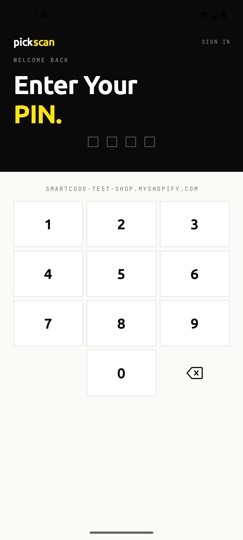
- Check the store name
The sign-in screen shows the Shopify store connected to the device.
- Enter your PIN
Use the on-screen keypad to enter your Pickscan user PIN.
Home screen
The Home tab shows the work available to the signed-in user.
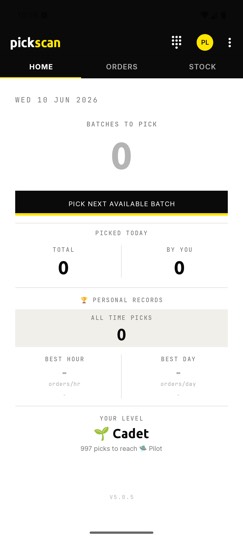
- Batches to pick or Orders to pick shows the available work count. The label depends on how your store is set up.
- Pick next available batch starts the next available batch when batch picking is enabled.
- Picked today shows the total picked today and the count picked by the signed-in user.
- Personal records shows all-time picks, best hour and best day.
- Your level shows the signed-in user's picker level and progress to the next level.
Main tabs
- Home shows the picker dashboard and the next-pick button.
- Orders opens the order area on the device.
- Stock opens stock tools available to your store.
Start picking
- Open Home
Use Home to see how many batches or orders are ready.
- Start the next item of work
Tap Pick next available batch when batch picking is enabled. If your store is not using batches, use the order workflow shown on the device.
- Follow the prompts
Scan the items or tote labels requested by the app as you work through the pick.
If you cannot sign in
Check that the device is connected to the correct Shopify store and that your user PIN is active. User PINs identify who is picking, so each picker should sign in with their own PIN.